
Clean up photos
How to Find and Delete Similar and Duplicate Photos on iPhone
The Photos app merges duplicates for you (Collections, Utilities, Duplicates, then Merge), but it has no list of look-alikes. To delete similar photos on iPhone, go through each set of near-identical shots yourself, keep the best one and delete the rest: by hand in Photos, or with an app that puts them into groups.
This guide is written by the makers of GetSorted, an iPhone app for cleaning up the photo library. GetSorted groups photos that look alike, but it does not find identical duplicates. Merge in the Photos app does that; the steps are below. What we say about other apps comes from their App Store pages (United States), read on 15 November 2026; we have not installed them.
Can the iPhone find similar photos?#
Not as a list to work through. The Photos app has a Duplicates collection for copies of the same photo, and for a burst the iPhone marks the frames it suggests you keep. For ordinary look-alikes, such as five takes of one sunset or three tries at a group photo, Apple's iPhone User Guide for iOS 26 and iOS 27 describes no collection, no compare view and no suggestion. Those need your eyes.
What is the difference between duplicates and similar photos?#
A duplicate is the same picture stored more than once, for example a photo you saved twice from a chat. Similar photos are different shots of the same scene, taken moments apart, each a little different: one is sharper, in another somebody blinks.
| Duplicates | Similar photos | |
|---|---|---|
| Built into the iPhone | Yes: Duplicates, with Merge | No, apart from bursts |
| Who picks the keeper | The iPhone, when you merge | You |
| GetSorted | Does not find or merge them | Groups them for you to compare |
How do you merge exact duplicates in the Photos app?#
These steps follow Apple's iPhone User Guide for iOS 26 and iOS 27 and Apple's support article on deleting photos.
- Open the Photos app and tap Collections.
- Scroll down and tap Utilities, then Duplicates.
- Tap Merge beside a set of duplicates, then confirm with the Merge button that names the number of items.
- To merge several sets or all of them, tap Select, then Select on each set or Select All, then Merge.
Merging is free and needs no extra app. According to Apple, the iPhone keeps one photo that combines the highest image quality and the relevant data of the copies, and moves the other copies to Recently Deleted. No Duplicates entry? The iPhone has found none so far: Apple says the search runs while the iPhone is locked and connected to power and can take up to a few days.
Should you merge or delete duplicate photos?#
Merge. The iPhone then chooses for you: it keeps one photo in the highest image quality, and the other copies wait in Recently Deleted for 30 days. By hand you would have to pick the better file every time, and the copies look alike on screen.
How do you find look-alikes by hand, and why is it slow?#
In the Photos app, stay in the Library and tap Years or Months to jump to a time. Tap a photo to see it full screen and swipe left and right through the shots around it. Back in the grid, tap Select, tap the ones you do not want, tap the Trash button and confirm.
It is slow because you have to spot every set yourself and see one photo at a time. Apple's guide describes no compare view and no way to keep the zoom from one photo to the next.
Bursts. Open the burst, tap Burst (with the number of frames), tap the circle on each frame you want to keep as its own photo, then Done. Gray dots mark the frames the iPhone suggests; the Delete button removes the whole burst.
Live Photos. If the still of a Live Photo is not its best moment, open it, tap Edit, then the Live Photo button, move the frame, tap Make Key Photo, then Done.
How to delete similar photos on iPhone, one group at a time#
Here GetSorted comes in. It compares how your photos look, on your device, month by month, and groups photos that look alike and were taken within 10 minutes of the one before: Similar photos. It only groups: GetSorted never marks a photo by itself and suggests no best shot. Every photo is your decision.
- Open the Overview tab and tap Similar photos under Across all years.
- GetSorted scans your months, newest first. It pauses when you leave, and results are kept.
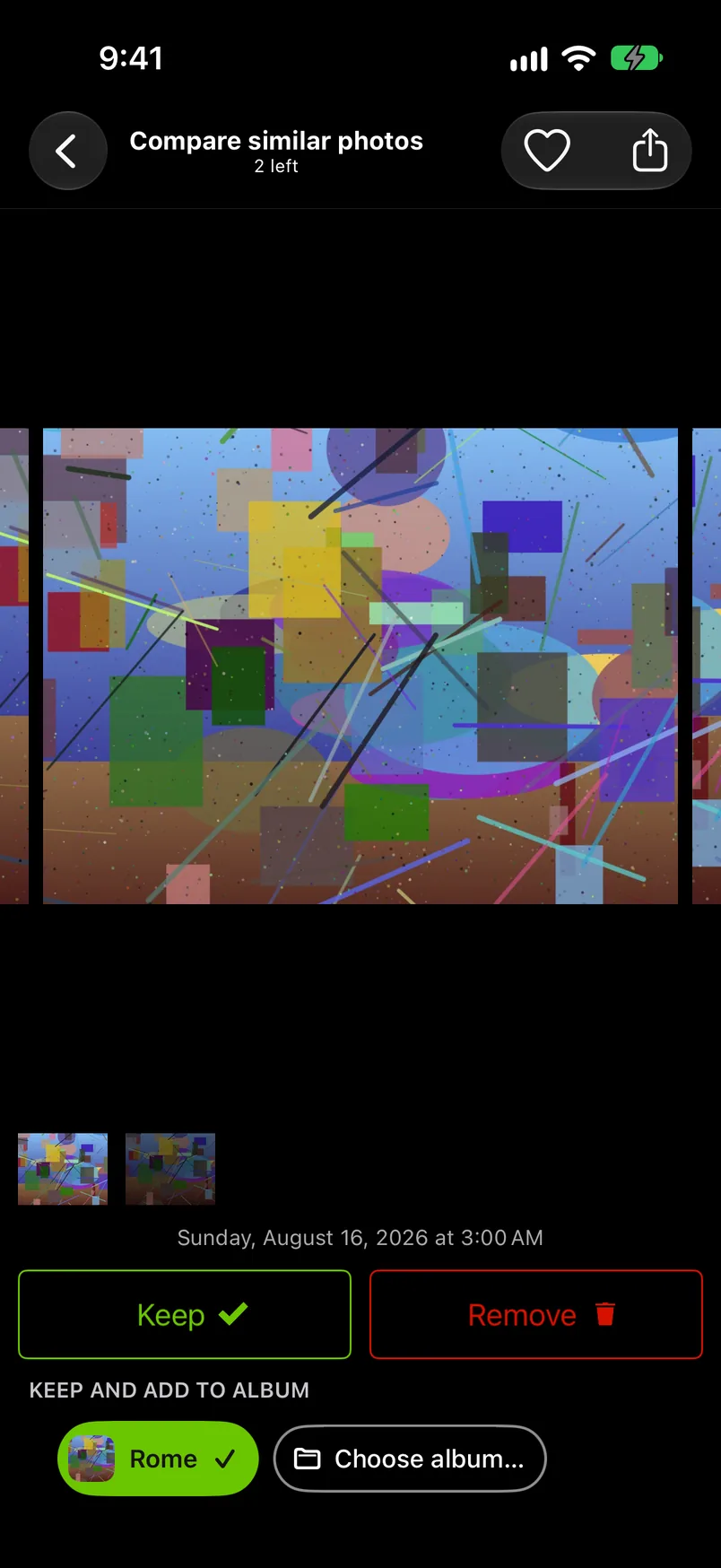
- Tap a group. Compare mode opens with that group and nothing else.
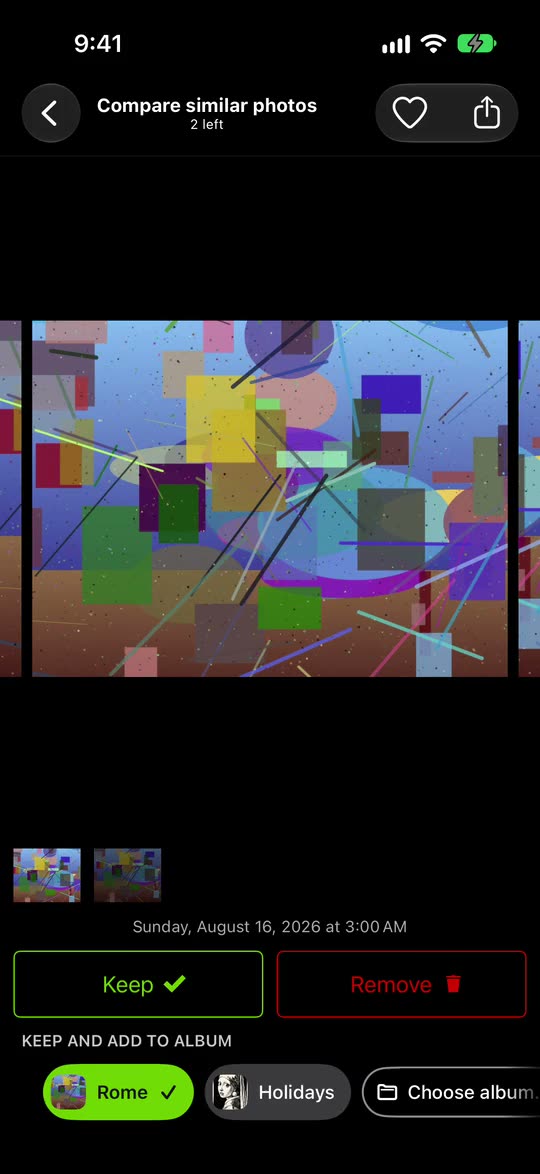
- Swipe left and right as often as you like. The neighbors peek in at both edges, so a swipe shows the two photos next to each other for a moment.
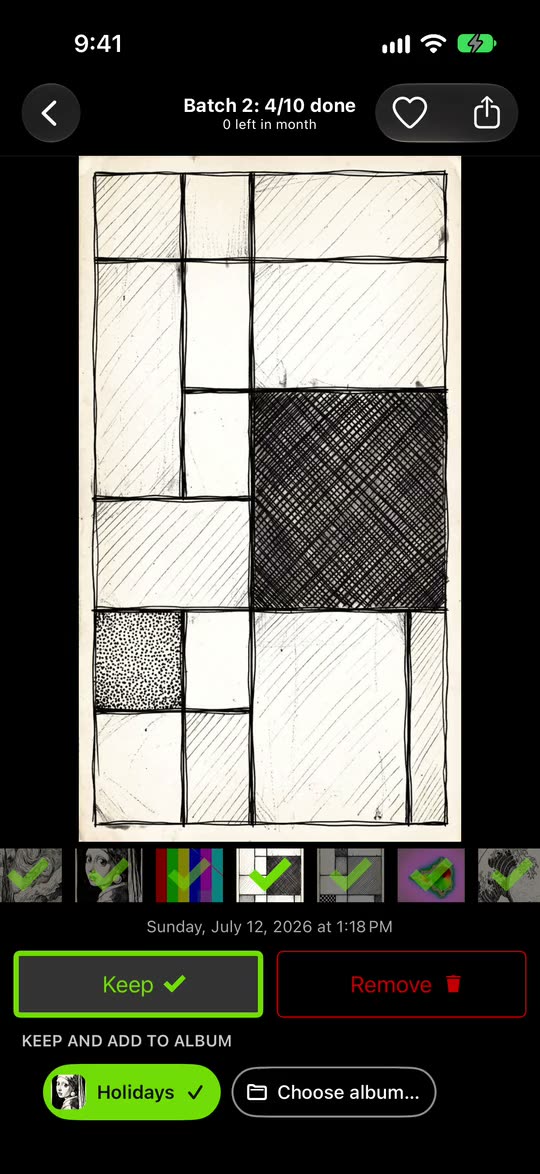
- Swipe up to mark a photo Remove, down to mark it Keep.
- When the group is decided, compare mode closes. If you marked anything Remove, tap Complete month on the group's grid and confirm the iOS dialog.
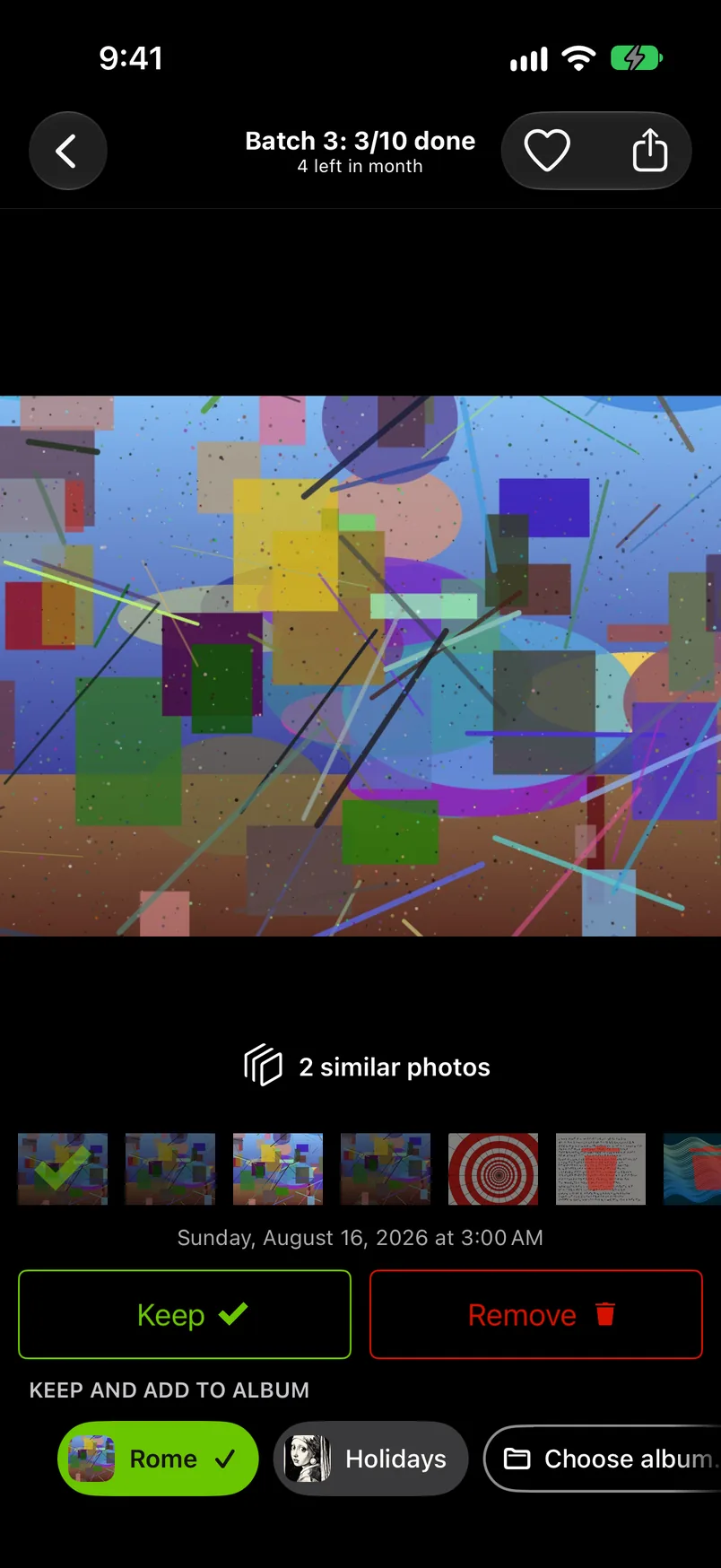
Tap the badge on a photo in the month sorter ("3 similar photos"), and compare mode opens for that group too.
Nothing is deleted while you compare. Photos marked Remove wait in GetSorted's Trash until you tap Complete month or empty the Trash and confirm. On a group's grid, Complete month deletes what you marked Remove in the groups of that month that you have opened. Deleted photos stay in Recently Deleted in the Photos app for 30 days; their storage is freed when they leave it.
What GetSorted does not do: it compares how photos look, not their files, so a copy saved weeks after its original is not found. It does not clear a group in one tap. Videos and screenshots are left out (see how to delete screenshots), and of a burst it lists only the key photo.
What is free: the download and the scan of every month; there are no ads. Sorting is free in six calendar months of your library, of your choice (six months of photos, not six months of time): a group in a month you have started is free, a group in a new month uses one of the six. After that, GetSorted Plus, a monthly or yearly subscription, unlocks every month. GetSorted does not upload your photos or videos; they are shown and compared on your device. It sends usage statistics, crash reports and purchase status to three services, named under Privacy.
How do you pick the best shot?#
Compare one detail at a time, not whole pictures.
- Sharpness first. Zoom into the eyes or the finest detail. A shot that looks fine as a thumbnail can be soft at full size.
- Faces next. Open eyes, no half blink, nobody looking away. In a group photo, check every face.
- Framing. Nothing cut off at the edge, a level horizon, no stranger walking in.
- Light. A sky burned to white or a face lost in shadow rarely gets better later.
In GetSorted the zoom lock helps with the first two: pinch into a face, lift your fingers, and the zoom stays while you tap the left or right side of the photo to move through the group. If you cannot decide, keep both.
Which apps suggest the best shot for you?#
Some apps propose a keeper, which suits you if you prefer confirming to comparing. According to their App Store pages, Clever Cleaner, Cleanup (listed as Cleanup: Phone Storage Cleaner) and Cleaner Guru find similar photos and mark a best shot. Clever Cleaner's page says it is free within daily limits, without ads, with a weekly plan or a one-time purchase to lift the limits. Cleanup's page names a weekly and a lifetime subscription with a 7-day free trial, Cleaner Guru's names auto-renewing subscriptions without stating the periods; what is free is not stated for either. Best photo cleaner apps compares more apps, with prices.
What's the difference between similar photos and duplicates?
A duplicate is the same picture stored more than once, and the Photos app can merge those. Similar photos are different shots of the same scene, so somebody has to choose which one stays: you.
Can I find similar photos on iPhone without an app?
Only by looking. Apple's iPhone User Guide for iOS 26 and iOS 27 describes a Duplicates collection and suggested frames for bursts, but no list of look-alikes.
Should I merge or delete duplicate photos on iPhone?
Merge them. According to Apple, a merge keeps one photo with the highest image quality and the relevant data of the copies, and moves the rest to Recently Deleted for 30 days.
Is there an app to delete similar photos?
Yes. Clever Cleaner, Cleanup and Cleaner Guru say on their App Store pages (United States, 15 November 2026) that they mark a best shot in each group; GetSorted groups the look-alikes and leaves every decision to you.
Does GetSorted find exact duplicates?
No. GetSorted compares how photos look, not their files, and merges nothing. For exact duplicates, use Duplicates in the Photos app.