The screen#
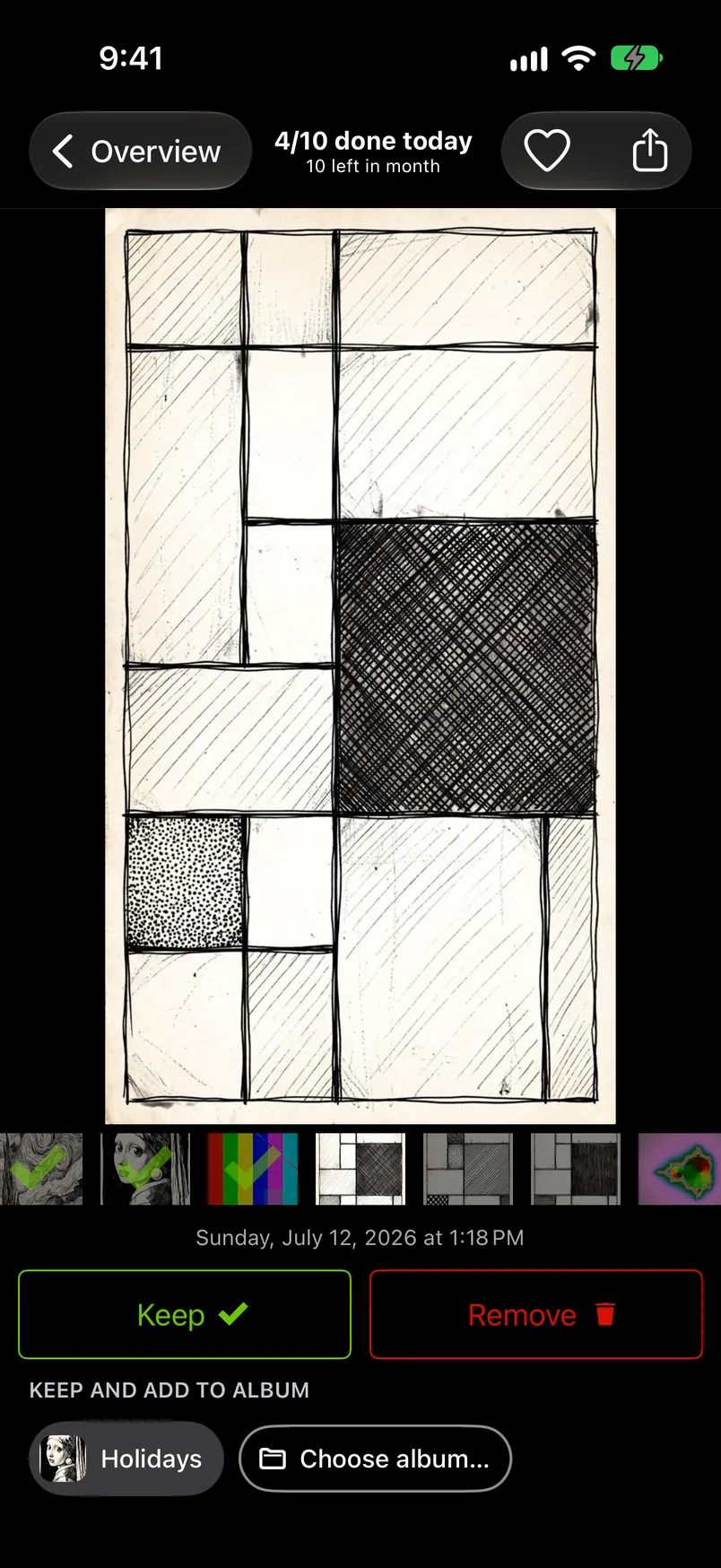
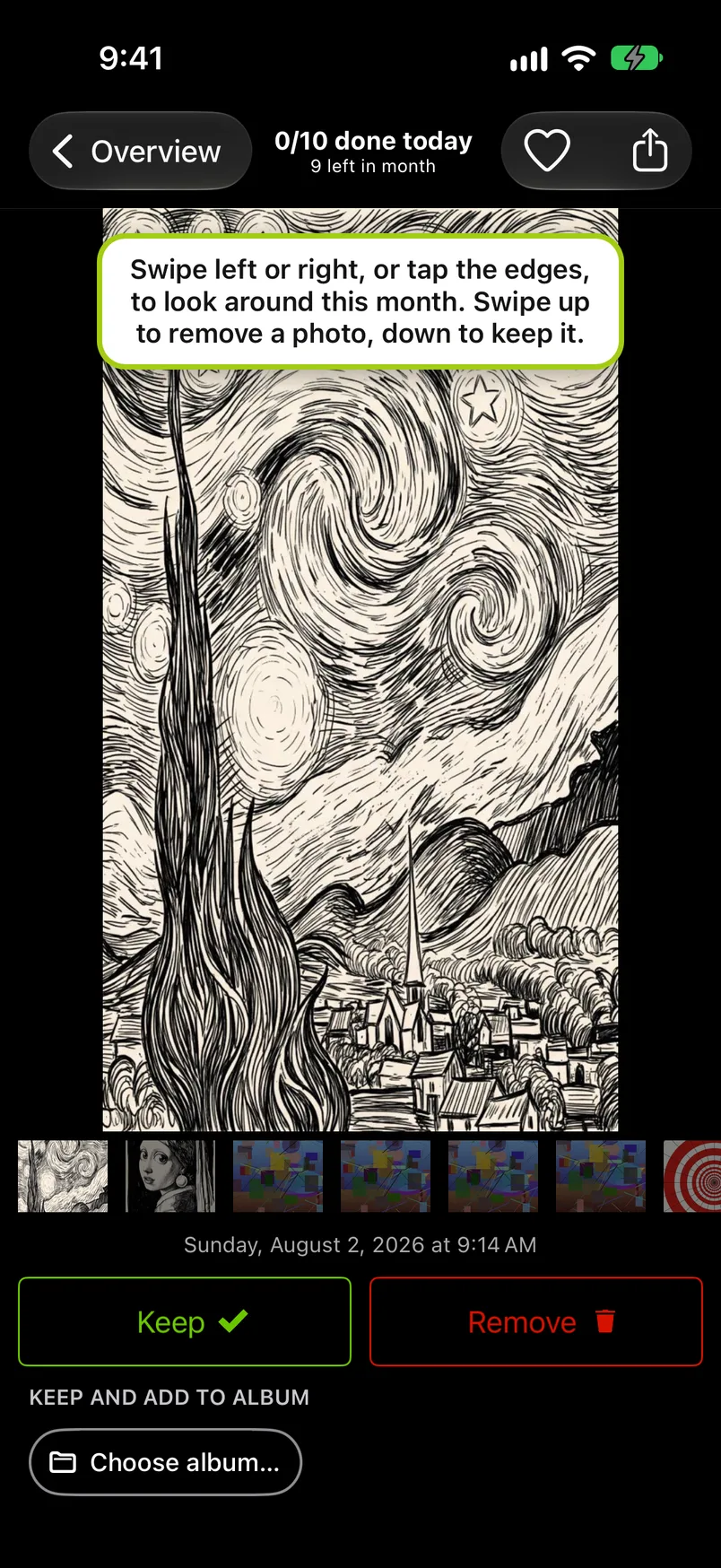
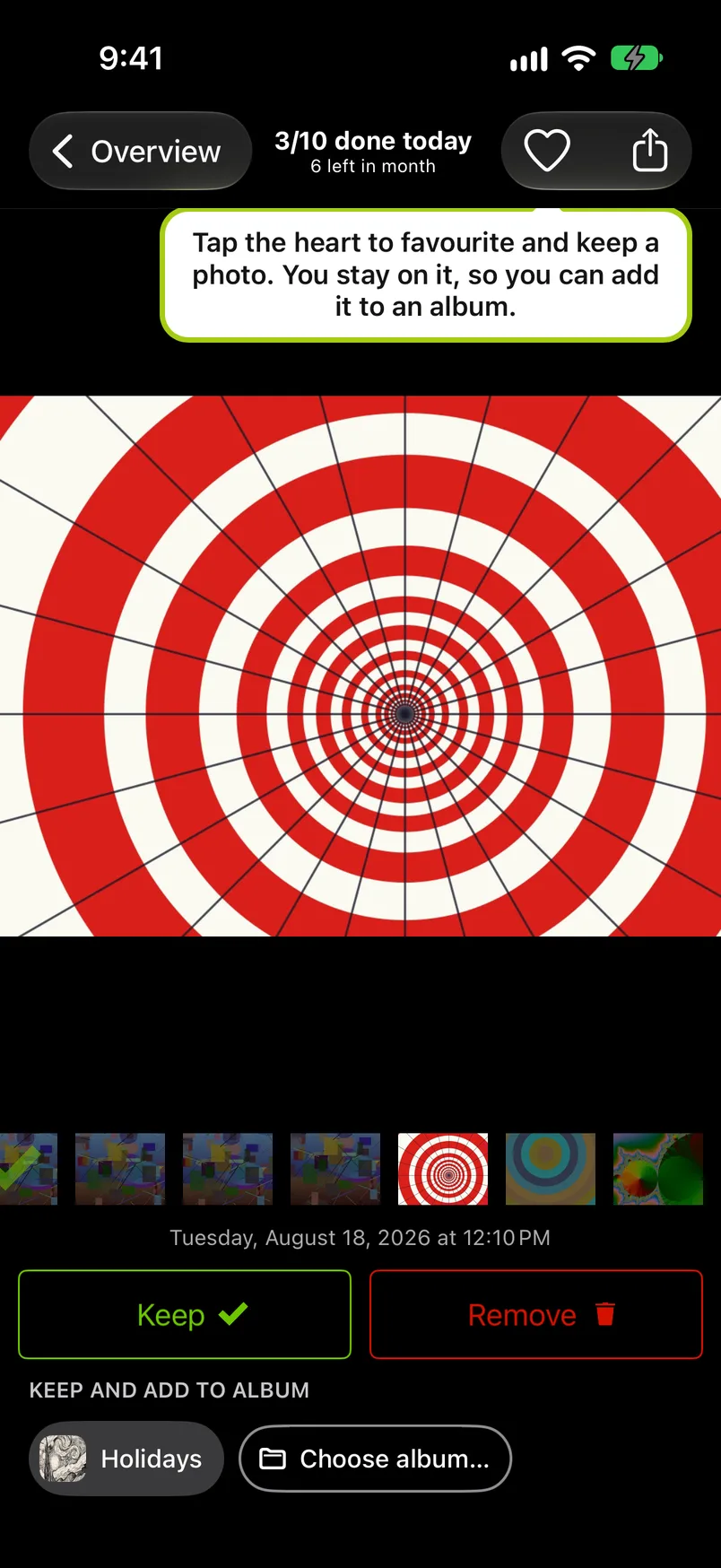
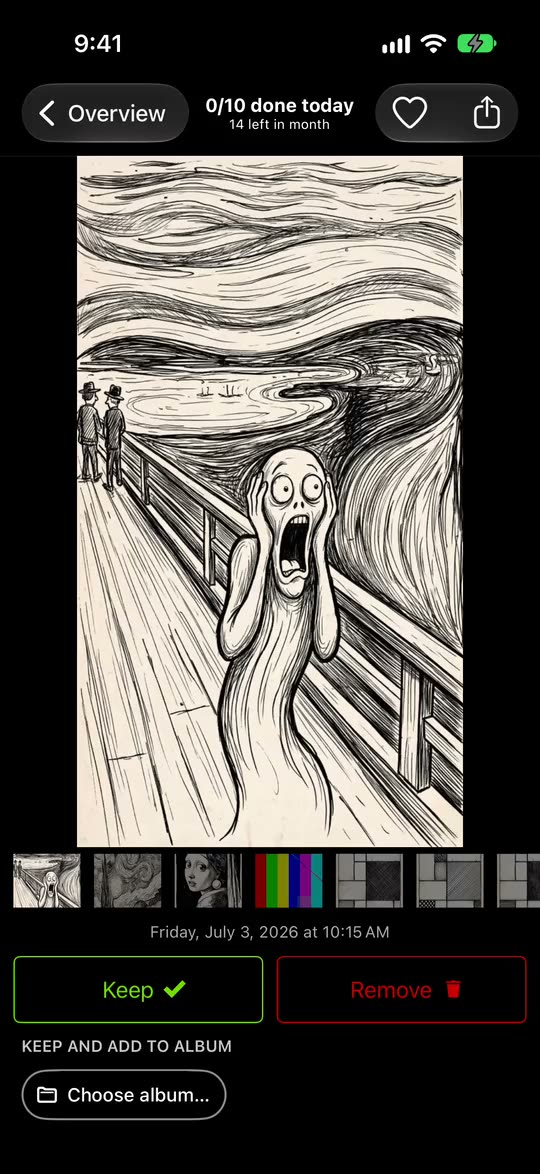
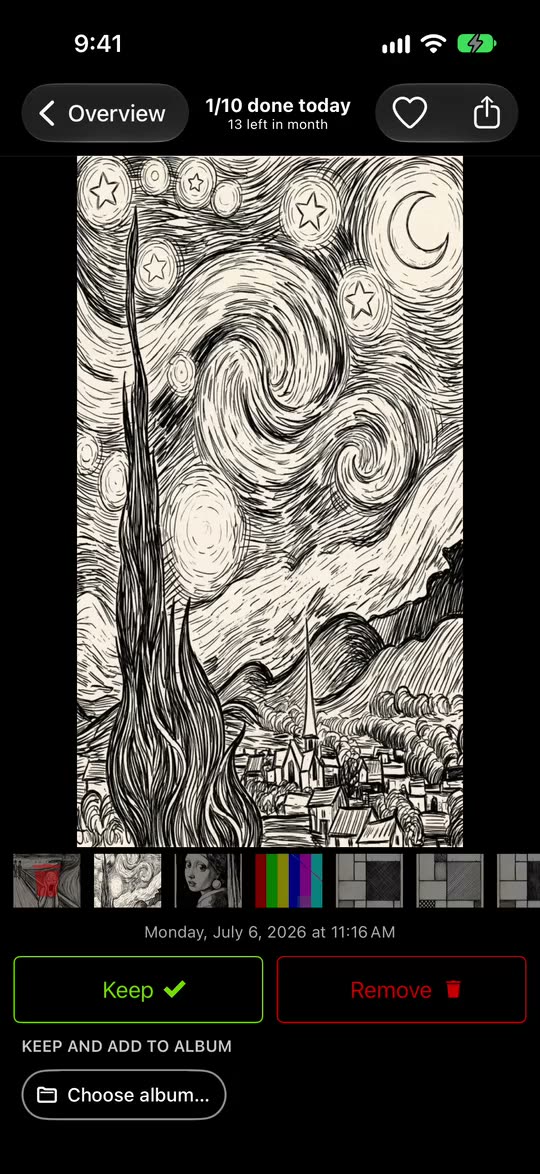
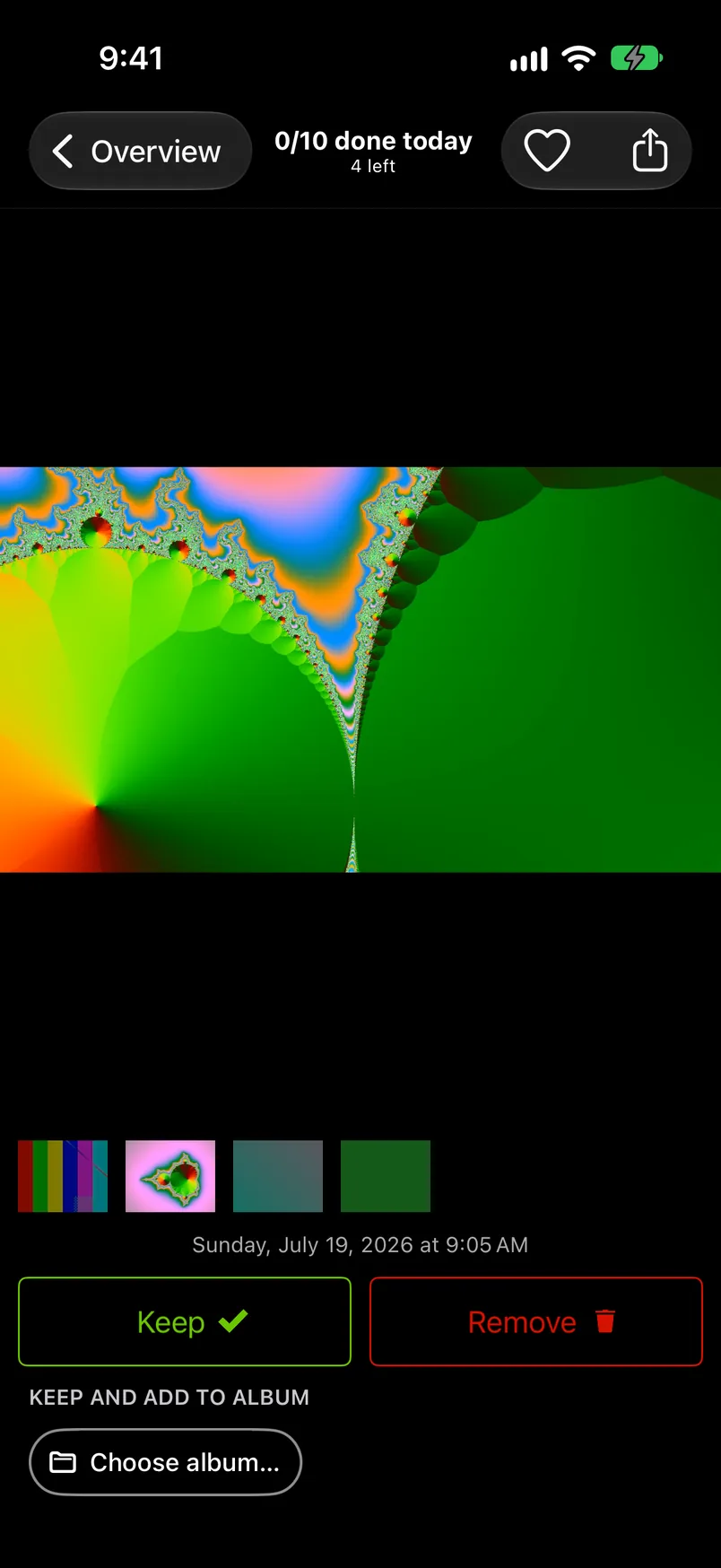
From top to bottom:
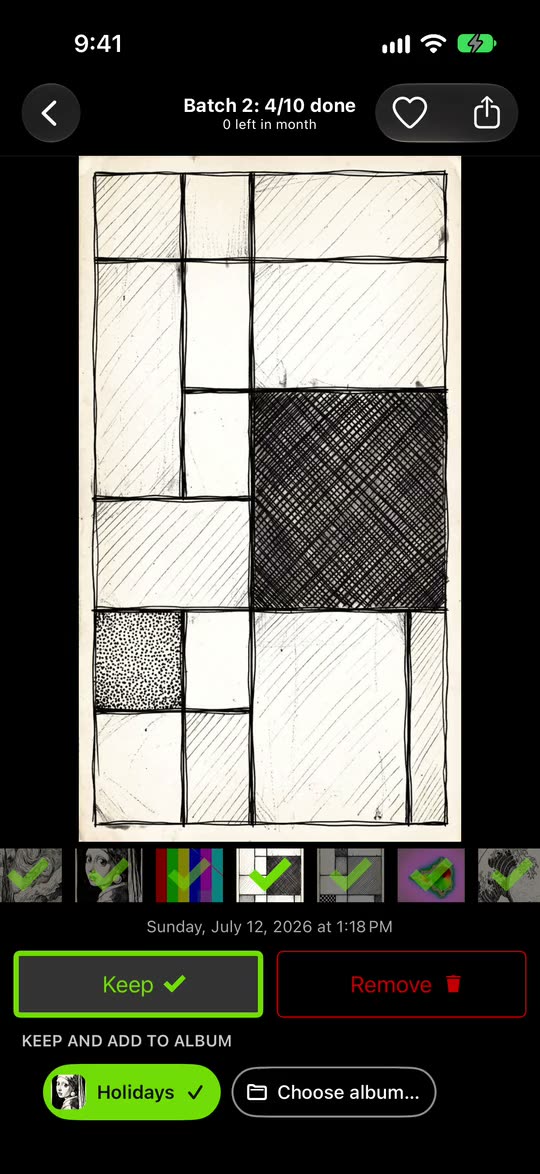
- The title counts today's decisions against your daily goal ("3/10 done today") and how many photos are left in the month ("12 left in month"). From the second batch of the day the first line reads "Batch 2: 3/10 done". In a month opened from the Videos, Screenshots or Live Photos lists the second line reads "4 left".
- The heart and the share button: the heart marks the photo as a favorite in Photos and keeps it, without moving on; the share button hands a copy of the photo to the iOS share sheet. See Favorites and sharing.
- The photo, or the video, which plays muted.
- The filmstrip shows the month around the current photo, with a green check or a red trash can on the ones you decided. Tap any thumbnail to jump to it.
- The date and time the photo was taken.
- Keep and Remove do the same as the swipes.
- The album chips keep the photo and file it in one tap, see Albums.
On an iPhone held sideways the sorter leaves out the date, Keep and Remove and the album chips to give the photo more room; the swipes still work, see Landscape.
Keep and Remove#
One swipe decides whether you keep or delete a photo: up marks it Remove, down marks it Keep.
Nothing is deleted when you mark a photo Remove. The decision is recorded, the filmstrip shows the red trash can, and the photo waits in the Trash, still in your library, until you complete its month or delete it from the Trash. Changed your mind? Go back to the photo (swipe, filmstrip or grid) and swipe the other way, or tap the photo in the Trash; the new decision replaces the old one. A changed decision does not count toward the daily goal a second time.
After each decision the sorter moves on to the next photo in the month. The one exception is a keep by the heart, which stays on the photo. When the last undecided photo is decided, the sorter returns to the month grid (after the heart you go back yourself). If anything in the month is marked Remove, Complete month is waiting there. If you kept everything, the month is complete at once, with no button to tap; see The month summary for what follows.
Looking around#
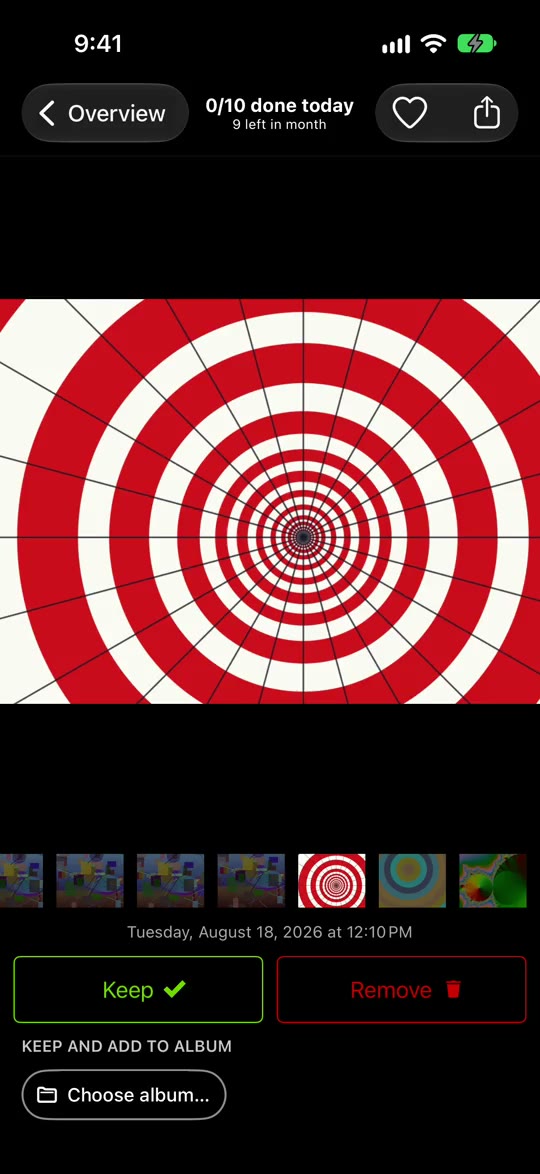
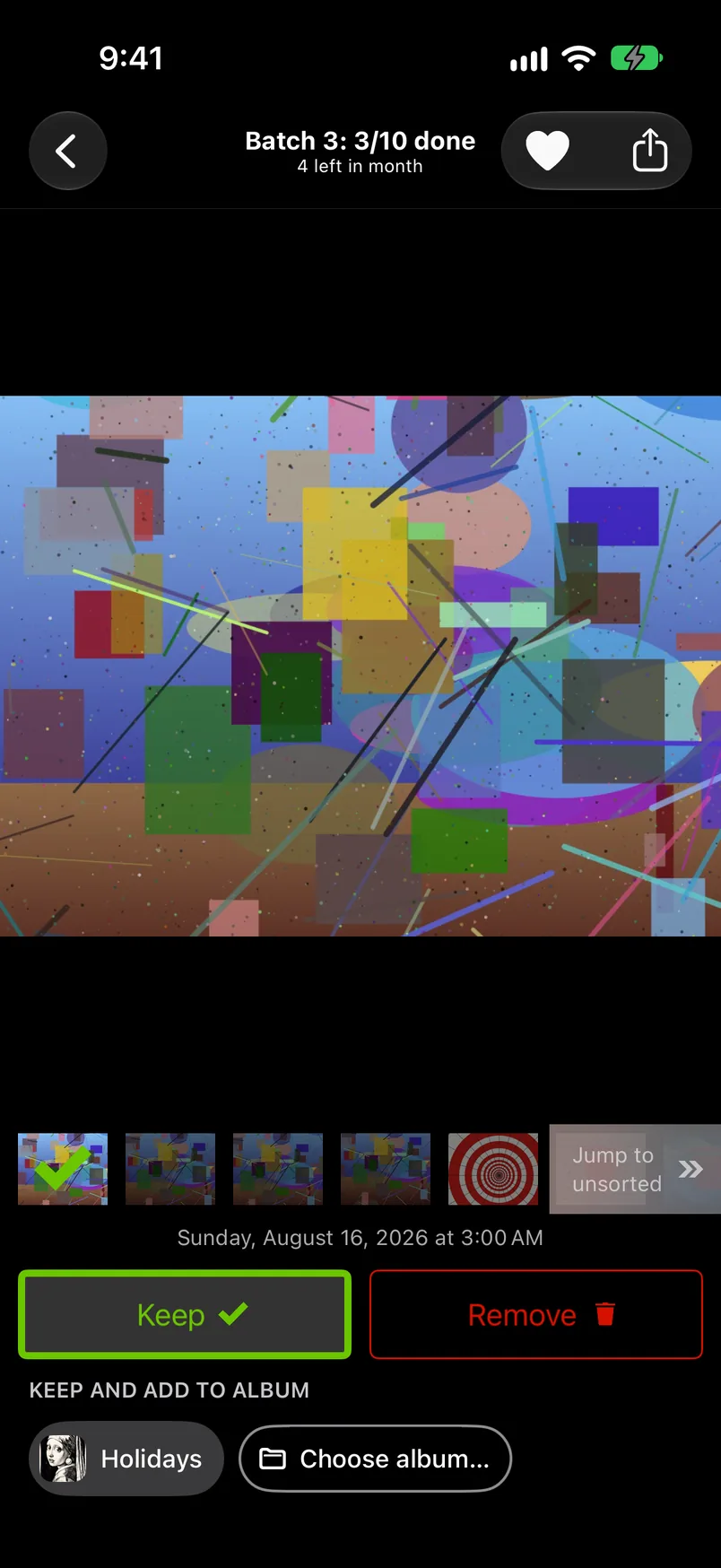
Paging never decides anything, and a sideways swipe never leaves the sorter: the back button at the top left is the only way back to the grid. If you try to swipe your way out (a swipe right from the left edge of the screen, or paging back from the first photo onto the last), a one-time tip points at the back button. The filmstrip's thumbnails jump straight to a photo. Jump to unsorted, the small button at the right end of the filmstrip, appears whenever you are on a decided photo while undecided ones remain; it skips ahead to the next undecided photo, and if none lies ahead, it goes around to the first undecided one from the start of the month. Compare mode has no such button.
Zoom lock#
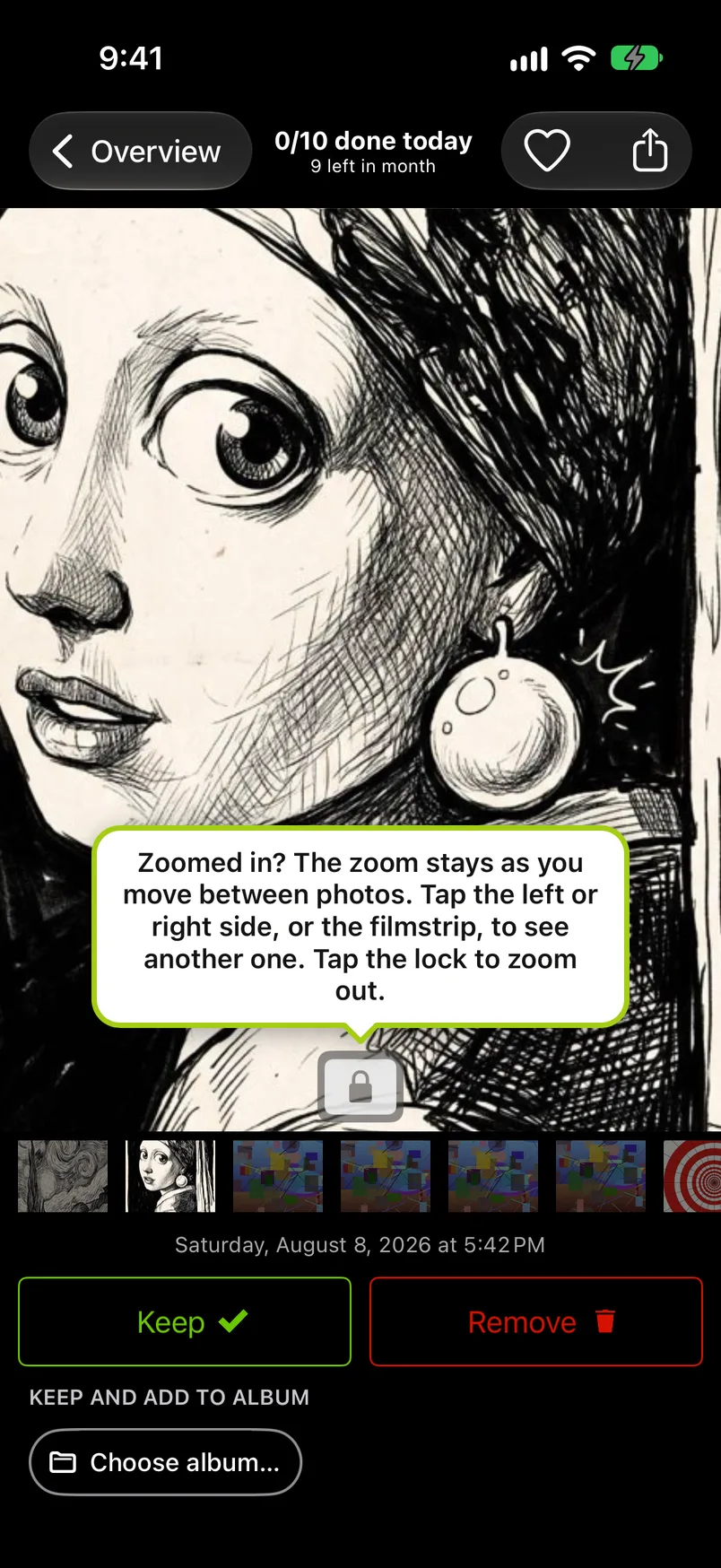
Pinch to zoom into a photo. Lift your fingers once the photo is at 1.3 times its size or more, and the zoom stays (a smaller pinch springs back): a small lock at the bottom of the photo shows it, and the next photo you go to opens at the same zoom and position. That is the way to compare a detail across a series, for example which of five shots has the sharpest face. Tap the lock, or pinch back out, to return to the whole photo.
While zoomed in you can still sort: push the photo past its top or bottom edge, and the swipe counts. A sideways swipe pans the zoomed photo first; pushing past its left or right edge pages to the neighbor. Tapping the left or right side of the photo, or a filmstrip thumbnail, also moves to another photo at the same zoom. Videos always show whole and clear the lock.
The first time the lock engages, a tip explains it: "Zoomed in? The zoom stays as you move between photos. Tap the left or right side, or the filmstrip, to see another one. Tap the lock to zoom out." It goes away on its own after 6 seconds.
Favorites and sharing#
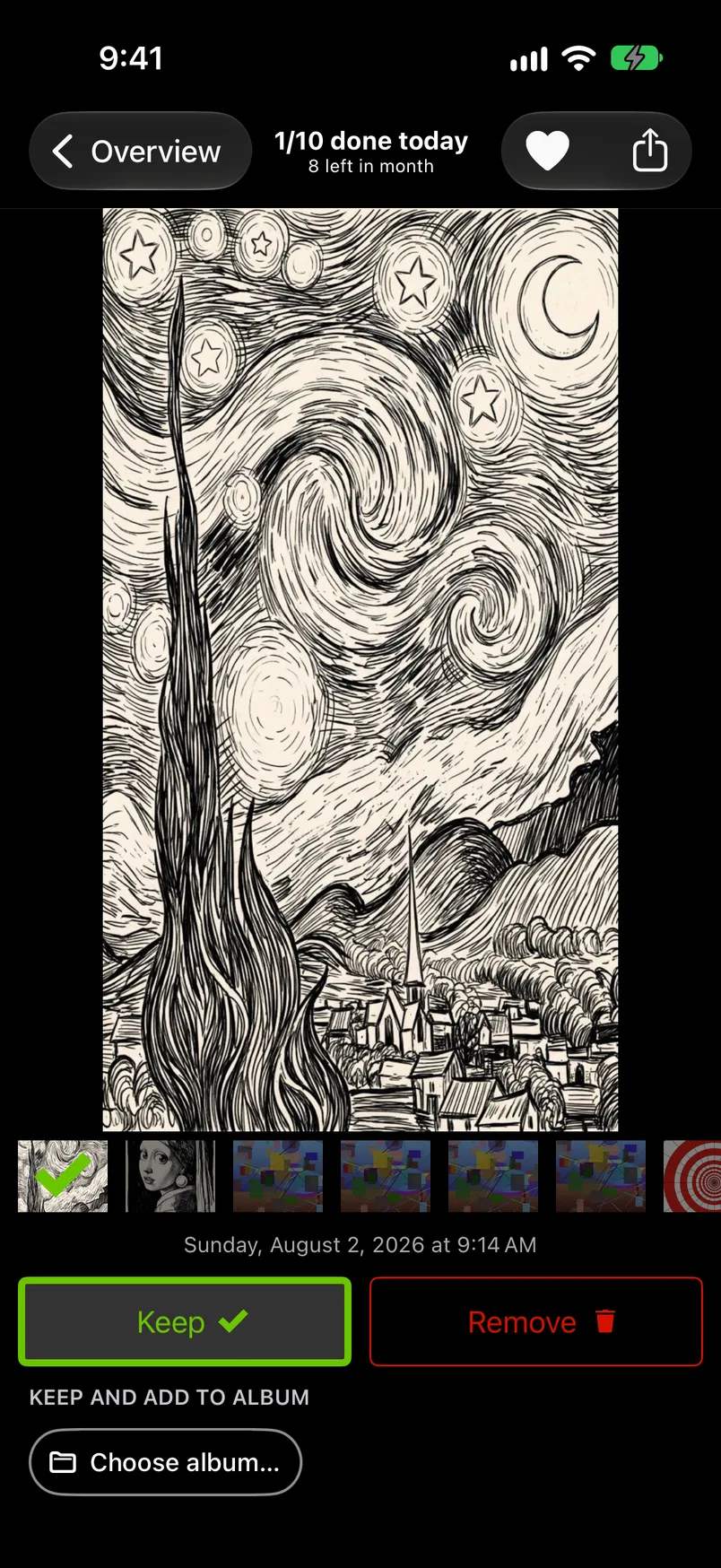
The heart at the top right marks the photo as a favorite in the Photos app, the same favorite you see there. A favorite is a photo you want, so the heart also marks it Keep, even if you had marked it Remove, and it does not ask first. Unlike Keep, it stays on the photo, so you can still file it with an album chip before you swipe on. A first keep by the heart counts toward the daily goal like any other. If it was the month's last undecided photo, the sorter stays on it too; go back with the back button when you are done. Tap the heart again to take the favorite away; that never changes Keep or Remove.
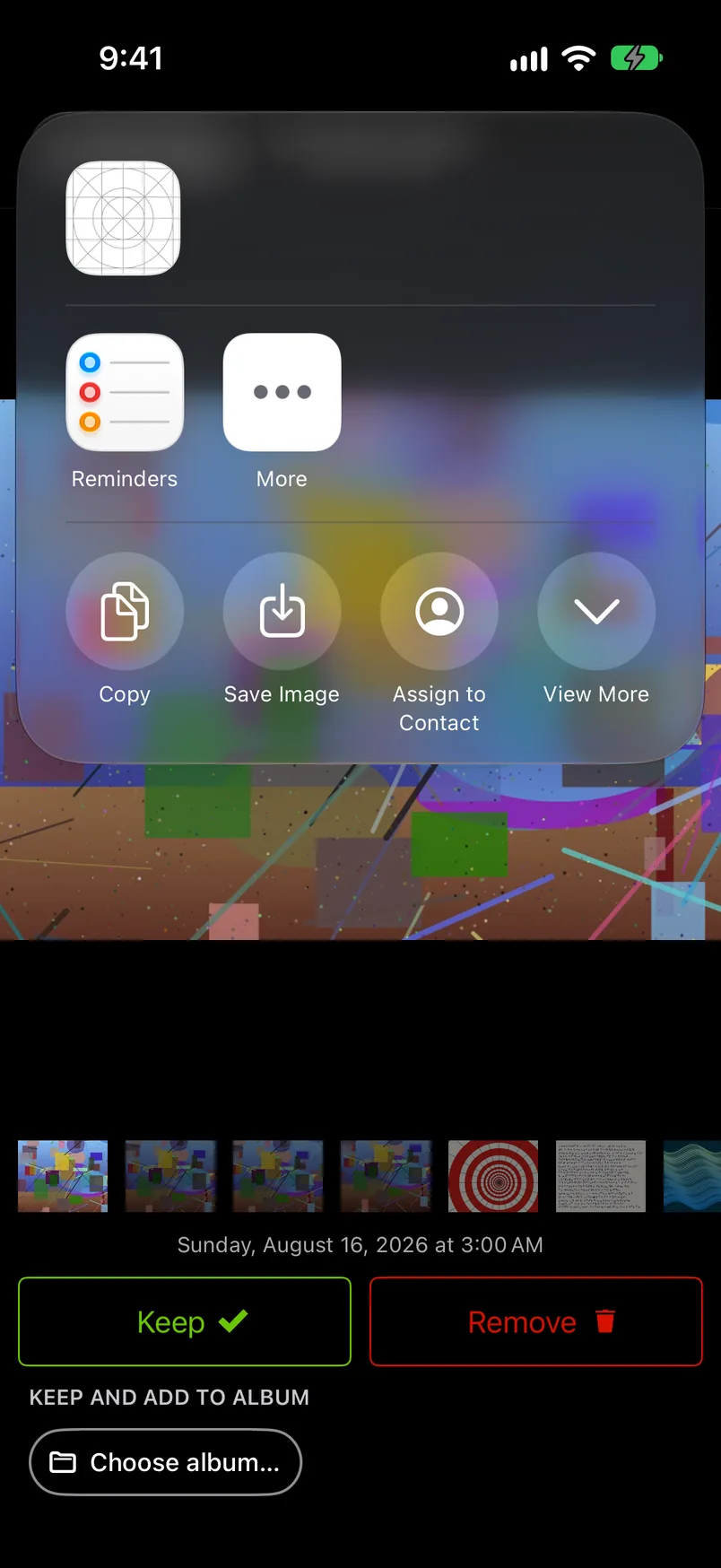
The share button opens the iOS share sheet. GetSorted hands it a copy made for sharing, not the original file: a photo goes out as the picture you see, at about the resolution of the screen (a Live Photo as a still picture), a video as a newly exported MP4. To send the original, share it from the Photos app. A video without a sound track cannot be shared from GetSorted; it answers "Could not load video". Sharing never decides anything.
Videos and Live Photos#
A video shows a still while it loads, then plays muted; tap the video for sound and controls. Swipe up and down to decide, as with a photo. Zoom does not apply to videos. A video that cannot be loaded keeps its still and says "No preview available on this device" (see the FAQ). A Live Photo carries the Live Photo badge at the top left and plays when you touch and hold it. Both have a one-time tip the first time one is on screen. The Overview tab has lists of only your videos, your screenshots and your Live Photos, month by month, see Across all years.
The similar-photos badge#
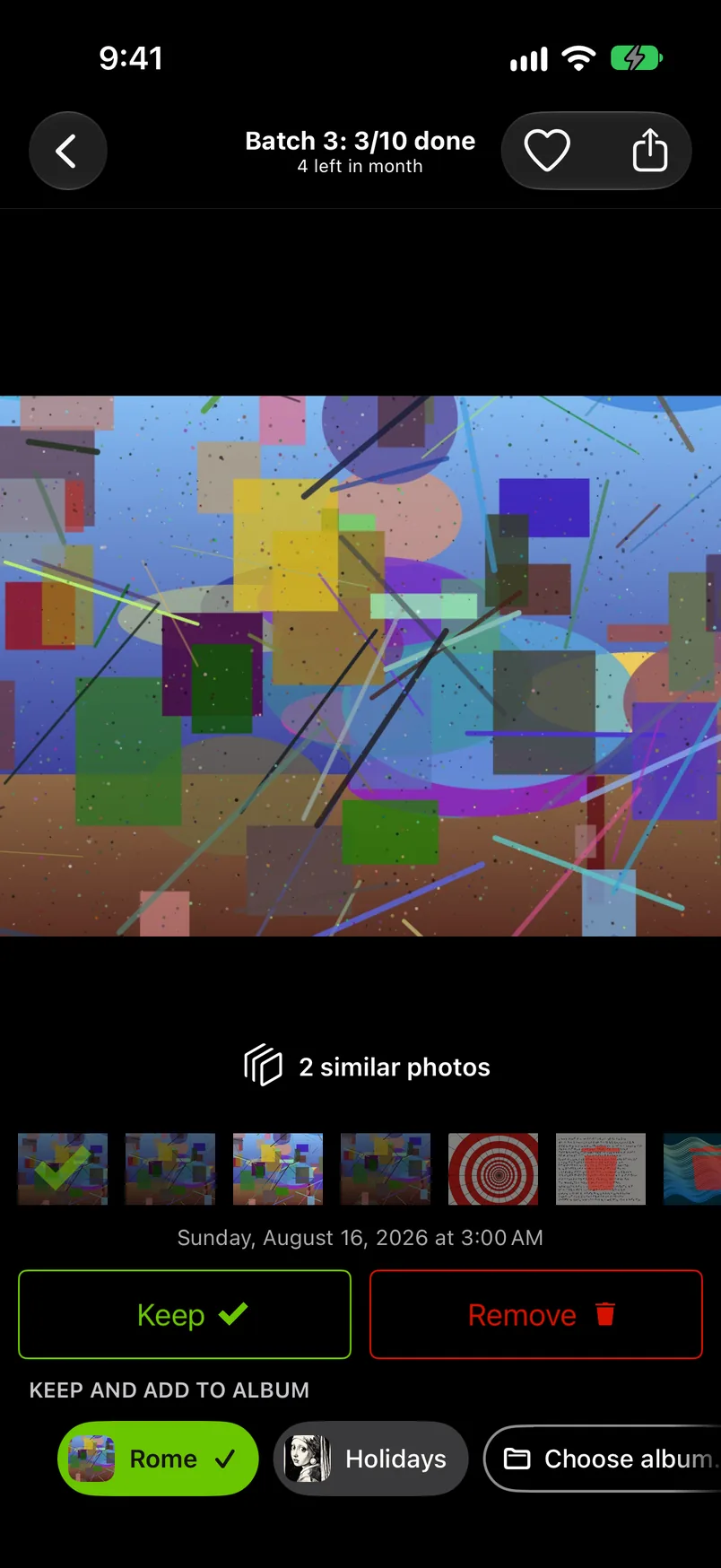
When GetSorted has found look-alikes of the current photo, a badge on the photo says how many ("3 similar photos"). Tap it to open compare mode with just those photos, decide them one after the other, and come back to the month where you left it. The first badge you meet has a one-time tip, unless you finished the practice run.
Batches and the daily goal card#
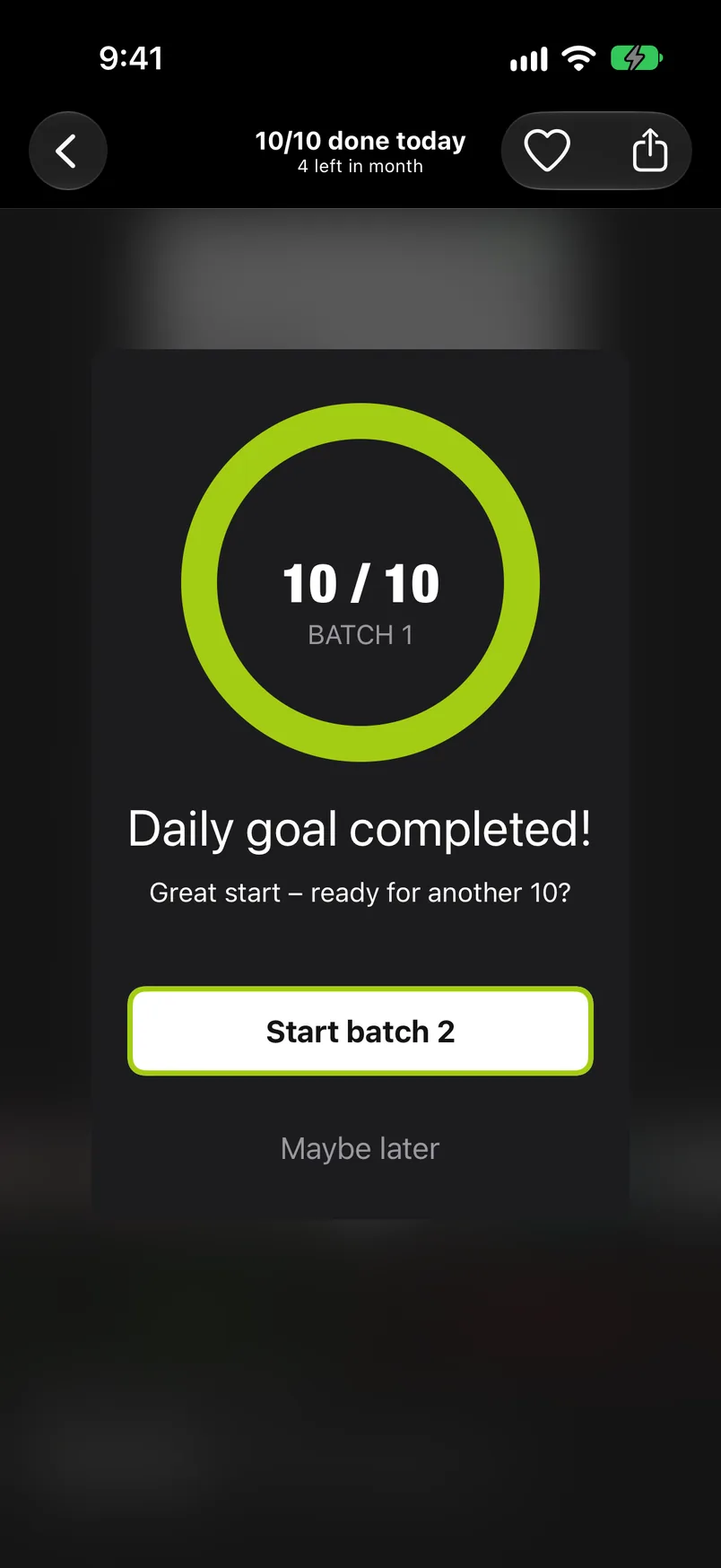
Your daily goal is one batch. When you reach it the sorter shows a card: Daily goal completed! with Start batch 2 and Maybe later. Keep going or stop; the day is recorded either way, and the next batch counts toward your statistics like the first. From the second batch on, the card reads "Batch 2 completed" and "That’s 20 items done today!". Maybe later only closes the card; if you keep sorting, the next batch simply starts. Reaching the goal with Quick Select on the grid shows no card.
Tips#
Small bubbles explain a feature the first time you meet it. Only one shows at a time, and none blocks anything: a swipe that starts on a bubble reaches the photo underneath. A bubble goes away on a tap, on the action it describes, or after 6 or 8 seconds. It counts as seen once it has been on screen for a moment (1.5 seconds), or when you tap it or do what it says; one that was covered or left sooner comes back at the next chance.
In the sorter there are ten: the first month, the zoom lock, the way out, changing a decision, a lit album chip, the similar-photos badge, an album chip's menu, the heart, a Live Photo and a video. On the grid there are two, Quick Select and Complete month, and the Choose album sheet has one about pinning. The tips of the sorter and of the grid never show in compare mode or in the practice run. If you finished the practice run, the first-month tip and the similar-photos tip do not appear at all.
| Tip | Shows | What it says |
|---|---|---|
| First month | on the first photo in the sorter of a calendar month (not in a month of the Videos, Screenshots or Live Photos lists) | Swipe left or right, or tap the edges, to look around this month. Swipe up to remove a photo, down to keep it. |
| Zoom lock | the first time the zoom locks | Zoomed in? The zoom stays as you move between photos. Tap the left or right side, or the filmstrip, to see another one. Tap the lock to zoom out. |
| Way out | after a swipe right from the left edge of the screen, or after paging back from the first photo onto the last | Done for now? Tap the back button at the top to leave. |
| Changing a decision | after you marked a photo Remove in this visit, on a following photo | Changed your mind? Go back to any photo and tap Keep or Remove again. |
| Lit chip | when a lit album chip is in sight | Tap a lit album chip again to take the photo out of that album. |
| Similar-photos badge | when the badge is in sight | These photos look alike. Tap to compare them side by side. |
| Chip menu | when a pinned album's chip is in sight | Touch and hold an album chip to unpin or rename it. |
| Heart | from your second visit to the sorter, on iOS 17 or later | Tap the heart to favourite and keep a photo. You stay on it, so you can add it to an album. |
| Live Photo | when a Live Photo is on screen | Touch and hold to play the Live Photo. |
| Video | when a video is on screen | Videos start muted. Tap the video for sound and controls. |
| Quick Select (grid) | on the first month grid with more than one photo, unless it offers Complete month | Tap the checkmark to pick several photos at once, then Keep, Remove or Add to album below. Drag with two fingers to select a row. |
| Complete month (grid) | the first time the grid offers Complete month | Done with the month? Complete Month moves what you marked Remove to Recently Deleted. You have 30 days to change your mind. |
| Pin albums (album sheet) | the first time the Choose album sheet shows a pin | Pin the albums you use most. They show up as one-tap chips under your photos. |