
Clean up photos
How to Clean Up Your Camera Roll in 10 Minutes a Day
To clean up your camera roll, clear the easy piles first (screenshots, long videos) in the Photos app, then go through the rest one month at a time, a small number of photos a day. Ten minutes a day is what GetSorted, our app, estimates for 75 photos; there, nothing is deleted until you confirm.
This guide shows how to clean up a camera roll with a small daily habit instead of one big session. It is written by the makers of GetSorted, an iPhone app that runs this routine. The ten minutes in the title are not a measurement: they are the app's own estimate for a daily goal of 75 photos. The built-in steps were checked against Apple's iPhone User Guide for iOS 26 and iOS 27 on 15 November 2026.
How to clean up your camera roll: the best way in short#
In short
- Easy piles first. Clear screenshots and long videos in the Photos app; that takes no extra app.
- Then one month per sitting. Every photo of the month gets a decision: keep or remove.
- A small daily number, then stop. Tomorrow picks up where today ended.
- Delete at the end of the month, after a look at everything you marked. Deleted photos stay in Recently Deleted for 30 days.
Call it cleaning out, tidying up or sorting out your photos: the routine is the same. Every built-in pass is in the full checklist; what to keep and what to let go is in how to declutter photos.
What is the camera roll called on iPhone today?#
The Photos app no longer has an album called Camera Roll: what people mean by it today is the Library, which shows all your photos and videos by date. Apple's iPhone guide for iOS 17 still described a Recents album that held the whole collection in the order it was added; the Photos chapters of the guides for iOS 26 and iOS 27 name neither.
To see the Library the way a camera roll looked, with the newest additions last: open Photos, select Library (on iOS 26, the tab at the bottom left), tap the Sort and Filter button and choose Added on iOS 27 or Sort by Recently Added on iOS 26. If you tapped Years or Months, tap All: those two views leave out screenshots and similar photos.
Quick wins: screenshots and long videos#
- Open Photos, tap Collections, scroll down to Media Types and tap Screenshots.
- Tap Select, then tap the screenshots you no longer need, or slide your finger across them.
- Tap the Trash button and confirm.
If you still need some of your screenshots, see how to delete screenshots.
For long videos, tap the Sort and Filter button in the Library and show only videos (the Media Types filter on iOS 27; Filter, then Videos on iOS 26), then open the long ones and delete those you can spare. Photos sorts by the date added or the date taken, not by length or size, so they have to be found by scrolling.
The routine: clean out one month at a time, 10 minutes a day#
What is left is the bulk of the camera roll, and no filter can judge it. Two choices make it manageable:
- A month as the unit. Its photos belong together, so decisions come more easily, and a month has an end.
- A daily number instead of a deadline. Ten minutes is a budget you can keep up, not a pace: nobody has timed this routine. GetSorted's own estimate is about 10 minutes a day for a goal of 75 photos, and 5 to 6 minutes for 50.
You can do it by hand in the Photos app: go to a month (the steps are here), open its first photo, swipe on to the next one and tap the Trash button on whatever goes. What the Photos app lacks is a way to mark now and delete later, and progress per month: each deletion is confirmed on its own, and after a break you have to find the place where you stopped.
Why use an app and not just scroll and delete?#
Because an app can supply what scrolling lacks: a decision recorded for every photo, a place to stop each day, and a deletion that waits until you have seen the month's removals together. This is how GetSorted, our app, runs the routine:
- Open the Clean up tab. It shows today's goal and the months you have started; tap one to continue, or pick a new month on the Overview tab and tap Start sorting.
- One photo fills the screen. Swipe up to mark it Remove, swipe down to mark it Keep; swipe sideways to look around without deciding.
- To file a keeper as you go, tap an album chip under the buttons: the photo is kept and added to that album in Photos.
- When your daily goal is reached, a card says so. Stop for today, or start another batch.
- When every photo of the month has a decision and something is marked Remove, the month's grid offers Complete month. Tap it and confirm the iOS dialog: only now are those photos deleted.
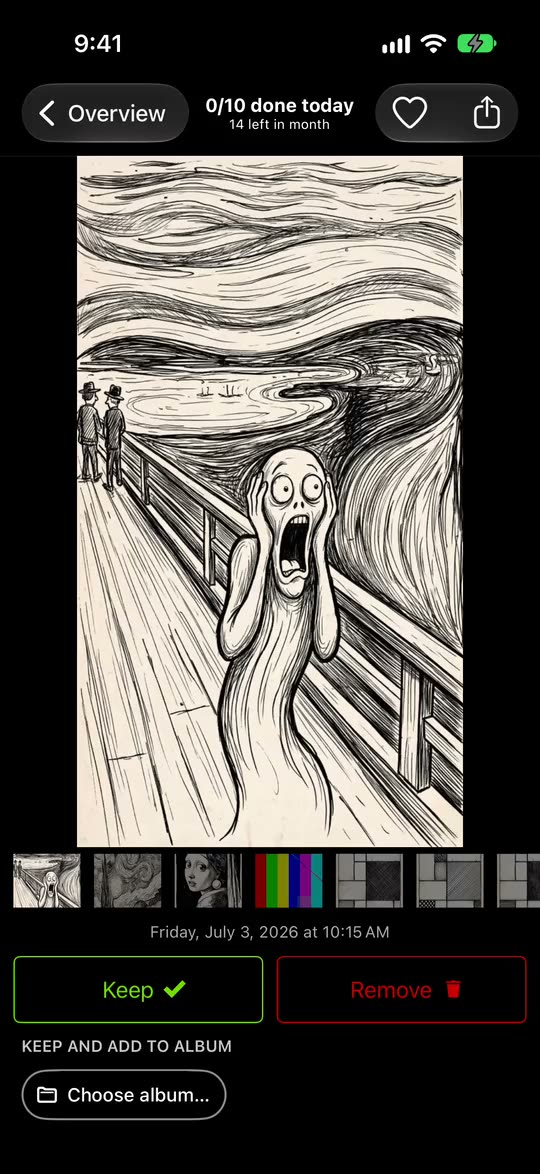
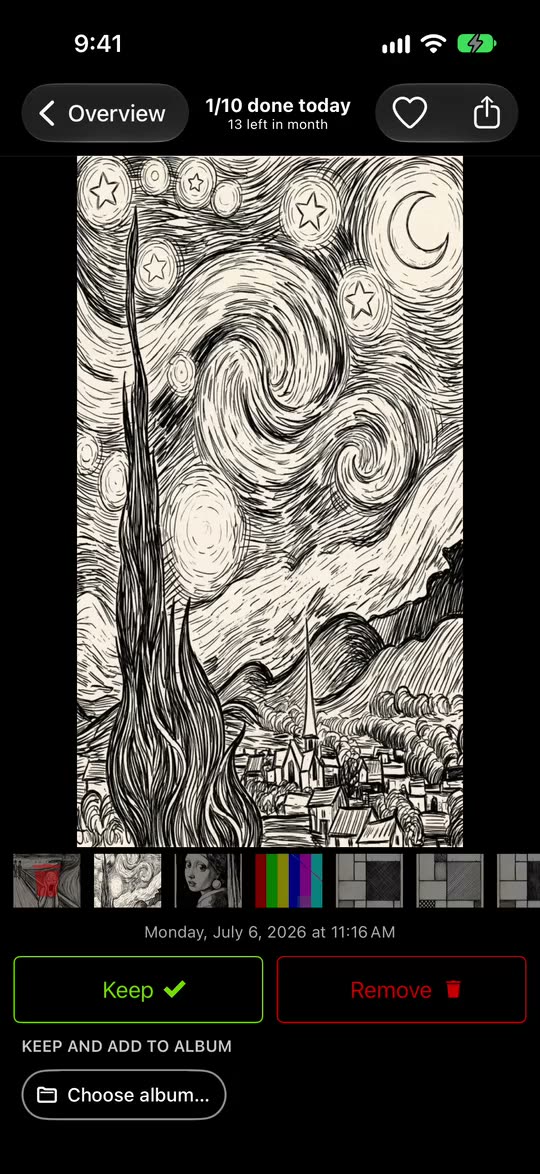
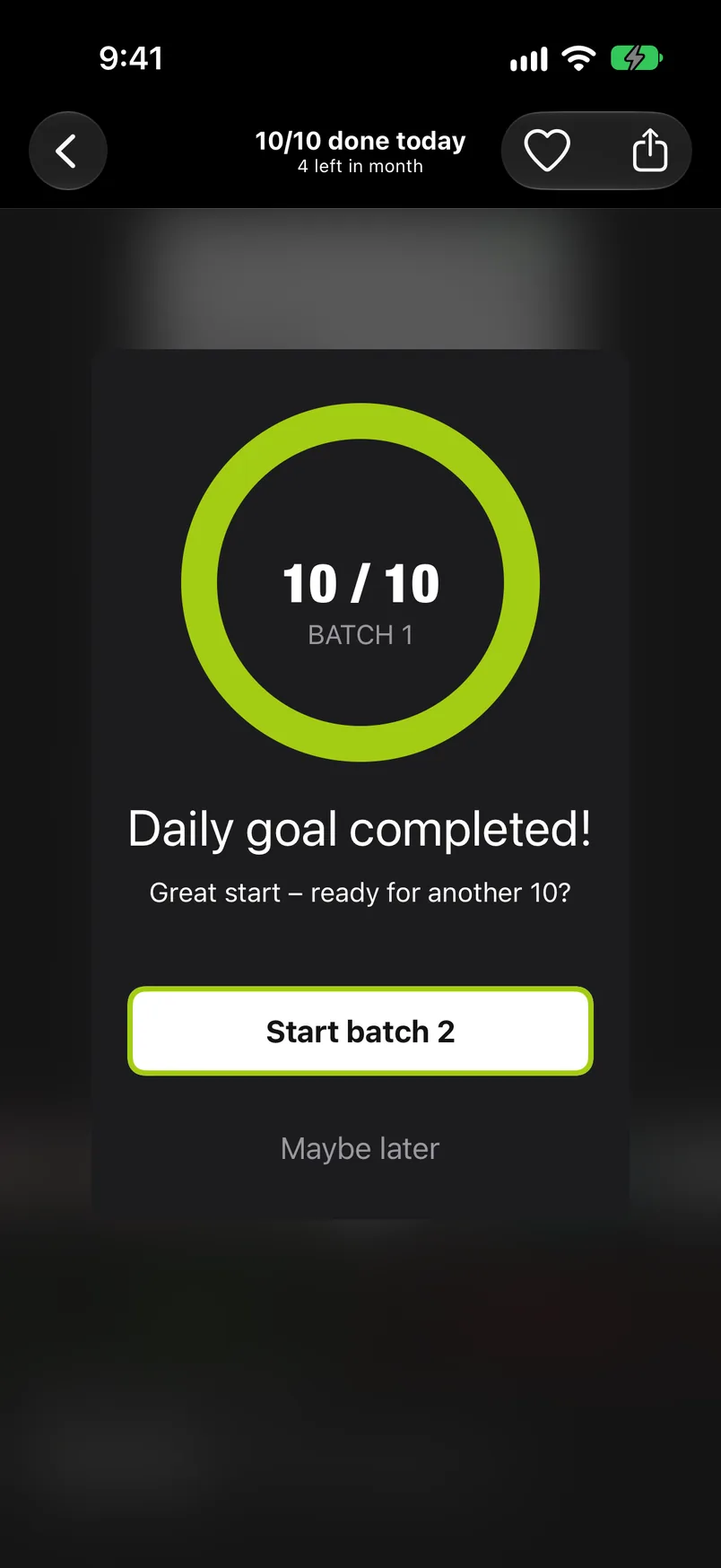
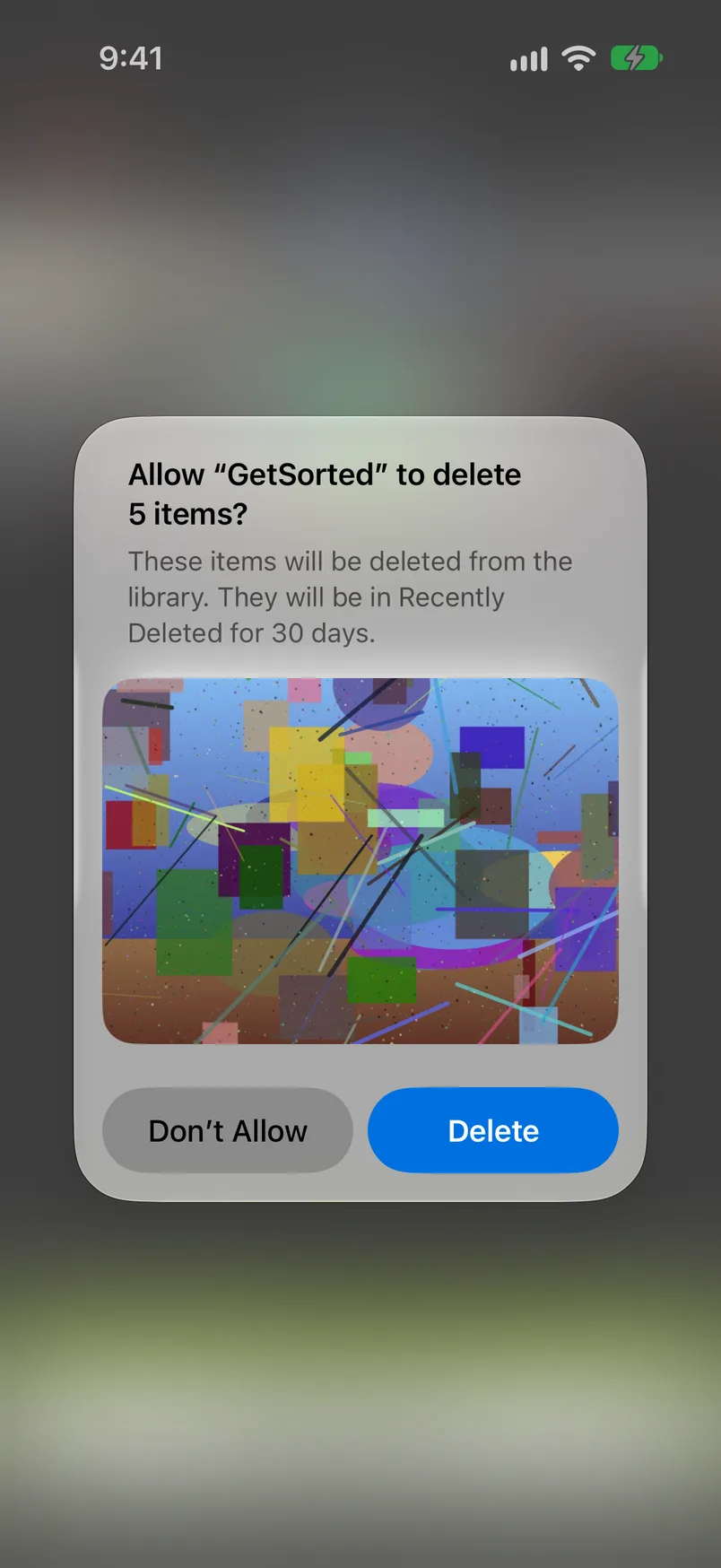
The daily goal is 10, 25, 50, 75 or 100 photos. With reminders on, a notification at 7:50 in the evening points to a goal that is still open, and consecutive days on which you reach the goal form a streak.
What GetSorted does not do: pick photos for you, merge exact duplicates (the Photos app does that) or compress anything.
What is free: the download, with no ads, and six calendar months of your library, of your choice, with no time limit. The app calls this the free trial, but it is six months of photos, not six months of time; a month counts from the first decision in it. Every further month, old or new, needs GetSorted Plus, a subscription with a monthly and a yearly plan (what is free).
Can you clean up your camera roll without deleting photos you want?#
Yes. That is what marking first and deleting later is for:
- A swipe never deletes. Photos you marked Remove wait in GetSorted's Trash, still in your library. Tap one there and it is kept, or go back to it in its month and swipe the other way.
- You see what is about to go. On the month's grid the removals are dimmed and carry a red corner, and the Complete month button names their number.
- iOS asks before anything is deleted. Decline, and nothing changes.
- Deleting applies everywhere. With iCloud Photos on, a photo deleted on the iPhone is deleted on all your devices and in iCloud. An album is no safe place either: it is a list, not a copy.
- Then there are 30 days. Deleted photos move to Recently Deleted in the Photos app (Collections, then Utilities), where you can recover them; GetSorted cannot bring a photo back itself. Their storage is free only after the 30 days, or when you empty that album. One exception comes from Apple: if your iCloud storage is over its limit, deleted photos are removed at once.
GetSorted does not upload your photos or videos; they are shown and compared on your device, and there is no account. It does send usage statistics, crash reports and purchase status to three services, listed under Privacy.
How do you keep your camera roll clean once the backlog is gone?#
Once the old months are done, the routine shrinks to the month that has just ended:
- Do last month in the first days of the new one. It is over, so its photos are all there. One exception: a photo you save or import later keeps the date it was taken and turns up in its old month, undecided.
- Lower the goal instead of dropping it. Ten photos a day are about a minute by the app's estimate, and a streak counts days, not photos.
What's the quickest way to clear my camera roll?
For photos you can judge by their thumbnails, select them in the Photos app and delete them in one go; the methods are compared in the fastest way to delete photos on iPhone. Photos you have to look at first are best taken one month at a time.
Do you get to review what is about to be deleted?
Yes. In GetSorted everything you marked Remove waits in the Trash and shows on the month's grid, and a tap in the Trash keeps a photo after all. Deleting needs your confirmation in an iOS dialog, and the photos then stay in Recently Deleted for 30 days.
How long does it take to clean an iPhone camera roll?
Divide your number of photos by the number you go through per day: 10,000 photos at 75 a day take 134 days, at about 10 minutes a day by GetSorted's own estimate. How to go through thousands of photos has the arithmetic for other sizes and goals.