
Organize your library
How to Sort Photos Into Albums on iPhone (the Fast Way)
To sort photos into albums on iPhone, open Photos, tap Select, tap the photos, then tap the More button, Add To and Album on iOS 27 (on iOS 26: the Share button, then Add to Album). An album is a list, not a copy. With hundreds of photos, GetSorted files each one with one tap as you sort.
Written by the makers of GetSorted. The steps show how the Photos app does it and were checked against Apple's iPhone User Guide for iOS 26 and iOS 27 on 15 November 2026; the facts about Slidebox come from its App Store page, read the same day.
Can you sort photos into albums on iPhone?#
Yes. In the Photos app you create your own albums and add any photo or video to them. Sorting (or organizing, organising in the UK) photos into albums is two moves: select the photos, then pick the album. Since the Photos app was redesigned, albums sit under Collections, and the menu that adds photos differs between iOS 26 and iOS 27.
How to sort photos into albums on iPhone in the Photos app#
Create an album (iOS 26 and iOS 27)#
- Open Photos and tap Collections, then Albums.
- Tap the Add button (the plus), then New Album.
- Name the album, add photos, choose a key photo and tap Create.
Add several photos to an album at once#
- In Photos, tap Library, then Select.
- Tap the photos, or slide a finger across several.
- On iOS 27, tap the More button (three dots), then Add To, then Album. On iOS 26, tap the Share button, then Add to Album.
- Tap the album. On iOS 27 the same menu can also create a new one.
For a single photo, open it and tap the More button, on either version. To take a photo out again, touch and hold it in the album and tap Remove from Album.
Does adding a photo to an album make a copy?#
No. An album is a list that points to photos in your library, not a second set of files:
- A photo can be in several albums and still uses storage once.
- Remove from Album takes a photo off that list only, and deleting a whole album leaves its photos in the library.
- Deleting a photo from the library removes it from every album.
So you cannot move a photo into an album and delete "the original": the photo in the album is the original.
A folder (Collections, Albums, the Add button, New Folder) holds albums, never photos directly: one folder for trips, with an album per trip inside.
Why does it get tedious with hundreds of photos, and what is the fast way?#
For last weekend's photos the Photos app is all you need. With a backlog of years, the routine is the problem:
- You choose from thumbnails. Near-identical shots look alike in the grid, so the blurry one easily goes in too.
- One round per album. Photos for four albums mean going over the same month four times.
- Nothing shows what is done. A filed photo looks like any other.
- The clutter stays. Filing removes nothing; deleting is a separate pass.
Fast here means fewer rounds, not a timed pace: look at each photo once, full screen, and decide on the spot whether to remove it, keep it, or keep it and file it. For thousands of photos, see a month-by-month plan.
Is there an app to sort photos into albums?#
Yes. Two apps in which one tap files a photo are Slidebox and GetSorted, which is ours.
Slidebox has been on the App Store since 2015. According to its App Store page (US store, 15 November 2026), it sorts photos into albums with a single tap, removes unwanted ones with a swipe and works directly with the Photos app. Our Slidebox comparison compares the two; photo organizer apps for iPhone covers other kinds.
GetSorted cuts your library into months and shows one photo at a time. A swipe up marks it Remove, a swipe down marks it Keep, and a tap on an album chip keeps it and files it:
- Pin your albums. Tap Choose album… under the photo, then the pin next to an album. Up to eight pinned albums show as chips under Keep and Remove.
- Tap a chip. The photo is added to that album in your Photos library and marked Keep, and the next photo slides in.
- Use Choose album… for the rest. The sheet lists all your own albums with their folders, a search field and the five you used last. New album creates one on the spot.
- File a whole run at once. In Quick Select on the month grid, tap the photos, then an album chip under Keep and Remove (or Choose album… for any other album).
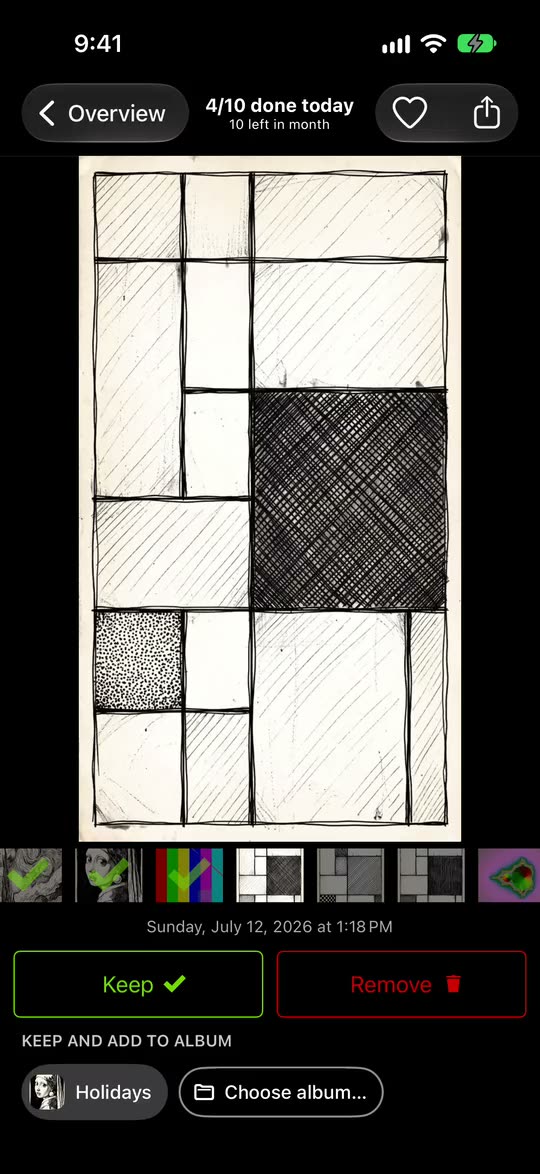
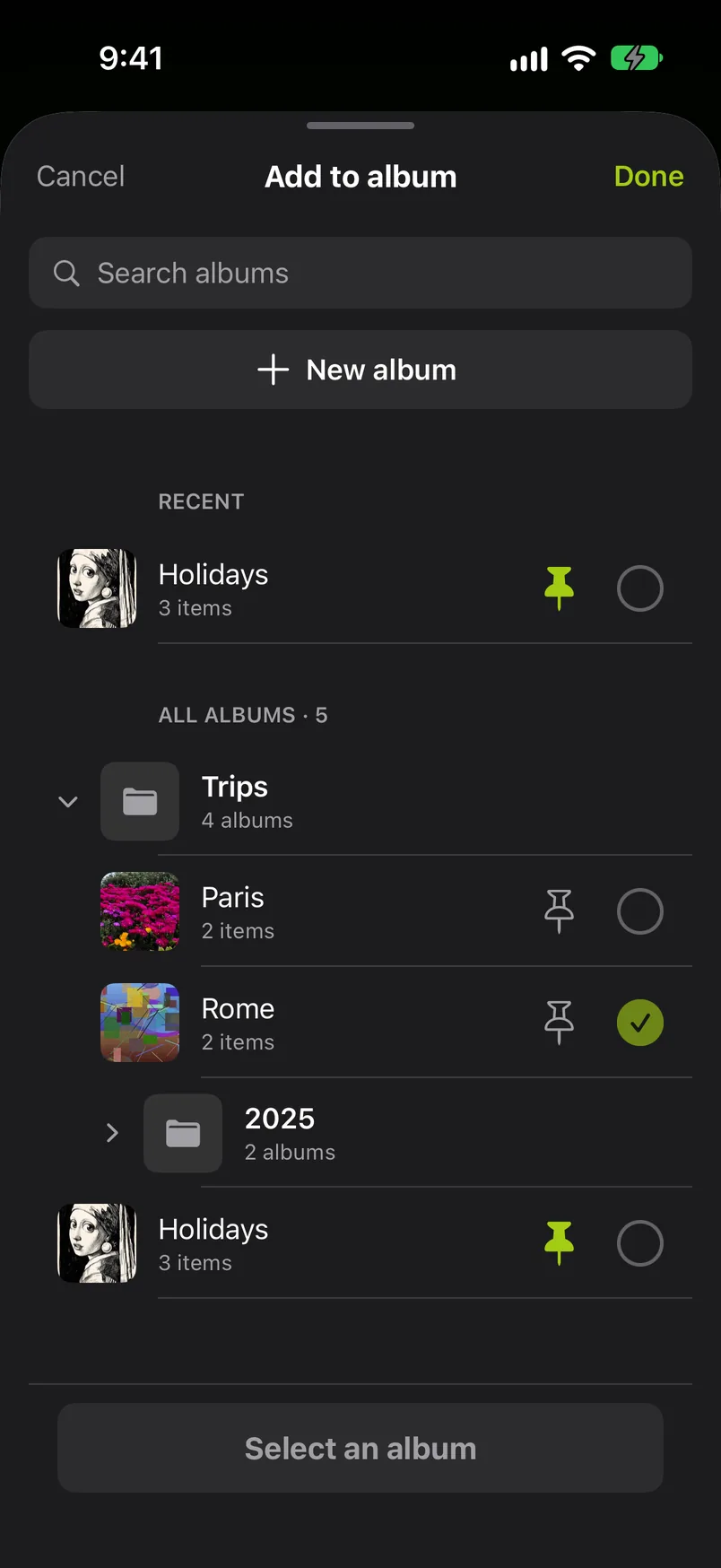
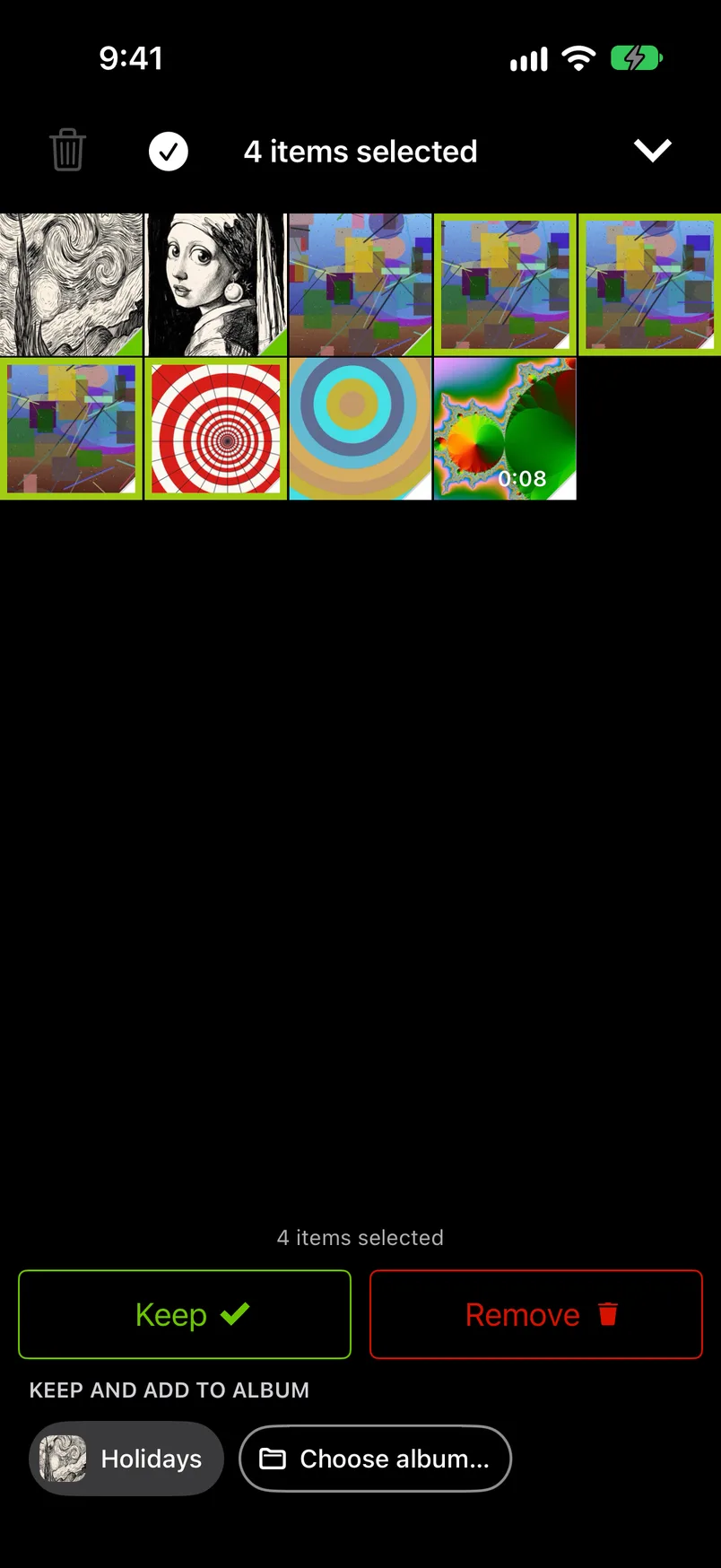
A chip lit green already holds the photo; tap it to take the photo out again. Filing always keeps: if the photo was marked Remove, a chip asks first, while the sheet and Quick Select keep it without asking. And a swipe never deletes: photos marked Remove wait in GetSorted's Trash until you complete the month or empty the Trash, and confirm the iOS dialog. Then they are in Recently Deleted for 30 days.
What GetSorted does not do with albums:
- It does not sort photos into albums by itself or recognize what is in a picture.
- It is not a full photo album organizer: it adds photos to albums, takes them out, and creates and renames albums. It does not reorder photos or albums, delete albums or create folders.
- It files into your own albums only. Shared albums and the collections Photos keeps by itself, such as Favorites or Screenshots, are not offered, and a photo from a shared album cannot be added.
- Albums need access to your whole photo library.
Free: six calendar months of your library, chosen by you, with no time limit (six months of photos, not six months of time). A month counts from the first decision in it, and album filing is included. After that GetSorted Plus, a subscription with a monthly and a yearly plan, unlocks every month of your library. There are no ads.
How do you change the order of photos inside an album?#
In the Photos app, not in GetSorted, and the same way on iOS 26 and iOS 27. Open the album, tap the Sort and Filter button (three lines) and choose newest first, oldest first or Sort by Custom Order. To custom sort photos in an album, touch and hold a photo and drag it.
Is there a way to organize the albums themselves? Yes: under Collections, Albums, the More button offers Sort by Custom Order; then touch and hold an album and drag it. For the library's own order, see how to organize photos on iPhone.
Can the iPhone sort photos into albums automatically?#
Not into your own albums. By itself, Photos groups your library into collections: People & Pets, Trips (from location data), Media Types and Memories.
Is there a way to auto sort photos on iPhone by your own rules? Not in the Photos app: Apple's iPhone guide describes no album that fills itself. Photos on the Mac has Smart Albums that gather photos by criteria you set, but Apple notes that they do not appear on iPhone or iPad.
Which albums should you start with?#
Five to eight; eight is also the most GetSorted pins as chips. Photos already groups by person, place and media type, so make albums for a selection or a purpose it cannot know:
- Best of the year, one album per year.
- Trips: per trip, the photos you would show someone.
- Family, or one album per child.
- To print: for a photo book or a frame.
- For reference: receipts, warranties, serial numbers.
Can you sort photos into albums on iPhone?
Yes. In Photos, tap Select, tap the photos, then add them to an album: More button and Add To on iOS 27, Share button and Add to Album on iOS 26.
Is there an app to sort photos into albums?
Yes. Slidebox, according to its App Store page (US store, 15 November 2026), and GetSorted both file a photo into one of your albums with a single tap. In GetSorted the tap also marks the photo Keep.
Does putting a photo into an album remove it from the library?
No. The photo stays in the library and the album only points to it: nothing is moved or copied, and it uses storage once.
If I delete a photo from my library, is it deleted from my albums?
Yes, from every album it was in: an album holds no copy of its own. For 30 days you can recover it from Recently Deleted. To take it out of one album only, use Remove from Album.
How do I change the order of photos in an album?
Open the album in Photos, tap the Sort and Filter button and choose Sort by Custom Order, then touch and hold a photo and drag it.