Clean up photos
How to Go Through Thousands of Photos on iPhone: A Month-by-Month Plan
To go through thousands of photos, do not attempt one sitting: work one month at a time, with a fixed number of photos a day. The arithmetic is photos divided by photos per day: 20,000 photos at 50 a day take 400 days, at 100 a day 200. Merge duplicates and clear screenshots first, in the Photos app.
This guide shows how to go through thousands of photos on an iPhone without waiting for a free weekend. It is written by the makers of GetSorted, an iPhone and iPad app built for this job. Nobody has timed anything for this page: the days below are plain division, the minutes are the app's own estimates, and the iPhone steps were checked against Apple's iPhone User Guide for iOS 26 and iOS 27 on 15 November 2026.
How do you go through thousands of photos without giving up?#
Nobody sorts through 20,000 photos in one sitting. A backlog of years needs a plan:
- Count the job. How many photos and videos, spread over how many months?
- Take out the easy piles. Merge duplicates and clear screenshots and long videos in the Photos app first (the checklist).
- Pick a daily number you can keep up on a bad day, and do the division below.
- Go one month at a time. Every photo gets a decision, keep or remove, and one month is finished before the next begins.
- Keep score: months done, and the share of the library decided.
You can run this plan by hand in the Photos app (how to delete photos by month): go to a month, open its first photo, swipe on from photo to photo and tap the Trash button on what goes. What you do not get there is a review that marks now and deletes later, or any progress per month, so keeping score is up to you.
How long does it take? The arithmetic#
First, your number. On the iPhone, Settings › General › About lists how many photos and videos you have. GetSorted counts them during setup and on the Progress tab under Your Stats.
Then divide: photos ÷ photos per day = days.
| Photos a day | Minutes a day (the app's estimate) | 10,000 photos | 20,000 photos | 40,000 photos |
|---|---|---|---|---|
| 25 | about 3 | 400 days | 800 days | 1,600 days |
| 50 | 5 to 6 | 200 days | 400 days | 800 days |
| 75 | about 10 | 134 days | 267 days | 534 days |
| 100 | about 15 | 100 days | 200 days | 400 days |
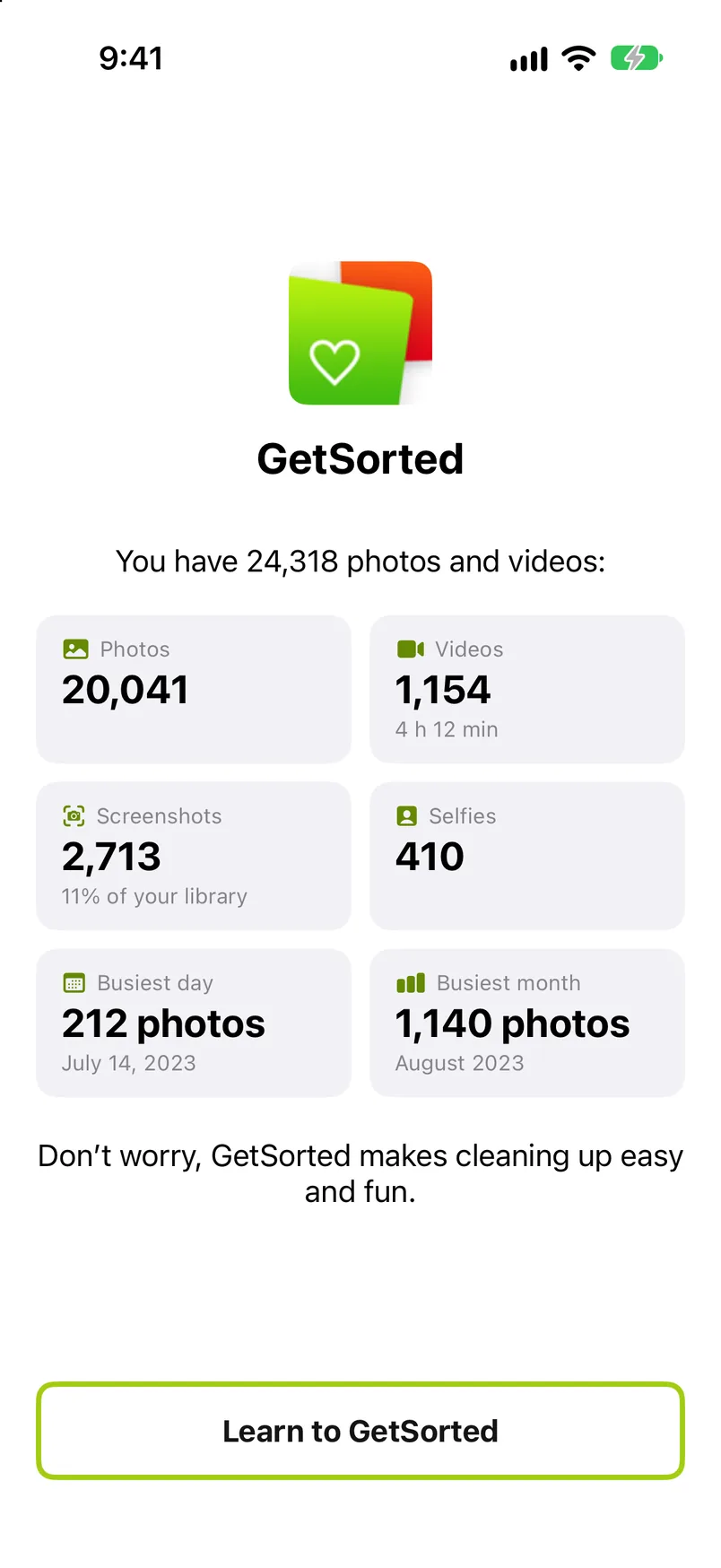
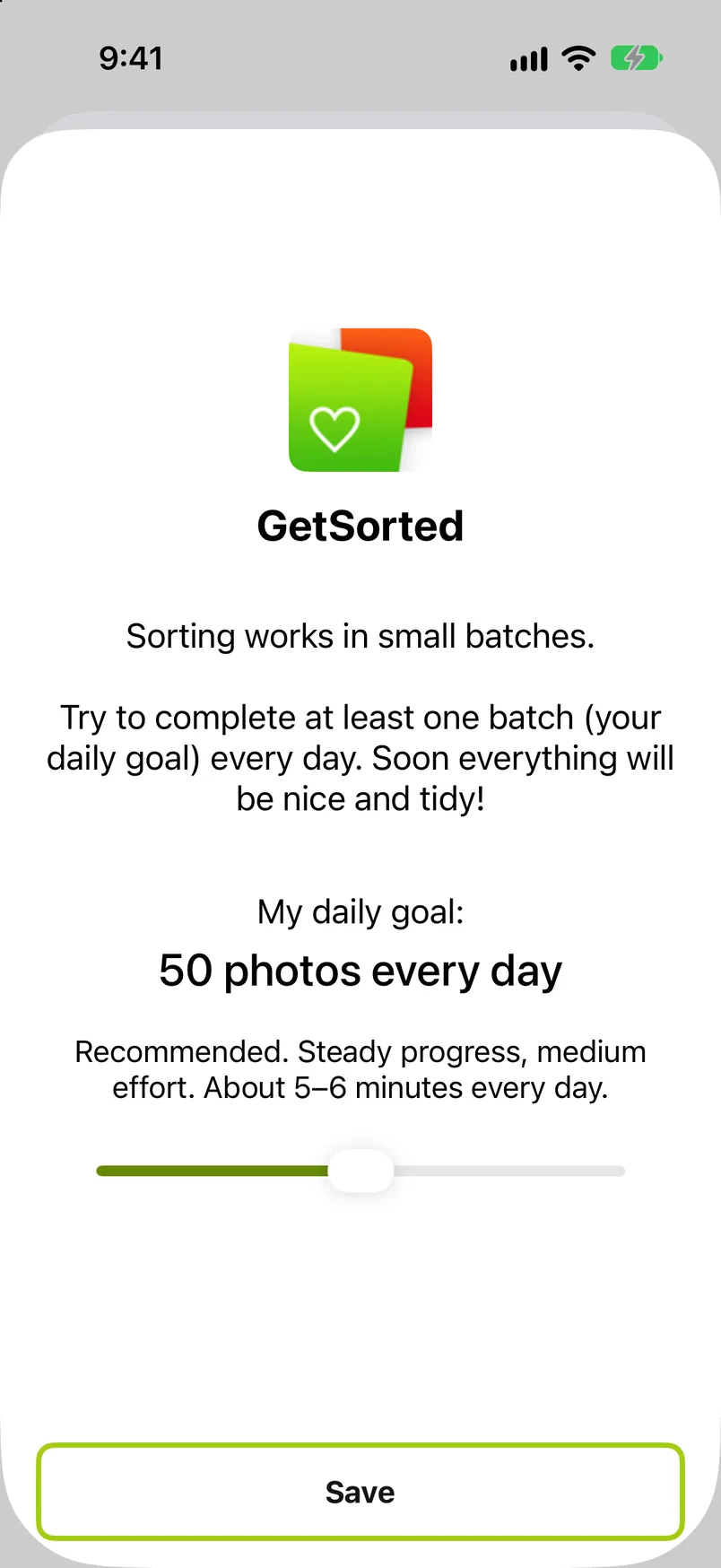
The sizes are real: reviewers of GetSorted on the App Store name libraries from about 10,000 to 88,000 photos (written reviews, read on 14 November 2026). The minutes are the estimates GetSorted shows on its daily goal slider, not measurements; days are rounded up. Three things move the result:
- Quick wins shrink the first number. In the pictured example, 2,713 of 24,318 items are screenshots, 11% of the library.
- New photos raise it again. If you add 10 photos a day, a daily 50 brings you 40 closer.
- A good day counts double. After the goal you can start another batch, with no upper limit per day.
Now the months. Ten years of photos are about 120 months; 20,000 photos spread evenly make about 167 a month, a little over three days at 50 a day. Real months vary: the busiest month of the pictured library holds 1,140.
What is free in GetSorted belongs in this arithmetic. Free means six calendar months of your library, of your choice, with no time limit: six months of photos, not six months of time (the app calls it the free trial). A month counts from the first decision in it, and it counts as one however many photos it holds, so the fullest months are the best use (each month's row shows its number of items). Six of 120 months are 5% of a ten-year library; the other 114 need GetSorted Plus, a subscription with a monthly and a yearly plan (details). The download is free, with no ads.
Where do you start when you have too many photos?#
- Quick wins first, always. Duplicates, screenshots and screen recordings are already collected in the Photos app, and they come off the total before the daily routine starts. For piles that can go unseen, see the fastest way to delete photos.
- Then the newest finished month, if you want easy decisions: you still remember what the photos were for.
- Or the oldest year, if you want a visible finish: a whole year done is progress you can point at.
How do you keep going? Goal, streak and visible progress#
The division only holds if day 37 happens. What helps is a number for today, a record of the days you kept it up, and a count that moves. GetSorted, our app, is built around those three:
- The Overview tab lists every year that has photos or videos, each with its number of items and a progress bar. Tap a year for its months, pick one and tap Start sorting.
- One photo fills the screen. Swipe up to mark it Remove, down to mark it Keep. A swipe deletes nothing: what you mark Remove waits in the Trash, and any decision can be changed.
- Your daily goal (10, 25, 50, 75 or 100 photos) is one batch. When it is done, a card says so: stop for today, or start the next batch.
- When a month is fully decided, Complete month deletes what you marked Remove, after iOS asks you to confirm. Those photos stay in Recently Deleted for 30 days, and the button leads on to the next unfinished month.
- The Progress tab keeps score: items sorted with the share of your library, your daily average over the last 7 and 30 days, and a calendar of the days you reached the goal, your streak. 20 achievements mark milestones such as 1,000 items sorted, a 7-day streak or a first completed month.
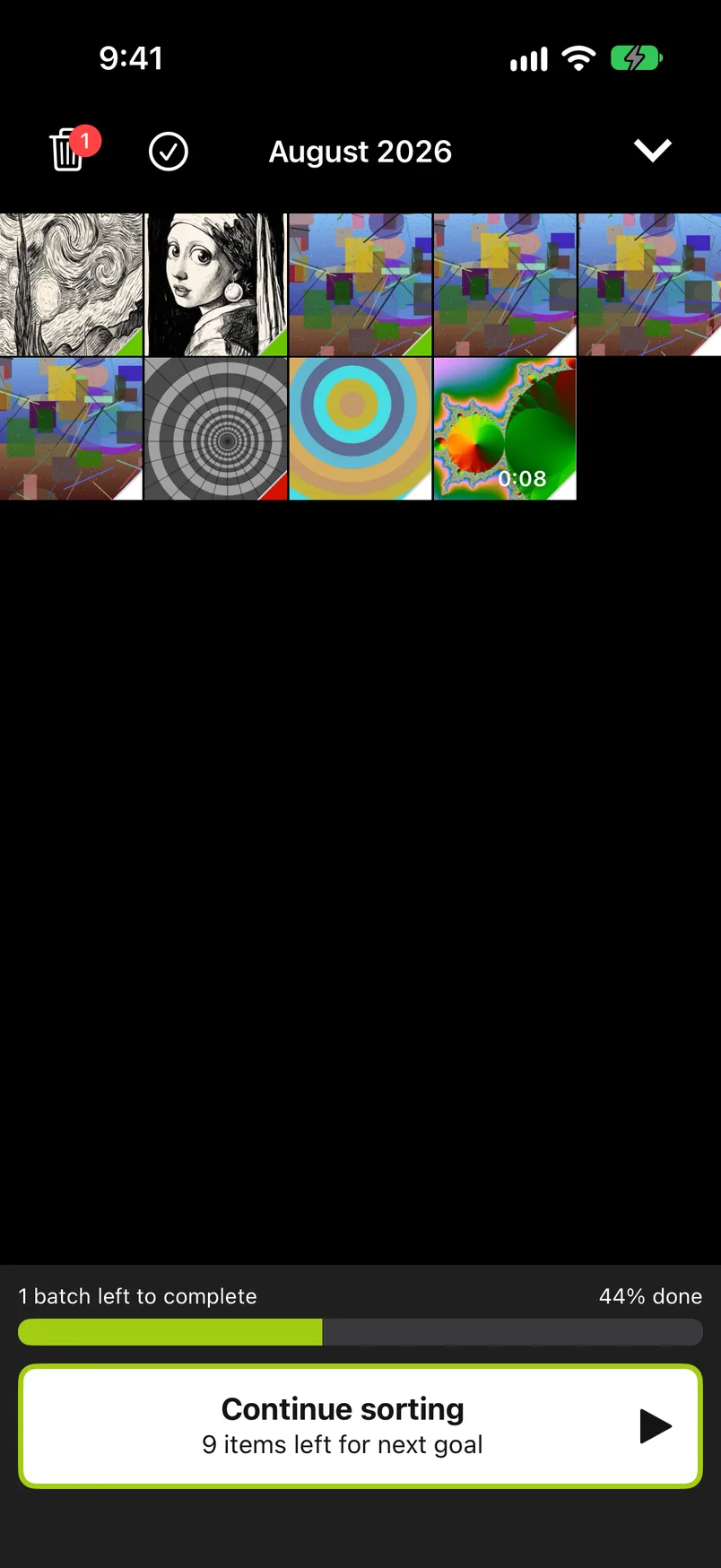
After a week, redo the division with your own daily average from the Progress tab. An evening reminder (Settings) points to a goal that is still open; more on the daily habit in how to clean up your camera roll. With iCloud Photos on, your progress is saved in your own iCloud, so you can carry on on an iPad; the sync is not instant.
GetSorted does not pick photos for you: it never marks one by itself. It does not upload your photos or videos; it does send usage statistics, crash reports and purchase status to three services (Privacy).
What do you do with look-alikes?#
Look-alikes come in three kinds, each with its own tool:
- Exact copies. The Photos app merges them under Collections, Utilities, Duplicates. GetSorted does not find identical duplicates.
- Bursts. Open the burst on the iPhone and choose the frames to keep (Apple's steps); of a burst, GetSorted lists only the key photo.
- Similar shots. GetSorted groups photos that look alike and were taken within minutes of each other. A badge on such a photo opens compare mode: the group's photos one at a time, with the neighbors peeking in at both edges, and each gets its own Keep or Remove.
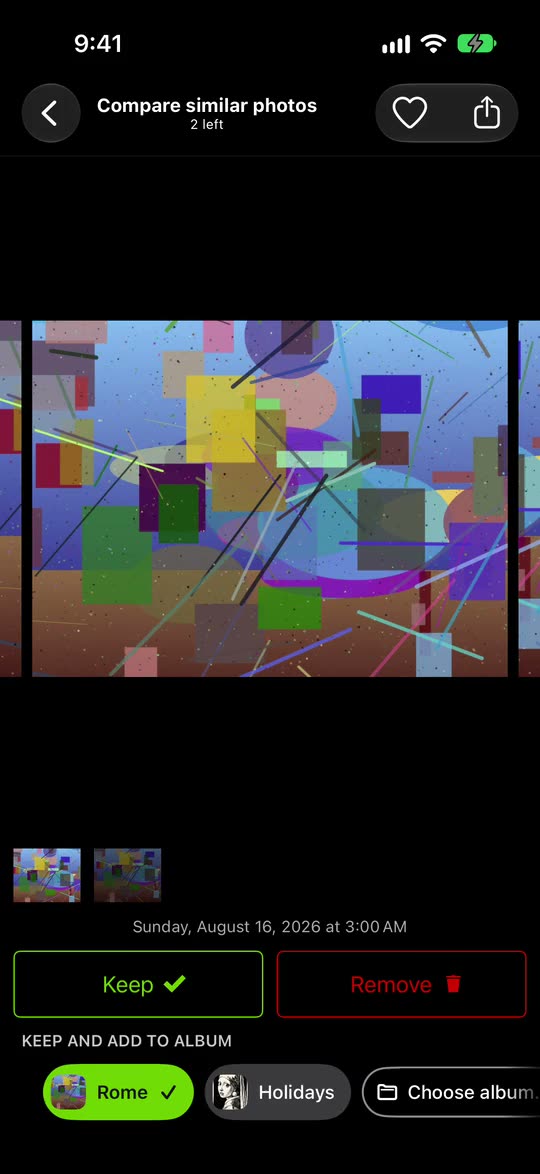
How to pick the keeper is in how to find and delete similar photos.
On a Mac or with a camera archive? Read this first#
GetSorted is an app for iPhone and iPad; there is no Mac version. It works on the Photos library of the device it runs on. If your Mac uses the same iCloud Photos library, what you delete on the iPhone is deleted on the Mac as well. Photos that live elsewhere (folders on a drive, a camera's memory cards, another service's cloud) are not in that library: the division above still holds for them, the steps do not.
How long does it take to organize 10,000 photos?
At 50 photos a day, 200 days; at 100 a day, 100 days. GetSorted's own estimate for those goals is 5 to 6 and about 15 minutes a day; nobody has timed it, so check your own average after a week.
How do I organize thousands of photos on my iPhone?
Thin out first, organize second: go through the library one month at a time, keep or remove each photo, and add the keepers you want to find again to an album as you go. Albums, folders and search are covered in how to organize photos on iPhone.
What to do with thousands of photos?
Make sure they are backed up, clear what the Photos app has already collected (duplicates, screenshots, screen recordings), then review the rest one month at a time with a daily number. You do not have to finish: every completed month is a month done.
How do you decide which photos to delete and what to keep?
Ask the same question of every photo (would I look for this one again?), decide once and move on; a photo you kept can still be removed later. The rules, case by case, are in how to declutter photos on iPhone.