
Across all years#
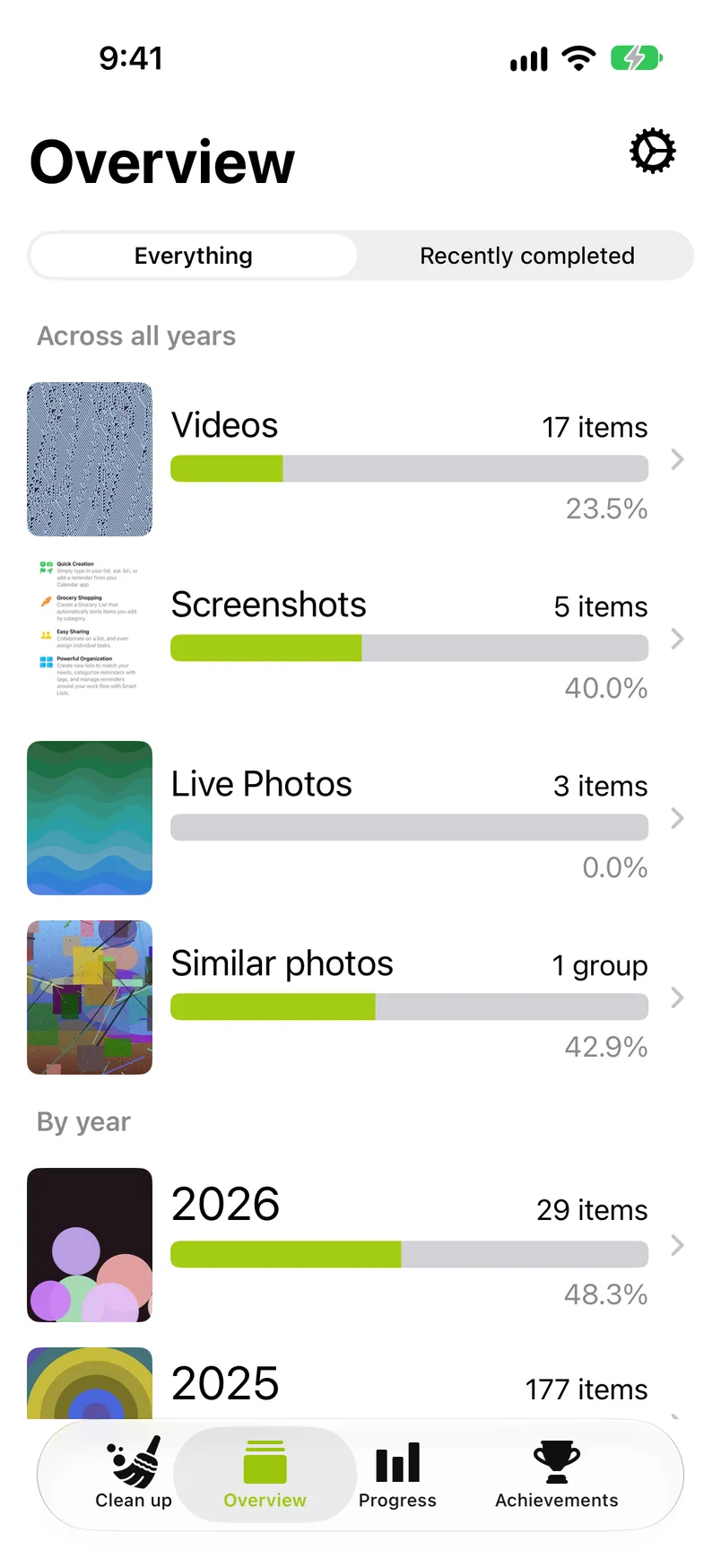
The Everything list starts with a section headed Across all years. It has one row each for Videos, Screenshots and Live Photos, but only for the kinds your library has, and a row for Similar photos, which is always the last one.
A row looks like a year: a thumbnail that changes among the list's items, the count ("4 items"), a bar and the percentage that is decided. Videos, Screenshots and Live Photos each open a list of months; Similar photos opens the list of groups. What is behind each row is on the page Across all years.
The Similar photos row counts the groups that still have a photo to decide ("3 groups"). Before the first scan it has no count and reads "Tap to find similar photos"; after a scan that found nothing it reads "No similar photos found yet".
The headings Across all years and By year show only on the Everything list, and only when your library has something in it.
Years#
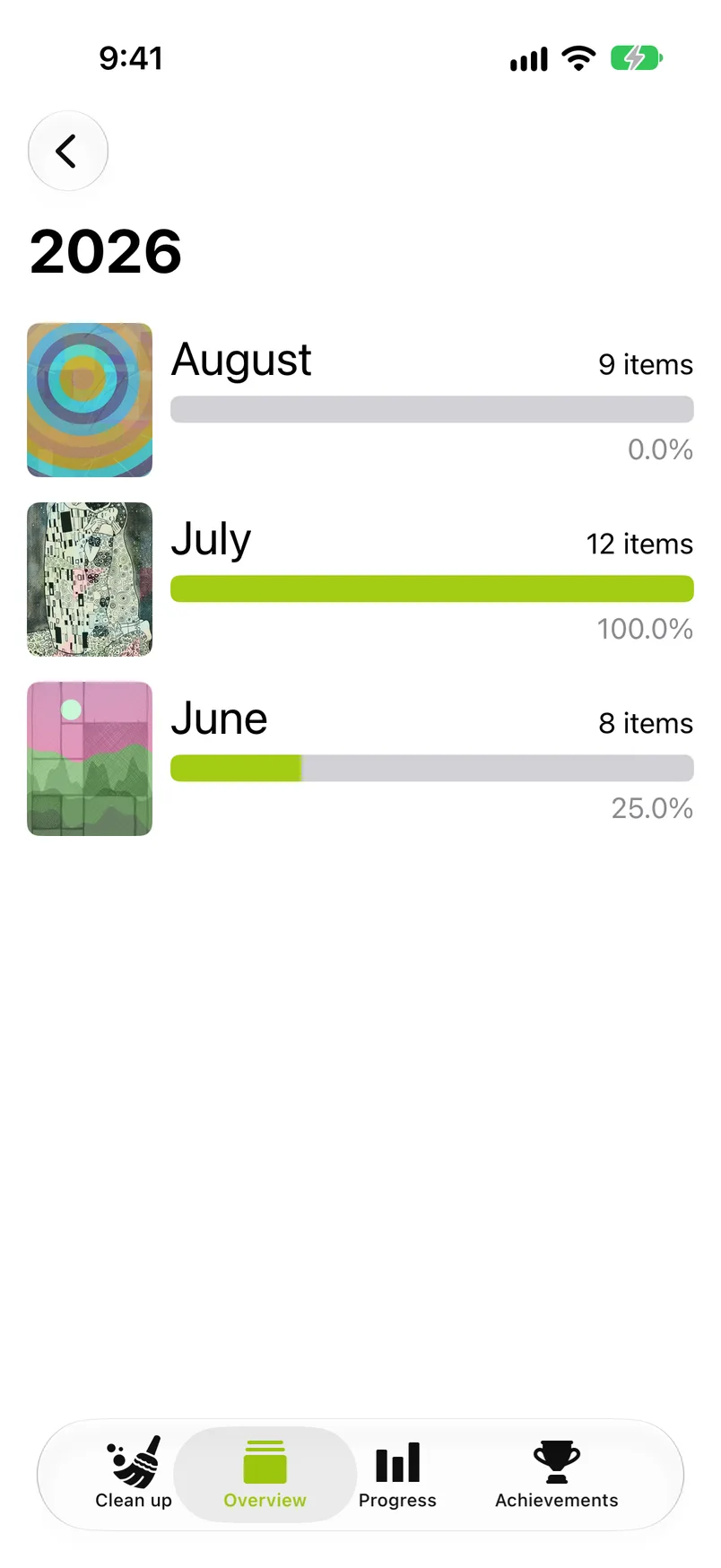
Under the heading By year the list shows every year that has photos or videos, newest first, with a thumbnail, the number of items and a bar that fills as you sort. Tap a year to see its months.
Months#
Each month row shows its count and progress the same way. Tap a month to open its grid. From there Start sorting opens the sorter on the first photo. A month with at least one decision reads Continue sorting instead and opens on the first photo not yet decided. Under either title the button says how many items are left for your next goal. A completed month's button leads on to the next one, see On to the next month. Once all six free months are started, the months you have not started show a lock before their count; see Locked months.
Recently completed#
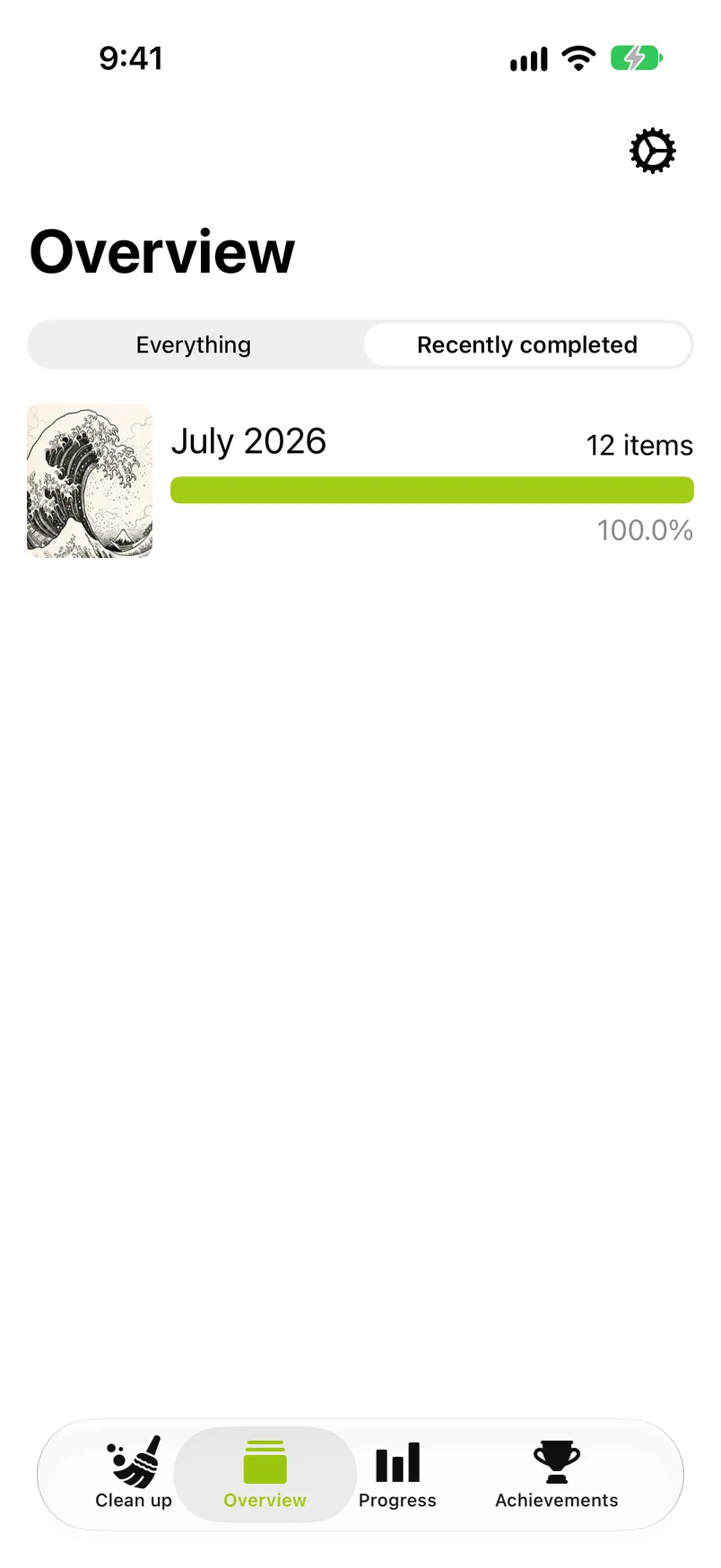
To see which months are done, use the switch at the top: it toggles between Everything and Recently completed. The second list holds the months you finished, the one you worked in last first. You can open a completed month again at any time to change a decision; a photo you kept can still be marked Remove later, and the month grid offers Complete month again.
Progress bars#
The bar under a year, a month or a list under Across all years is the share of its items that have a decision, Keep or Remove. It reaches 100% when every item is decided. If anything in the month is marked Remove, the month grid then offers Complete month; if not, the month is complete as it is.