Two columns#
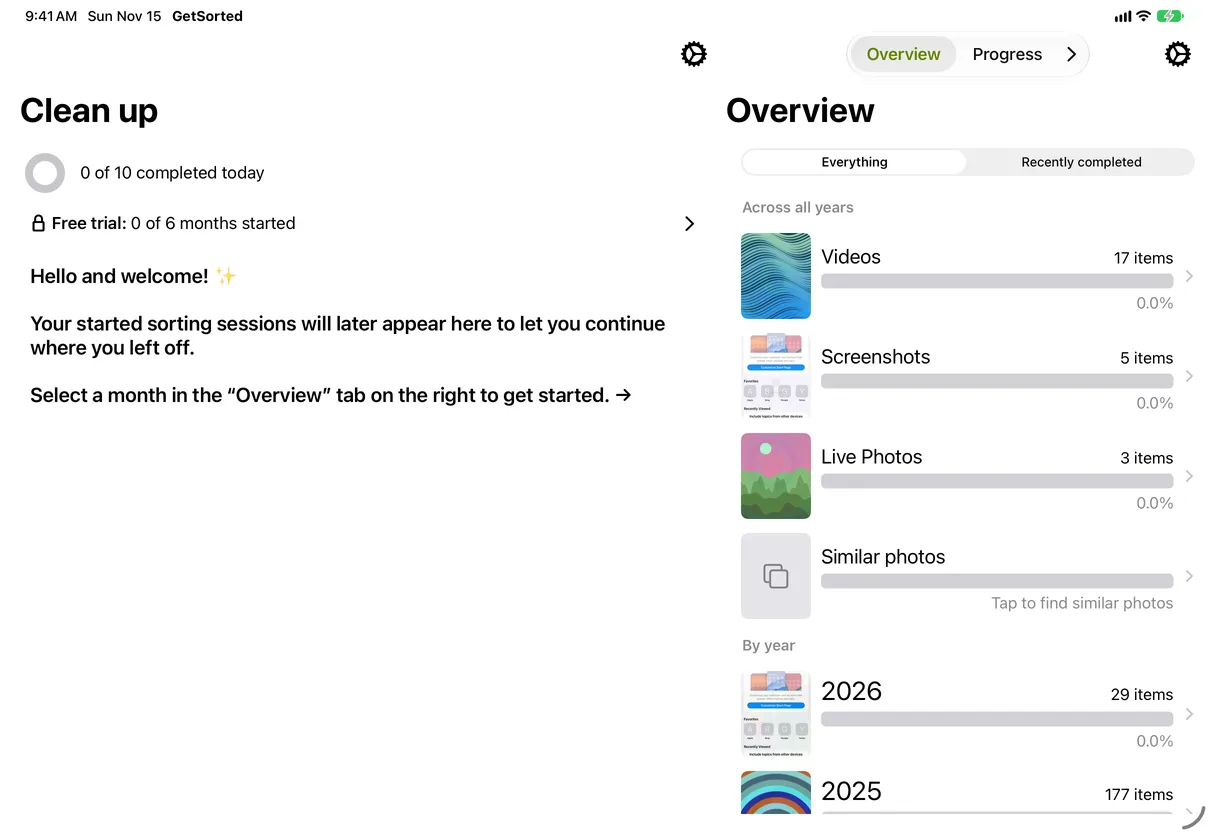
Whenever GetSorted has the iPad's full width, the Clean up tab is on the left and a second pane on the right, side by side. The switcher at the top of the right pane holds the other three tabs: Overview, Progress and Achievements (where they do not all fit, an arrow leads to the rest). The Overview on the right starts with the Across all years rows; the items to delete card, when there is one, sits at the top of the left pane. Pick a month on the right, and its grid opens over the whole screen. The Settings gear sits in both panes.
In a narrow window, for instance one that shares the screen with another app, GetSorted falls back to the iPhone layout with Clean up as the first tab.
The sorter#
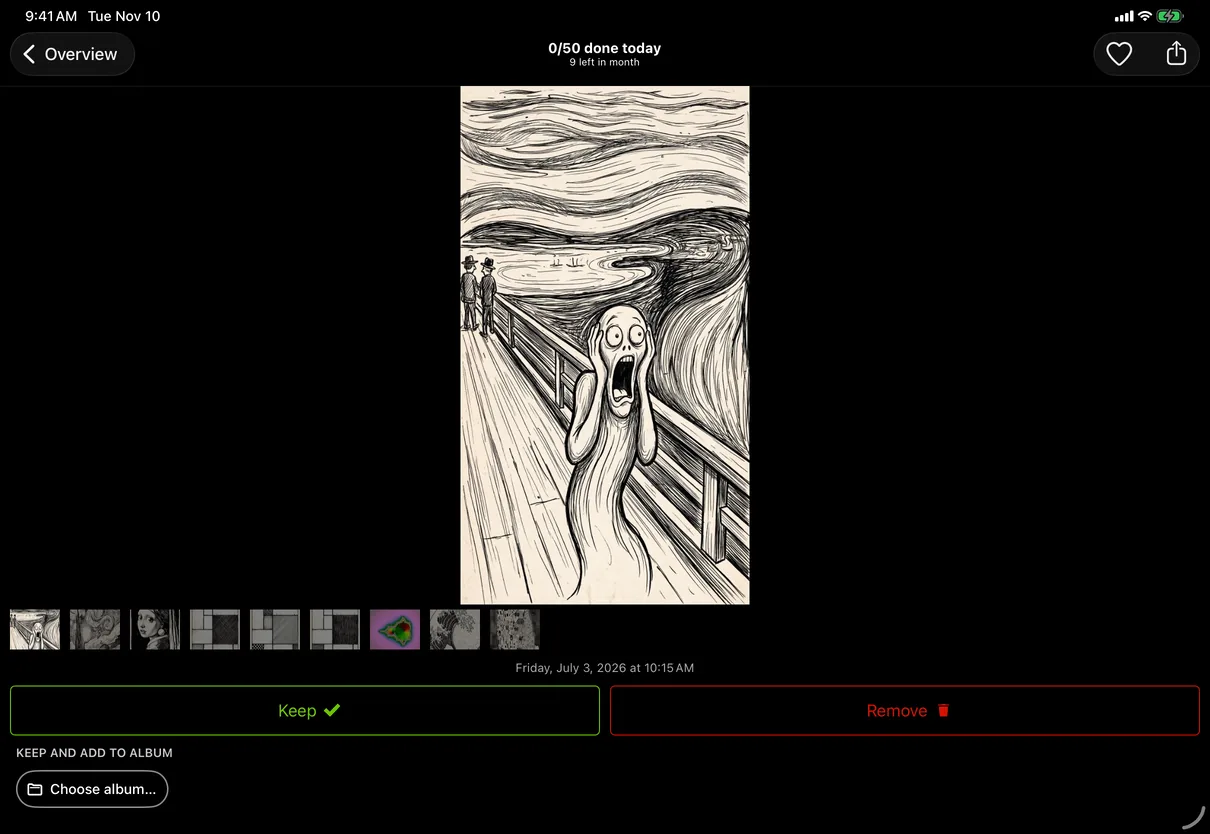
The sorter looks exactly like the iPhone's, with the photo filling the width and Keep, Remove and the album chips below. Every gesture is the same: swipe up to remove, down to keep, left or right to look around, pinch to zoom. On a landscape iPad the photo is wider, which gives compare mode's peek at the neighboring photos more room.
One library, one progress#
GetSorted carries your progress between iPhone and iPad through your private iCloud. With iCloud Photos on both devices, the iPad and the iPhone see the same library and the same decisions: a month you sorted on the phone is sorted on the iPad. The sync is not instant: a change made on one device can take a while to show on the other. If something is missing, open GetSorted on both devices and give it a moment. More in the FAQ: Why is my progress not on my other device? See Privacy for how the sync works and Settings › iCloud for its status.