GetSorted opens with a short animation in which a grid of letters sorts itself into the app's name; a touch skips it.
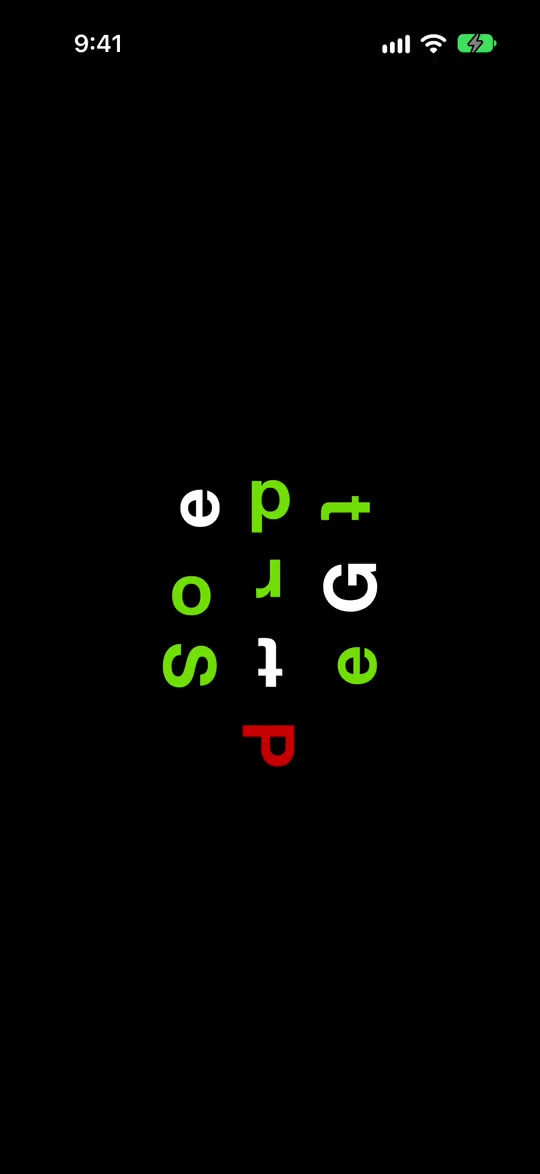
Photo access#
GetSorted needs your whole library to sort it, so the first screen asks for access to all photos. Tap Allow access to all photos, then choose Allow Full Access in the iOS dialog. The dialog belongs to iOS, so its wording depends on your iOS version; the pictures show a recent one.
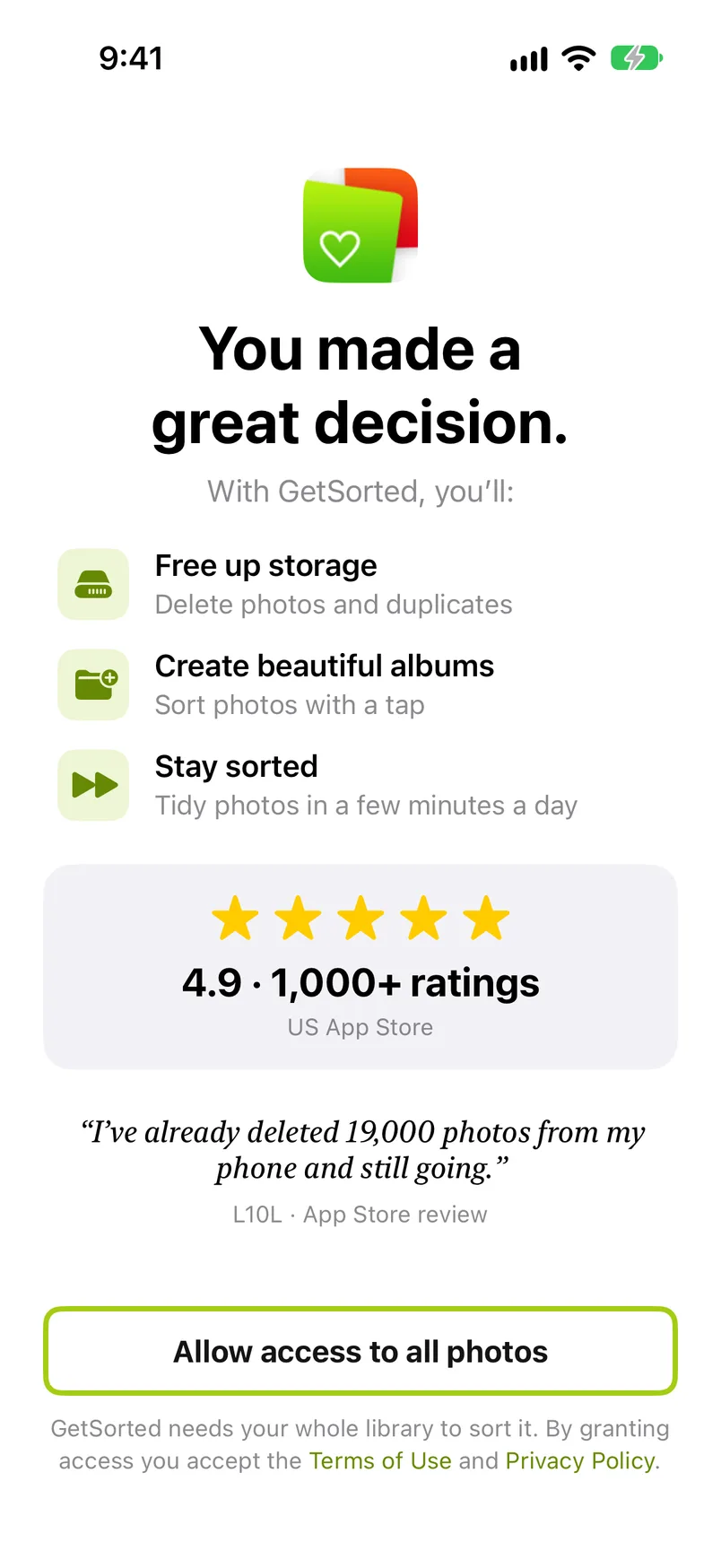
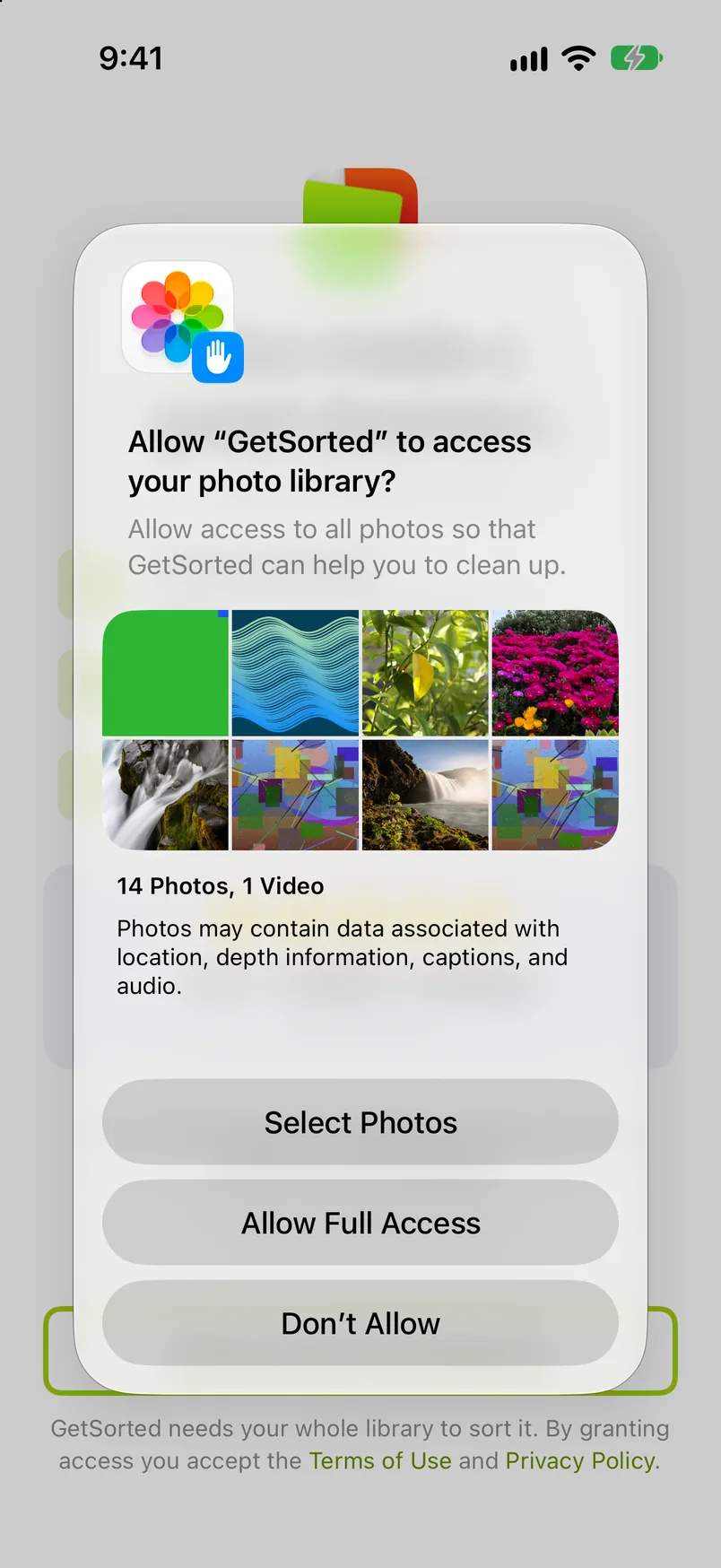
Select Photos (limited access) is not enough: with a limited selection GetSorted cannot see the months it is supposed to clean, so it stays on this screen. If you chose it, or tapped Don’t Allow, tap Allow access to all photos again: GetSorted says that access to all photos is required and then opens its own page in the Settings app, where you choose Photos and Full Access. More in the FAQ: How do I give GetSorted access to my photos after tapping Don’t Allow?
After the grant GetSorted indexes your library once. The footer shows the progress; a large library takes a minute or two.
Your library in numbers#
The next screen counts what you have: the total, then four cards for photos, videos (with their total length), screenshots (with their share of the library) and selfies. When your library has something to tell, two fact tiles follow, for example your busiest day and your busiest month; the estimated storage fills the second place when only one other fact qualifies. A library in which no fact qualifies gets no tiles. The cards are information only; the cleaning happens later in the app. The same numbers are there at any time under Progress, on the Your Stats side, with how much of each kind you have sorted.
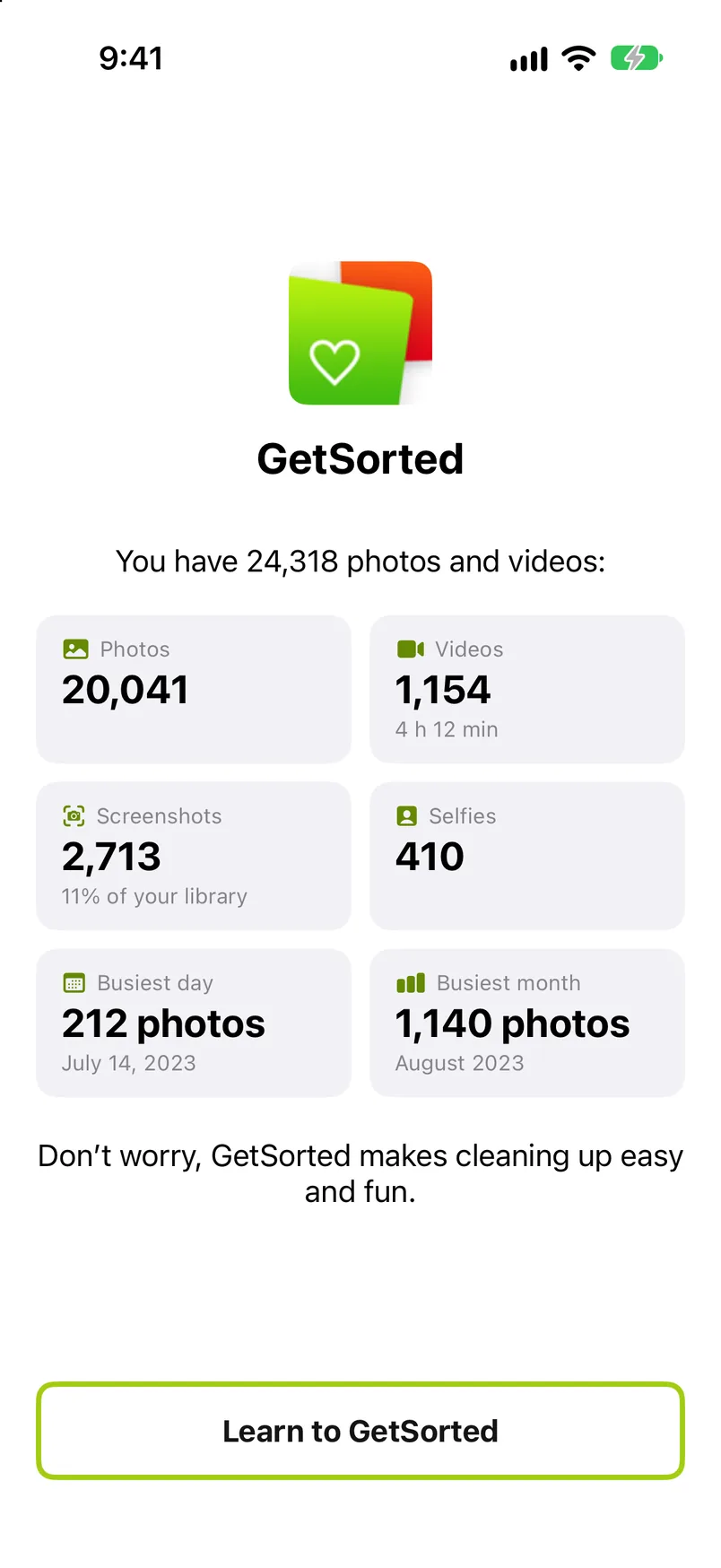
Tap Learn to GetSorted to start the practice run.
The practice run#
The practice teaches the sorter on five bundled cartoon drawings of famous paintings. None of your own photos is involved and nothing you do here is saved, so you can try everything. Each step shows a small bubble next to the thing it is about. In the swipe steps a pointing finger loops the gesture; in the album step and the similar-photos step the control to tap glows instead.
- Swipe up to remove. The Scream: push the drawing up, and it is marked Remove.
- Swipe down to keep. The Starry Night: pull the drawing down, and it is marked Keep.
- Tap an album. Girl with a Pearl Earring: tap the Art or Paintings chip under the buttons. The drawing is kept and filed in one go.
- Open the similar photos. The first Mondrian carries a "2 similar photos" badge. Tap it.
- Compare and decide. Swipe left or right between the two Mondrians, then keep or remove each one.
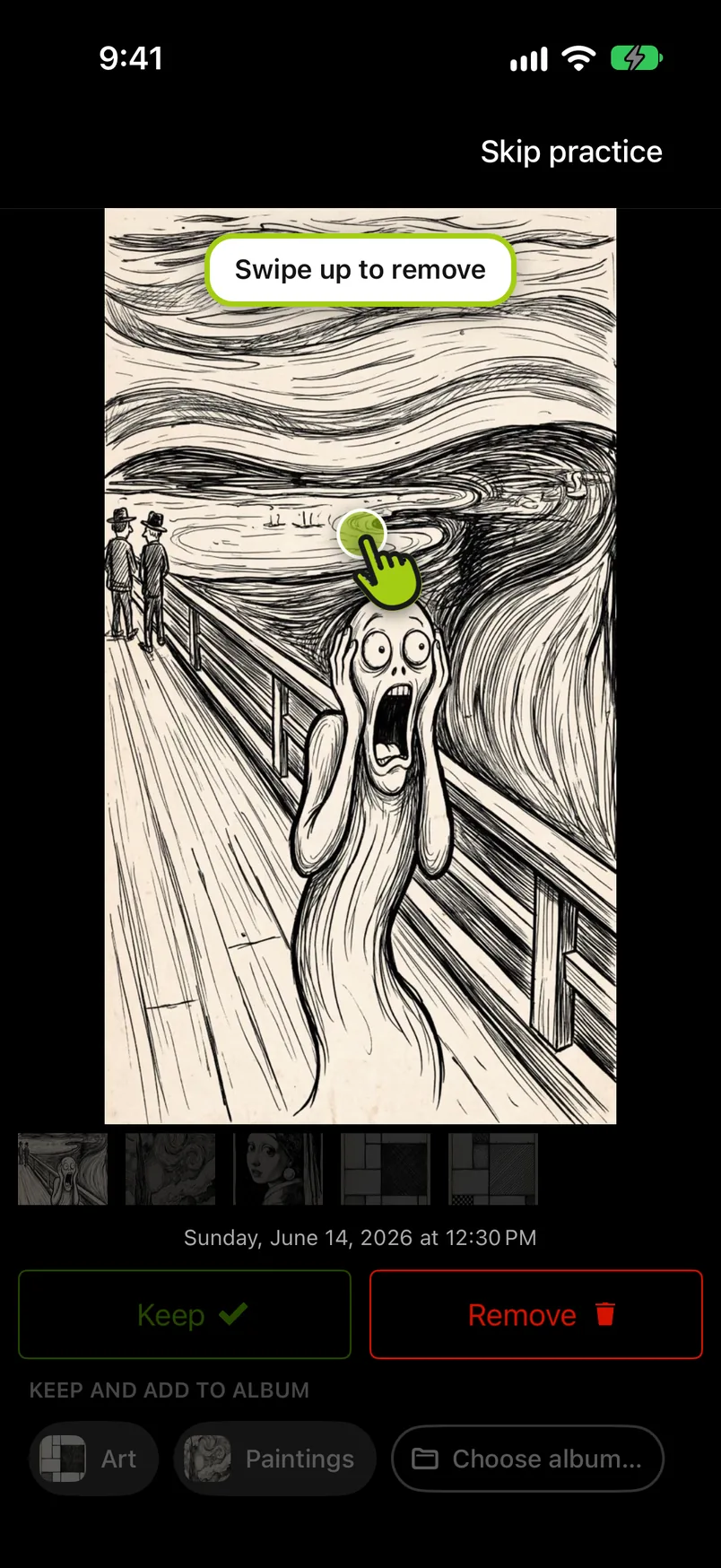
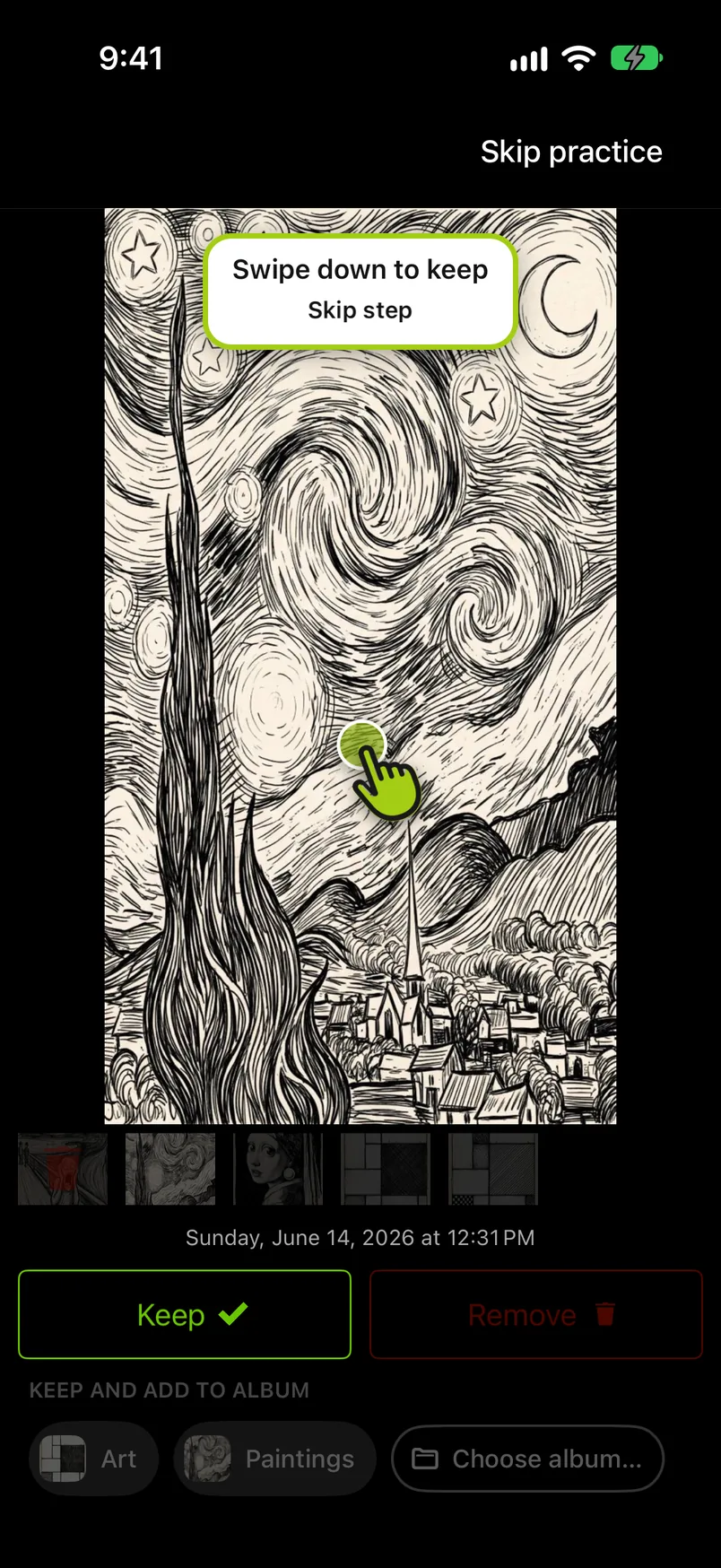
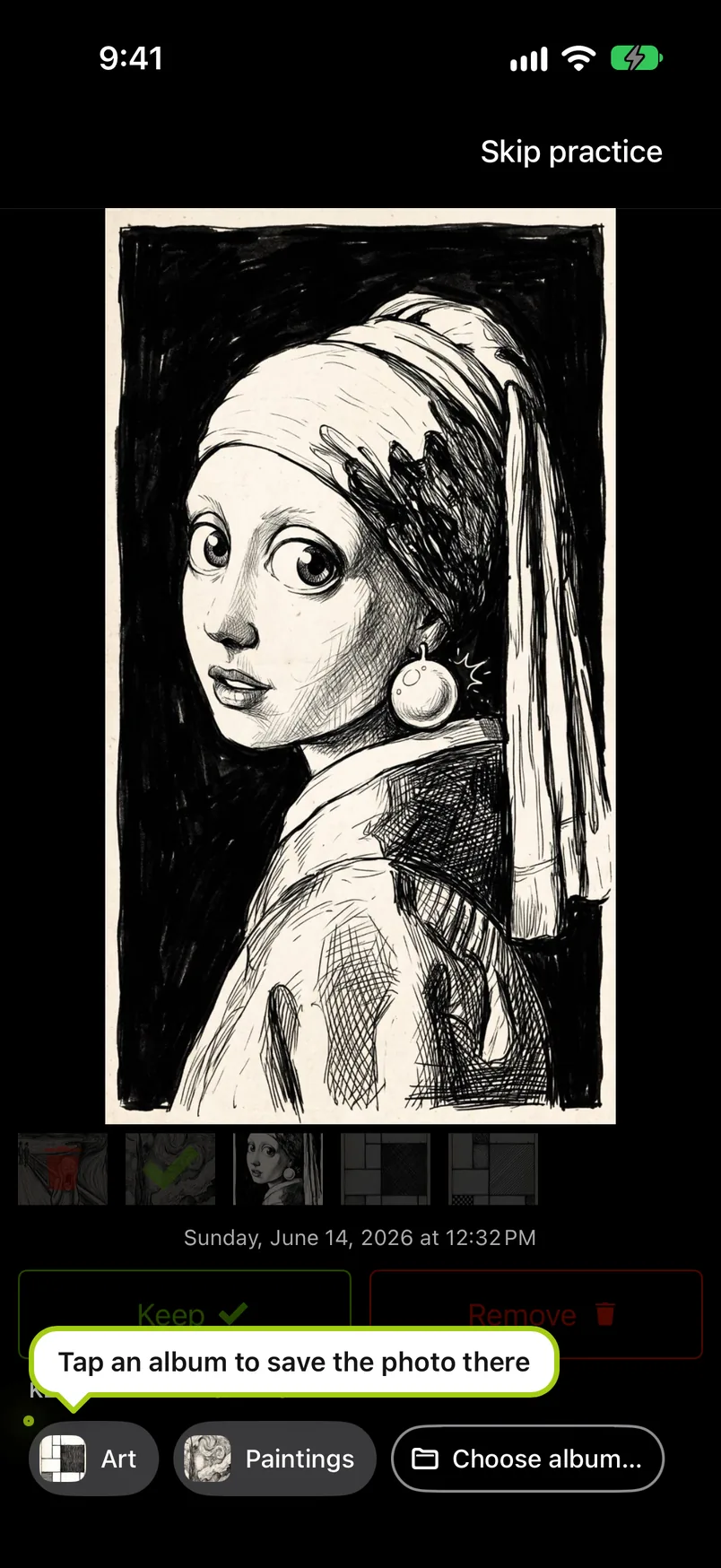
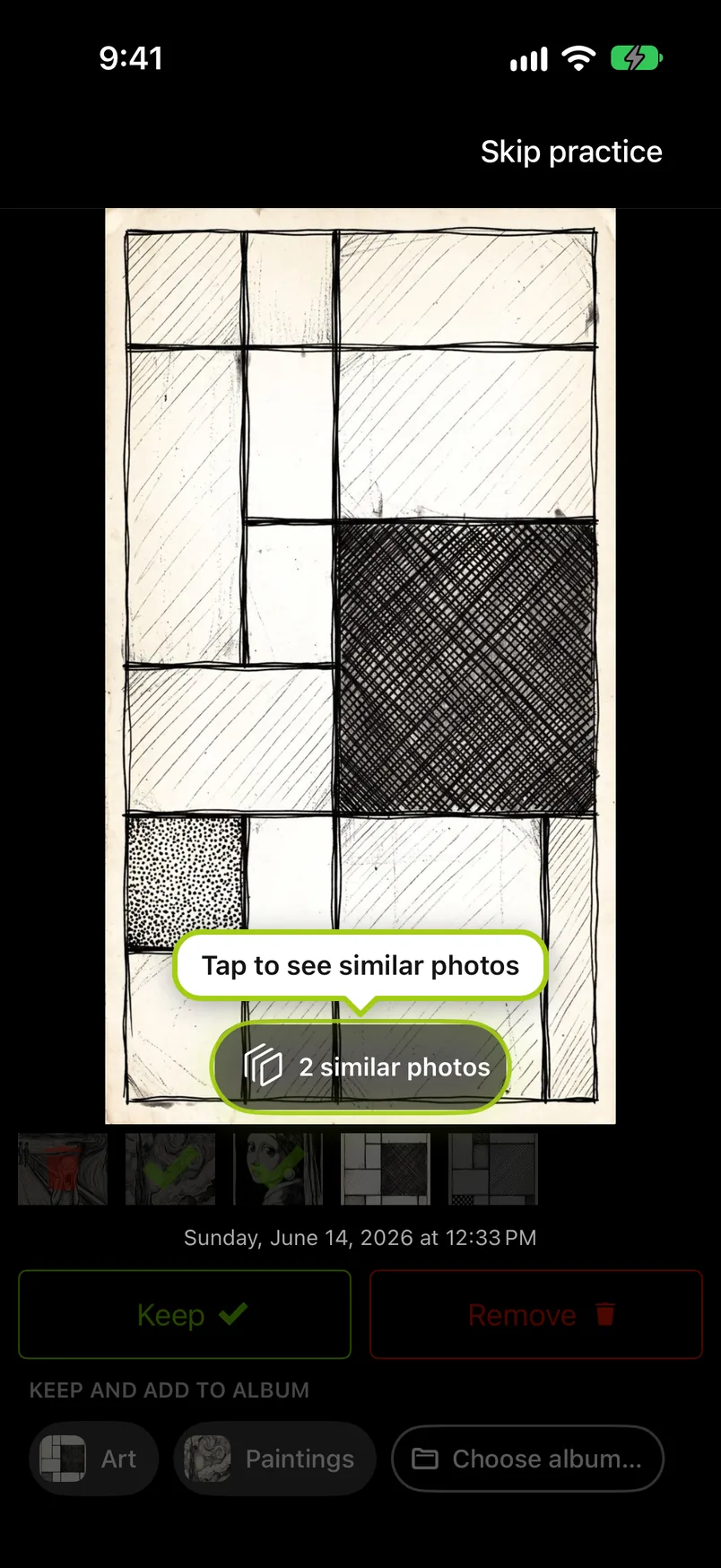
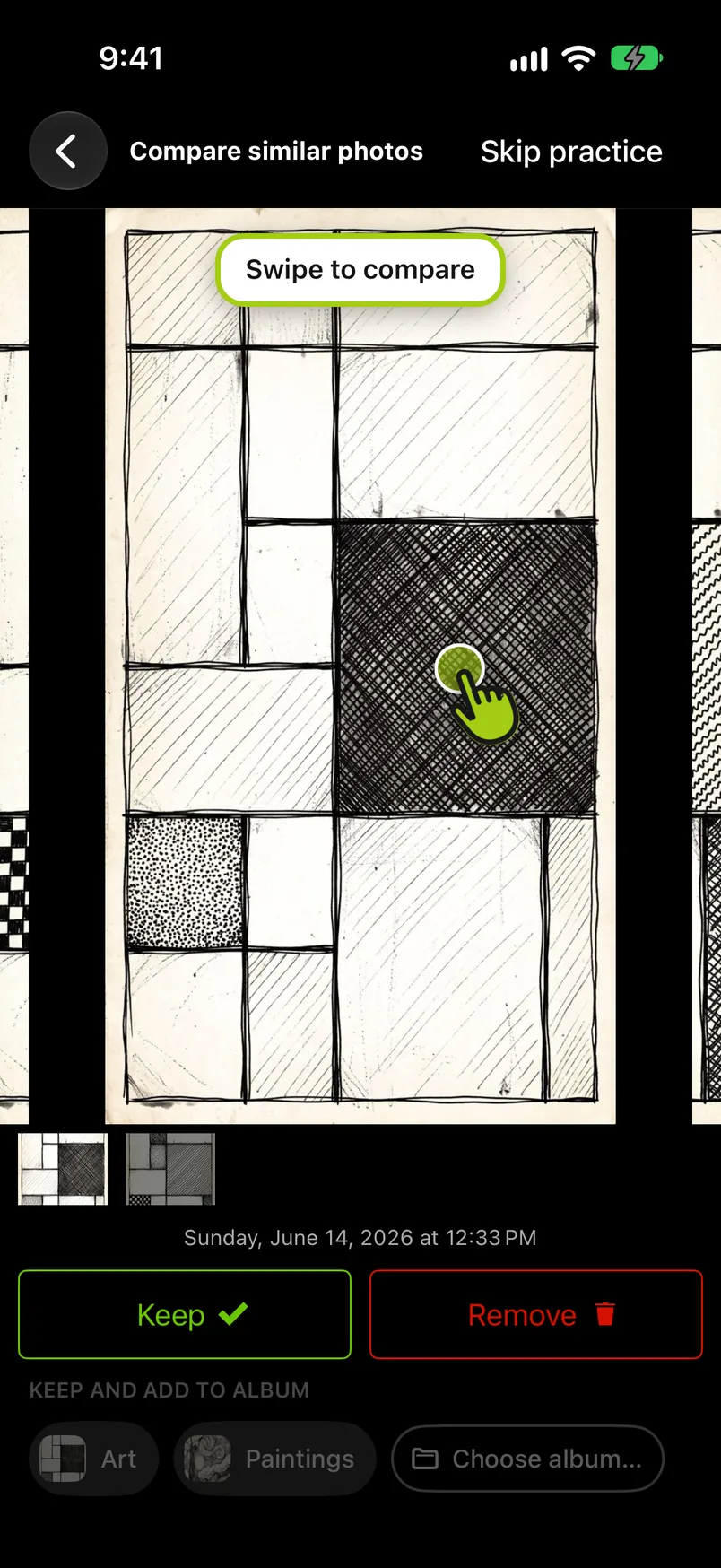
Each step accepts only what it teaches. Tap Keep while the step is about removing, and the bubble tells you so; nothing is marked. After 20 seconds without progress a Skip step link appears in the bubble, and Skip practice at the top right ends the whole run after one confirmation ("Skip the practice? You can run it again from Settings.").
If you finish the practice, two one-time tips never appear in the real sorter afterwards, because you have already learned them: the first-month tip and the tip on the similar-photos badge. See Tips.
The paywall#
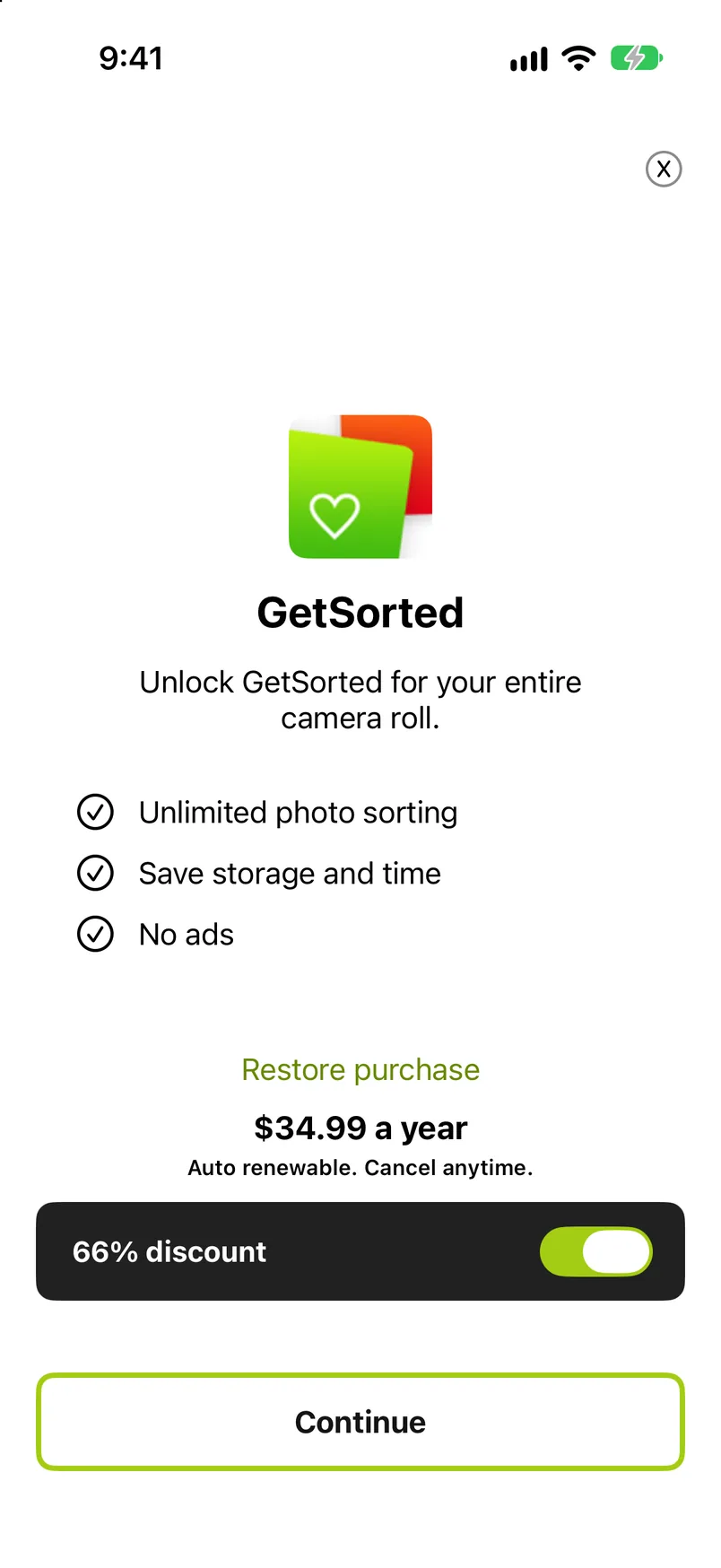
After the practice GetSorted shows what a subscription unlocks, with the yearly plan preselected. You do not have to decide now: tap the X at the top right to continue with the free trial. The free trial is six calendar months of your library, of your choice, that you can clean up for free: six months of photos, not six months of time. The big button, Continue, starts the purchase of the plan the switch selects: the yearly plan, or the monthly plan when you turn the switch off. It is not the way to go on for free; the X is. The Free trial and subscription chapter explains what stays free.
Your daily goal#
Sorting works in small batches. The daily goal is the number of photos that make one batch. The slider has five settings, 10, 25, 50, 75 or 100 a day, and says roughly how long each takes; it opens on 50, the recommended one. Pick something you can keep up, not something heroic: streaks and achievements reward consistency, and you can change the goal later in Settings.
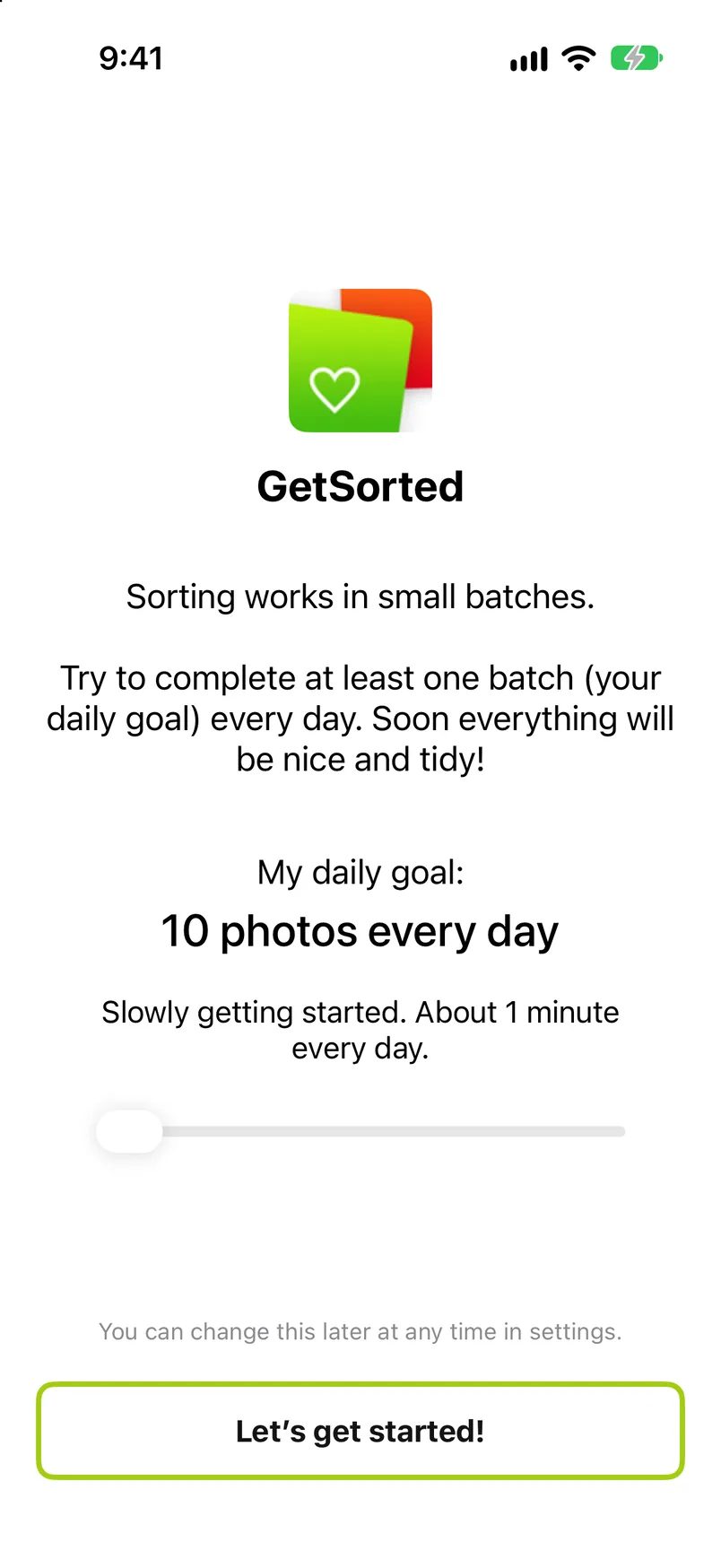
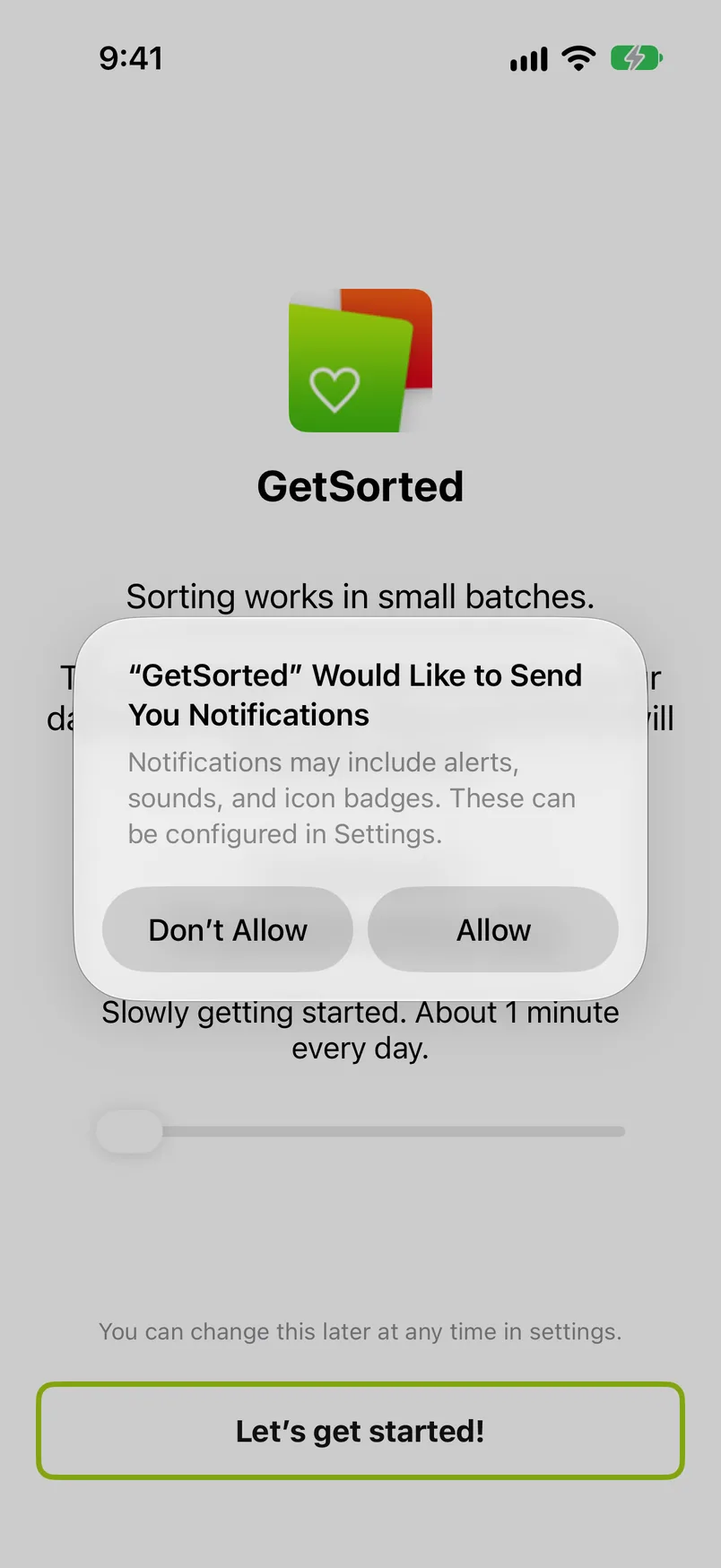
Let’s get started! asks for notification permission (for the evening reminder) and opens the Clean up tab.
What happens next#
You land on the Clean up tab. Nothing is started yet, so it asks you to pick a month on the Overview tab. Pick one, tap Start sorting, and the sorter opens on the first photo.
The Overview's list starts with Across all years: the lists of your videos, screenshots and Live Photos, where you have any, and of your similar photos (see Across all years). The years follow under By year. The first month grid you open shows a one-time tip under the checkmark, see Quick Select.