Reading the grid#
A month you open from the Overview tab shows its grid first. A started month's card on the Clean up tab goes straight to the sorter while photos are left to decide, and the back button there leads to the grid.
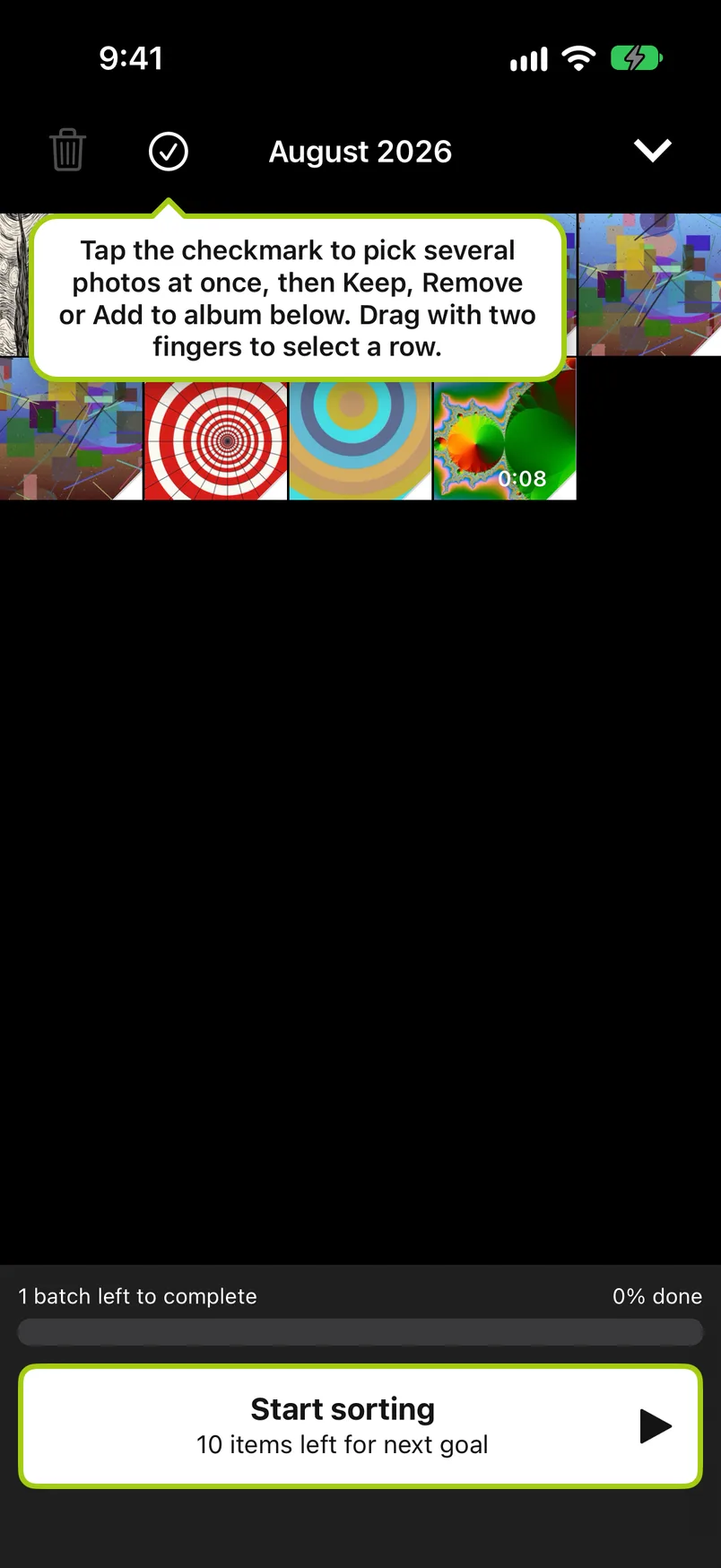
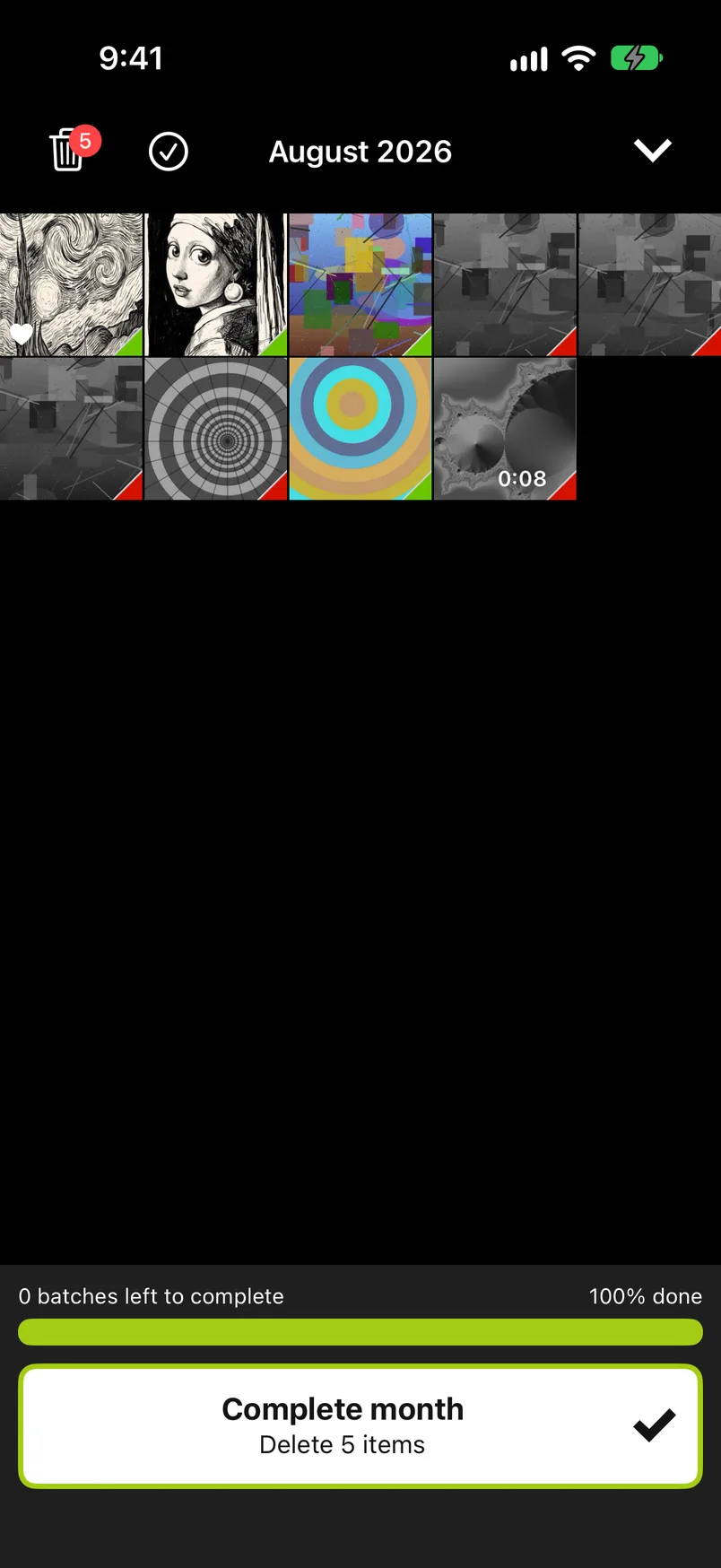
The grid shows the month's photos in the order they were taken, on black like the sorter, in light mode too. Every photo has a small corner at the bottom right: white while it is undecided, green once you keep it, red once you mark it Remove. A photo marked Remove is also dimmed and shown in gray. Videos show their length, favorites a white heart. The bar at the bottom tells you how many batches are left and how much of the month is done, and the big button below it is the month's main action: Start sorting for a new month, Continue sorting for a started one, Complete month once everything is decided and something is marked Remove, and Next: July 2026 once the month is completed (see On to the next month).
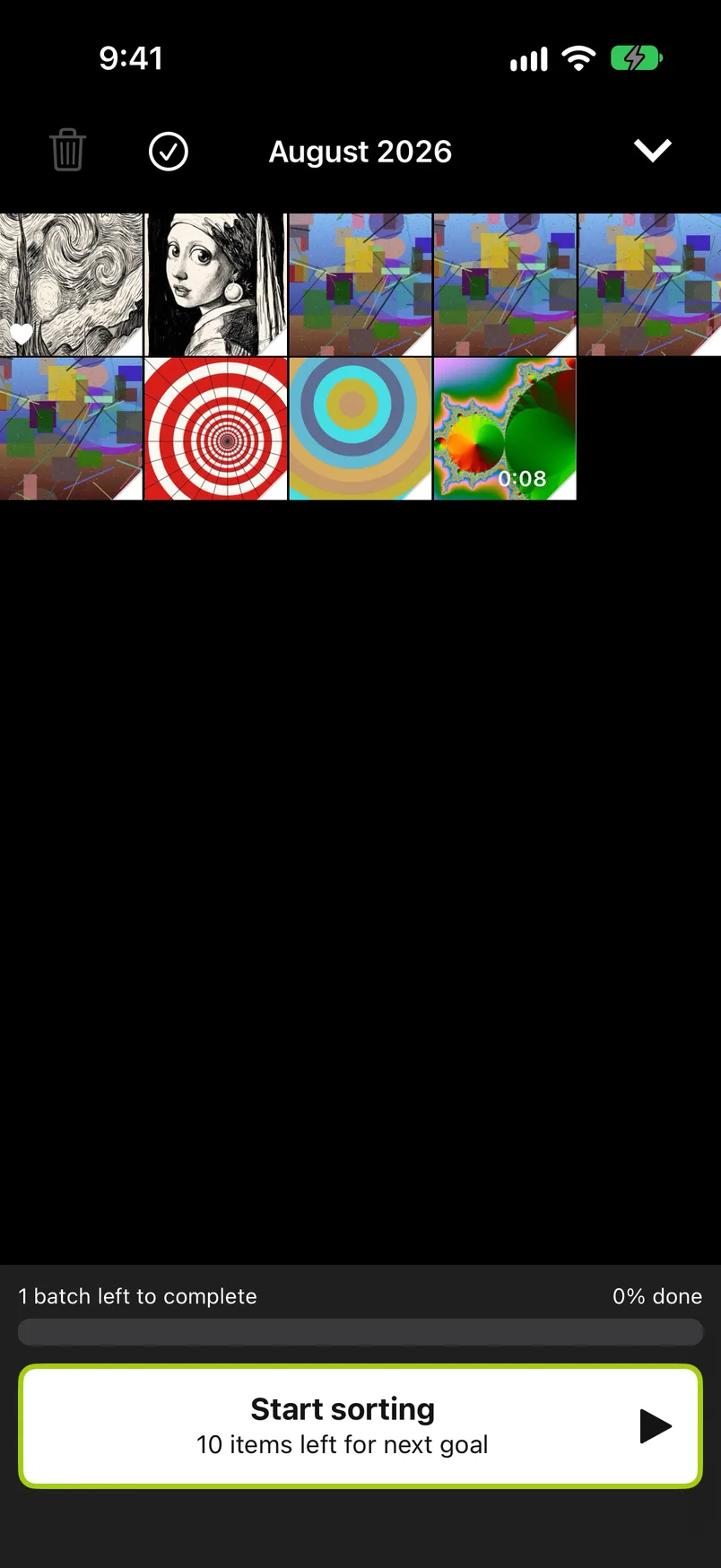
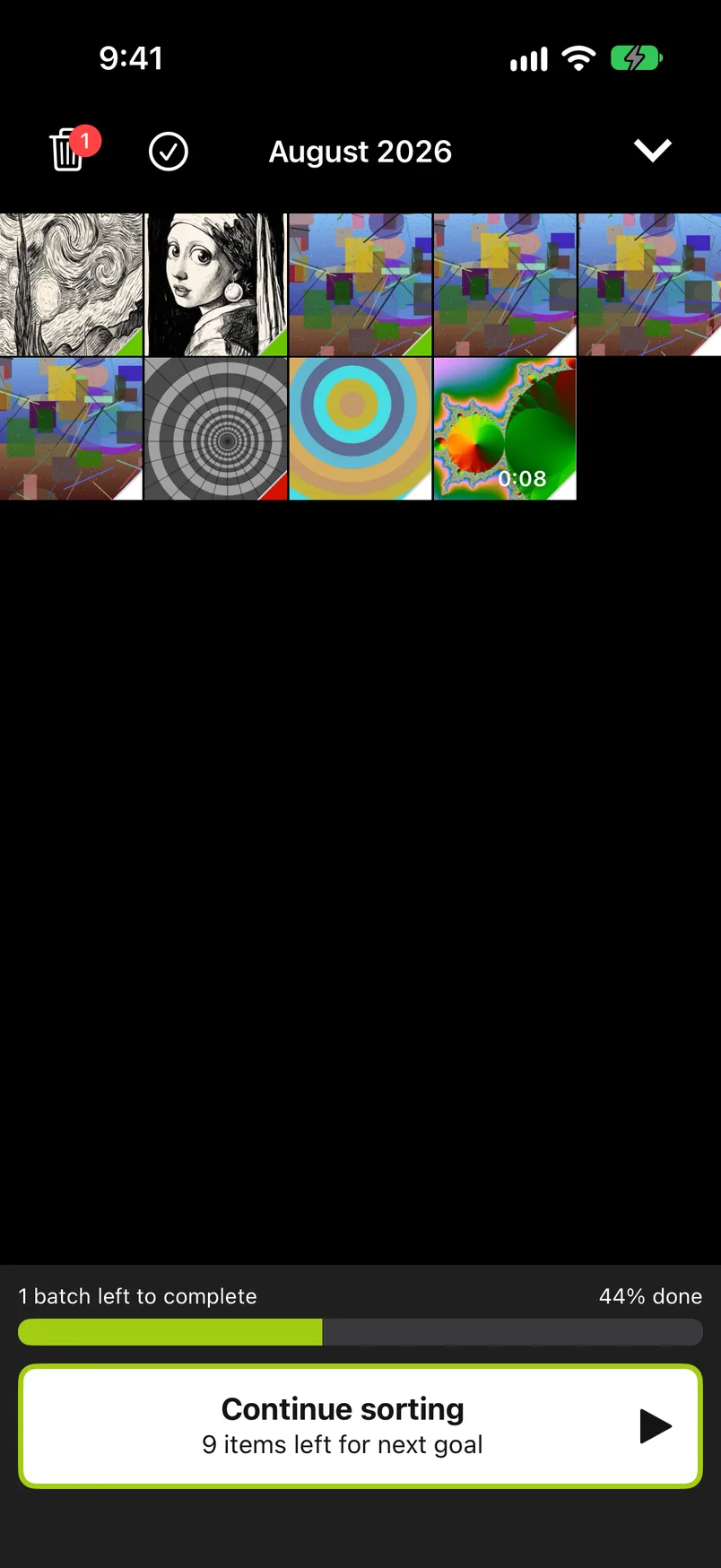
Tap any photo to open the sorter right there. The trash button at the top left opens the Trash, see The trash button; the checkmark next to it is Quick Select, and the arrow at the top right closes the month.
A month opened from the Videos, Screenshots or Live Photos lists uses the same grid, with only that month's videos, screenshots or Live Photos in it; see The month lists. Once all six of your free months are started, the grid of a month you have not started still opens, but Start sorting, a tap on a photo and the checkmark bring up the subscription screen; see Locked months.
Quick Select#
Tap the checkmark at the top to select multiple photos at once. The big button at the bottom makes way for the sorter's own buttons: Keep and Remove, and under them the chip row with your pinned albums and Choose album… (see Albums). Tap photos to select them; the line above the buttons and the title count the selection ("3 items selected"). Keep, Remove or an album then applies to every selected photo in one go. Until you select something, the line reads Tap photos to select them and the buttons and the chip row are dimmed. Tap the checkmark again to leave Quick Select.
With your iPhone on its side, Quick Select shows only Keep and Remove, as the sorter does.
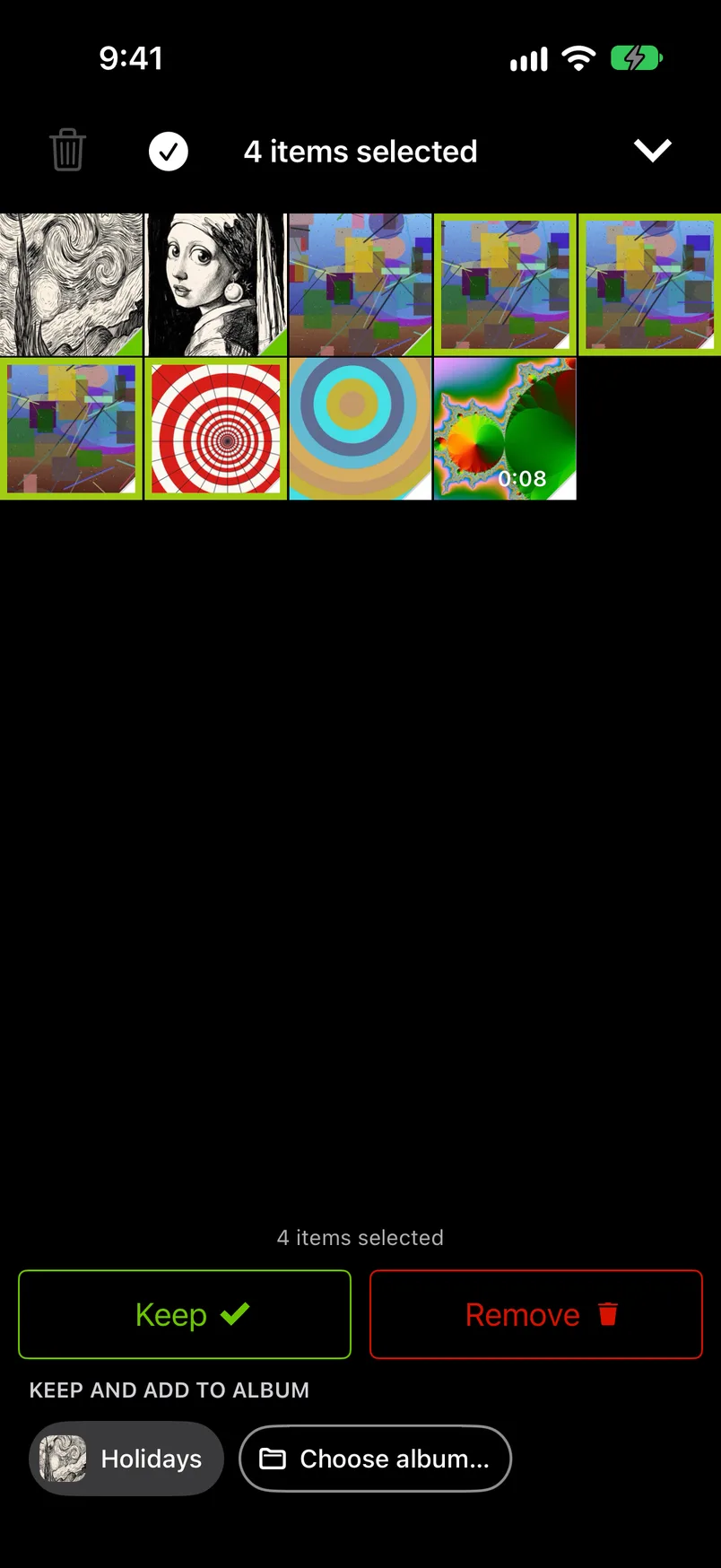
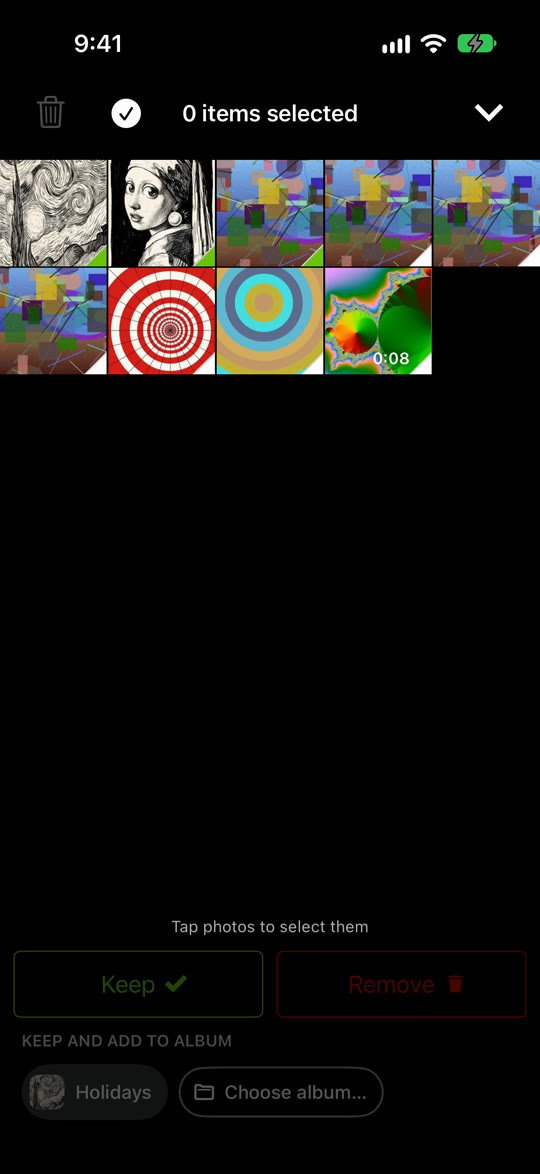
Quick Select is the fast way through a month of near-identical shots: look at the row in the grid, drag two fingers across the ones you do not need, tap Remove. Decisions made here count toward the daily goal like swipes. It is also how you delete a whole month of photos you no longer want: drag two fingers down over every row, tap Remove, and finish with Complete month.
Complete month#
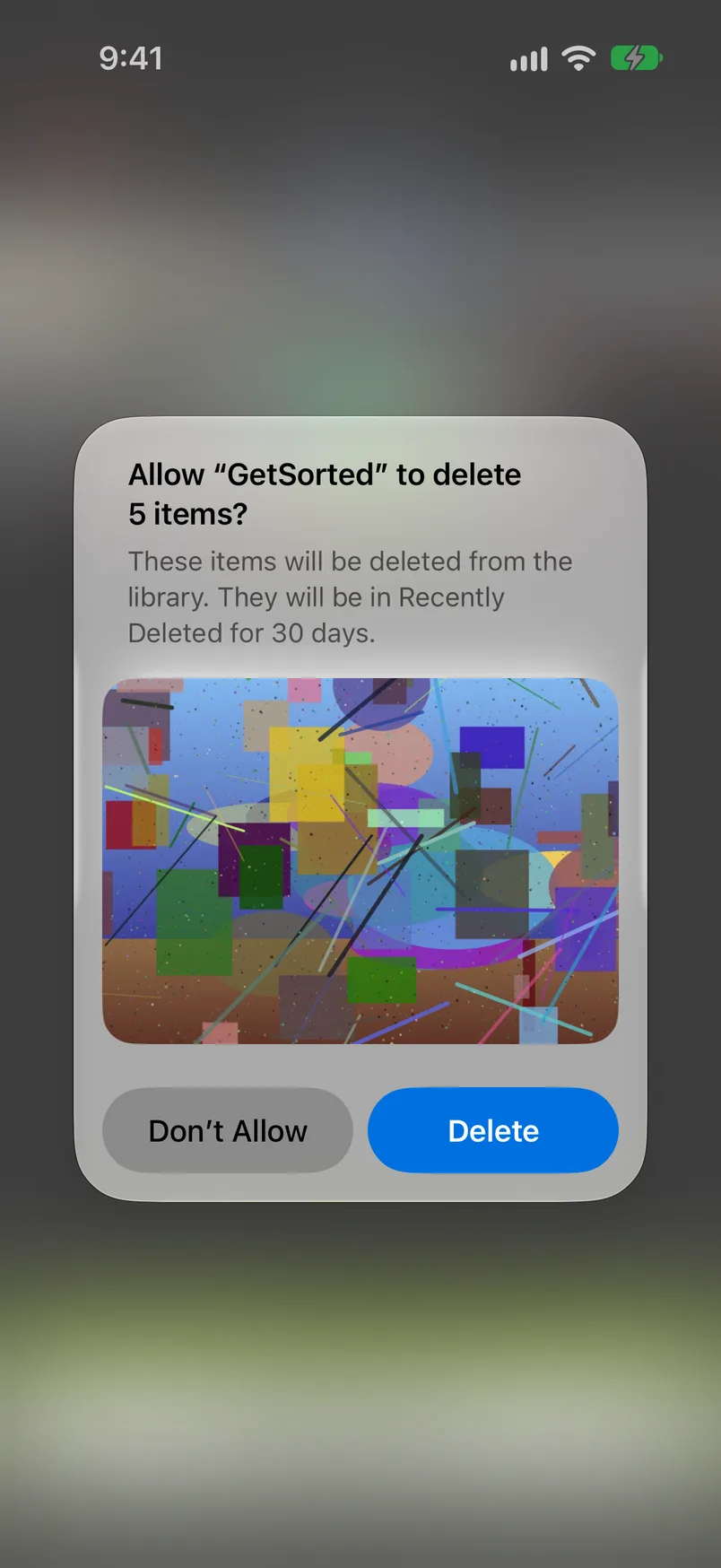
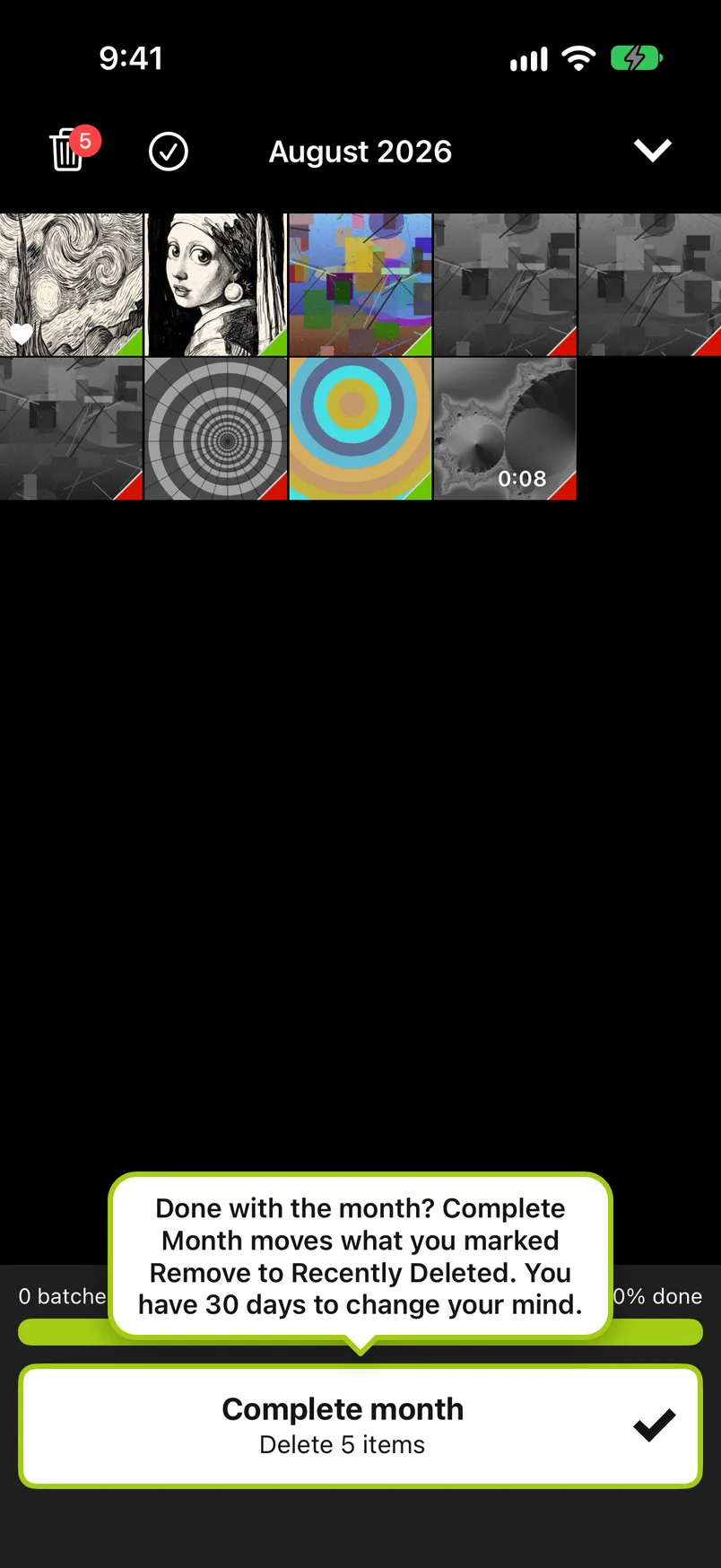
Once every photo in the month is decided and at least one is marked Remove, the button at the bottom turns into Complete month with the number of items to delete ("Delete 5 items"). Tap it, and iOS asks you to confirm that GetSorted may delete them and says that they will be in Recently Deleted for 30 days. The dialog belongs to iOS, so its wording follows your iPhone's language and iOS version.
Confirm, and the photos you marked Remove in this month move to Recently Deleted. GetSorted shows Done! with the number of items cleared up, then the month summary; without a subscription, Month completed! comes first. The Clean up tab retires the month to the Overview tab's Recently completed list. If you tap Don’t Allow, nothing changes. Complete month deletes this month's removals only; what you marked elsewhere stays in the Trash.
If some of the photos marked Remove are not on this device, GetSorted first asks whether to discard them; see the FAQ.
If you marked nothing Remove, there is nothing to delete and the month completes by itself with the last decision; the month summary appears as soon as the grid is back on screen (without a subscription, Month completed! comes first).
The first time a month is ready, a tip above the button reminds you where the photos go. On a grid that offers Complete month, this tip has priority over the Quick Select one.
The month summary#
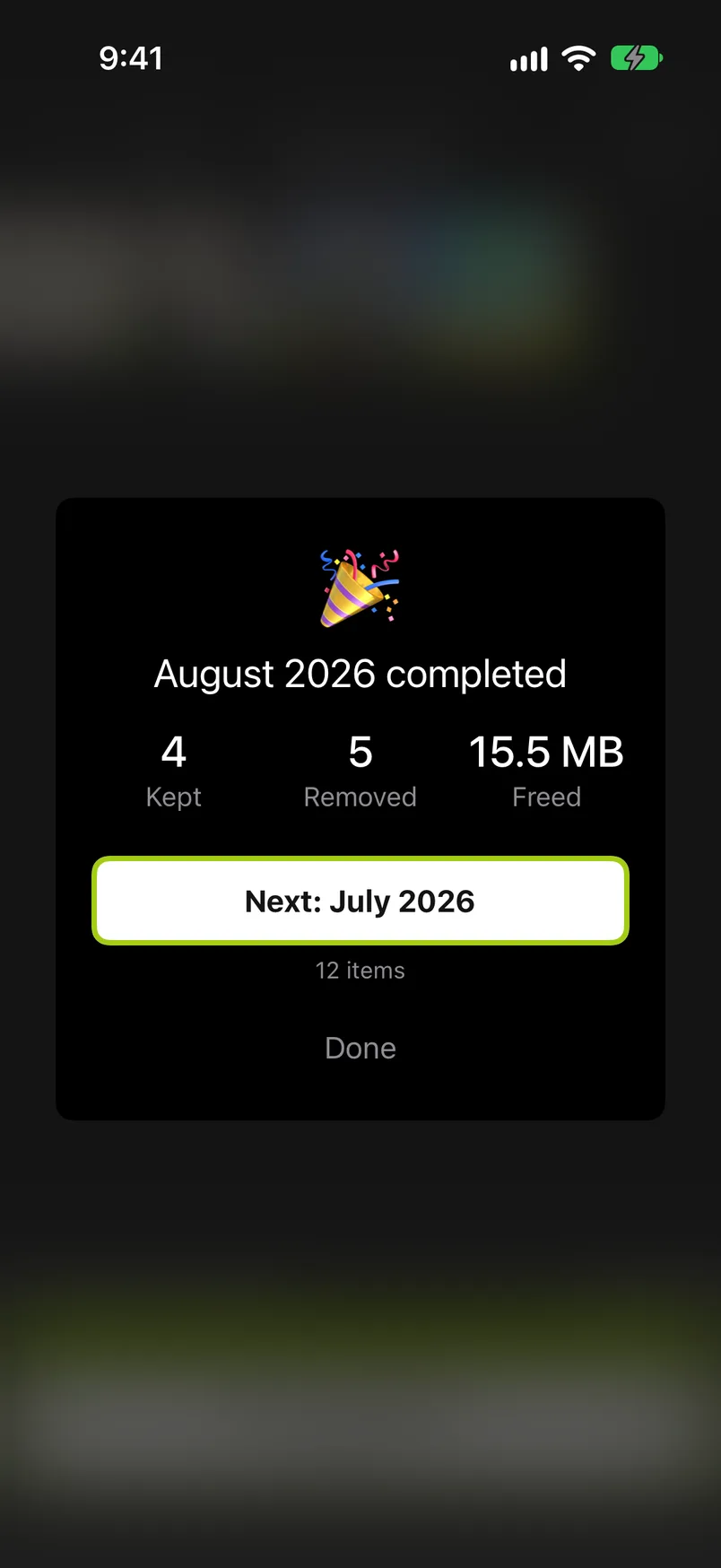
The moment a month is completed, a card sums it up over the grid: August 2026 completed, then Kept with the number of photos you kept and, when Complete month deleted something in this visit, Removed and Freed.
Freed is roughly what the deleted items took on this device; it is left out when GetSorted cannot read a size. It is not free space yet: iOS keeps the items in Recently Deleted for 30 days, so the space comes back when they leave that album, after the 30 days or when you empty Recently Deleted in the Photos app.
Below the numbers are two buttons. Next: July 2026, with the number of items left in that month, opens the next month; Done closes the month. A tap beside the card closes the card and stays on the month. When no month is left to sort, Done is the only button.
The card comes once: after Complete month, or right after the last decision when nothing was marked Remove. A completed month that you open again shows no card, and a group of similar photos gets none. If the same moment unlocked an achievement, the achievement card comes first.
Without a subscription, Month completed! comes first, once for each month; see Free trial and subscription. Its button Keep going for free then opens the next month directly, and no summary card appears. The card follows only when that button does not lead on: after Maybe later (once all six free months are started), or when no unfinished month is left.
On to the next month#
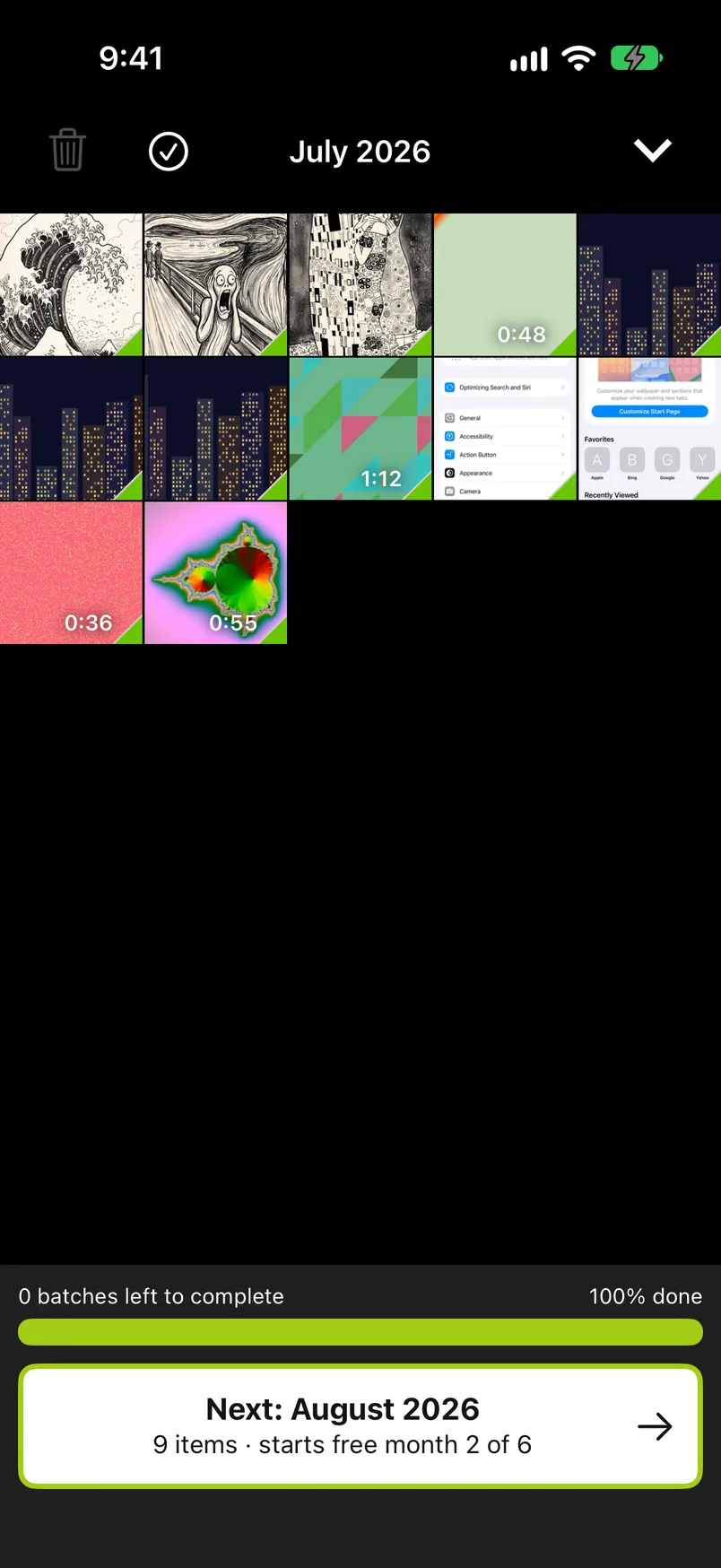
A completed month's big button reads Next: July 2026, with the number of items still to sort there on its second line ("12 items"; in a list, for example, "4 videos"). It opens that month's grid in place of this one; the arrow at the top right still returns to where you came from.
Which month is next: the nearest month later in time that still has undecided photos; when there is none later, the nearest earlier one. It stays in the same list: the calendar months, or the months of Videos, of Screenshots or of Live Photos. A group of similar photos has no Next button.
Only when nothing is left to sort in that list does the button turn gray and read Month completed with "Well done!" (in a month of a list: Completed).
Opening the next month's grid starts nothing; a month counts with the first decision in it.
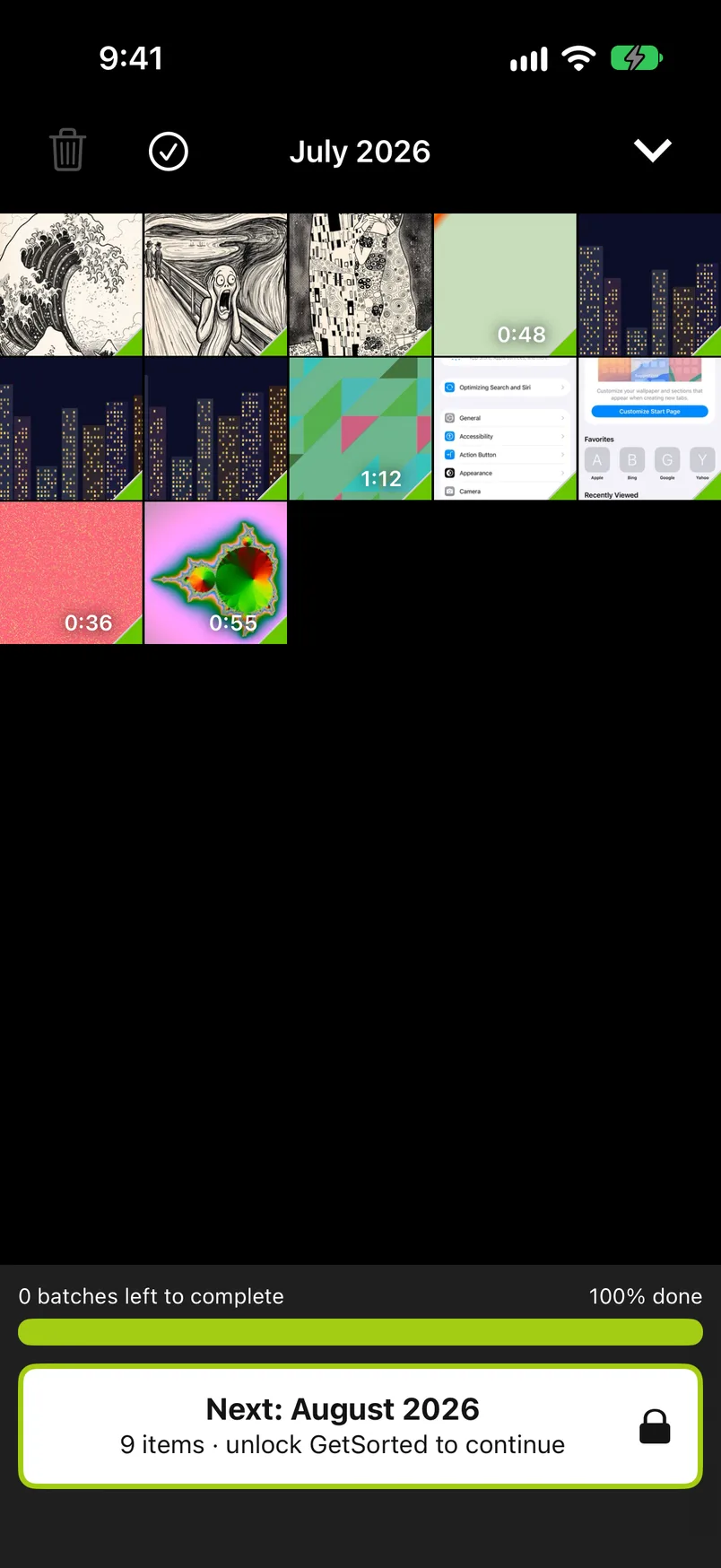
Without a subscription the line under Next says which of your free months the next one would be, if you have not started it yet: "40 items · starts free month 4 of 6" or, with no free month left, a lock and "40 items · unlock GetSorted to continue" (a tap then shows the subscription screen). See Locked months.
The trash button#
The trash button at the top left opens the Trash: everything you marked Remove and have not deleted yet, in this month and everywhere else.
It is active as soon as anything is marked Remove anywhere in your library, also in a month where you marked nothing; otherwise it is grayed out. On iOS 26 or later it shows the number of items in the Trash. It is off while Quick Select is on.
Earlier versions had Apply Now here, which deleted this one month's removals before the month was finished. That is gone: the Trash deletes everything in it, and Complete month deletes one month's removals once the month is fully decided.
How to keep single photos after all, and how to delete everything at once, is on the page The Trash.
Recently Deleted#
Everything GetSorted deletes goes through iOS to the Recently Deleted album of the Photos app, where it stays for 30 days. To get a photo back, open the Photos app, go to Utilities › Recently Deleted (on recent iOS versions: tap Collections, then scroll down to Utilities) and recover it there; GetSorted cannot restore a photo itself. GetSorted never deletes anything for good itself, and nothing is deleted at all until you complete a month or delete from the Trash. To delete photos for good before the 30 days are over, empty Recently Deleted in the Photos app.
After a completed month#
A completed month can be opened again from the Overview tab's Recently completed list, or from its row under its year. Its button leads on to the next month, and the summary card does not come again. Change a decision there, and the month shows Complete month again for the new removals. New photos that land in a completed month (an import, a restored photo) reopen it: its bar in the Overview is no longer full. Open the month from its year in the Overview to decide them; the earlier decisions stay. What you see at the moment a month is completed, with and without a subscription, is under The month summary.