Where the lists are#
The lists are rows at the top of the Everything list on the Overview tab, in a section headed Across all years: Videos, Screenshots, Live Photos and Similar photos. Each row shows a thumbnail, a count and a progress bar, like a year. A list your library has nothing of gets no row; Similar photos is always the last one. Videos, Screenshots and Live Photos each open a list of the months that have such items; Similar photos opens the list of groups.
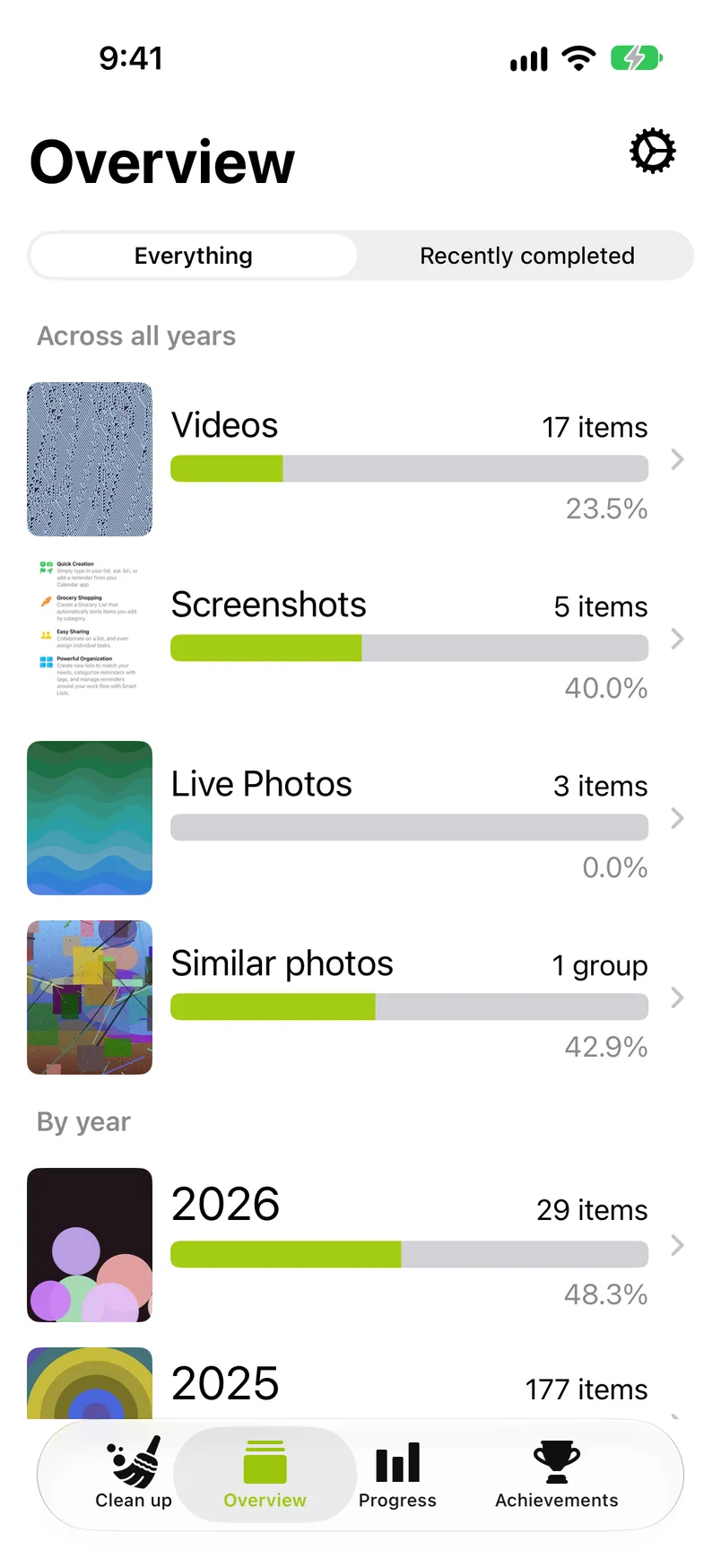
Decisions you make here are the same decisions the months see. A video you keep in the Videos list shows as kept in its month, and the other way round. The app says so in the first line of the Videos, Screenshots and Live Photos lists: "What you sort here counts for that month too."
The month lists#
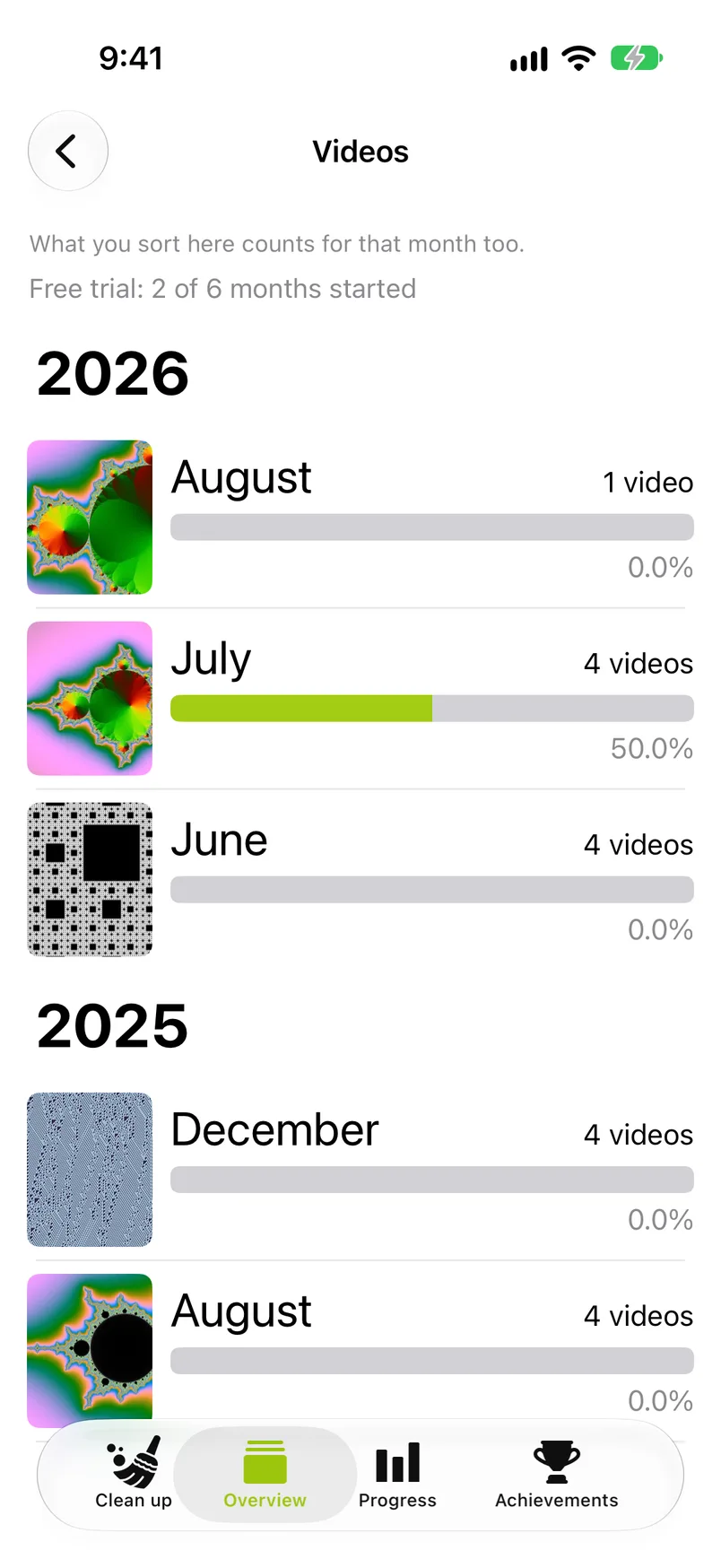
Videos, Screenshots and Live Photos share one kind of screen. Its title is the name of the list, and its first line is the sentence quoted above. Below that every year has a heading, and under each heading there is one row for every month that has such items, newest first. A row shows a thumbnail, the month, the count ("4 videos"), a progress bar and the percentage that is decided.
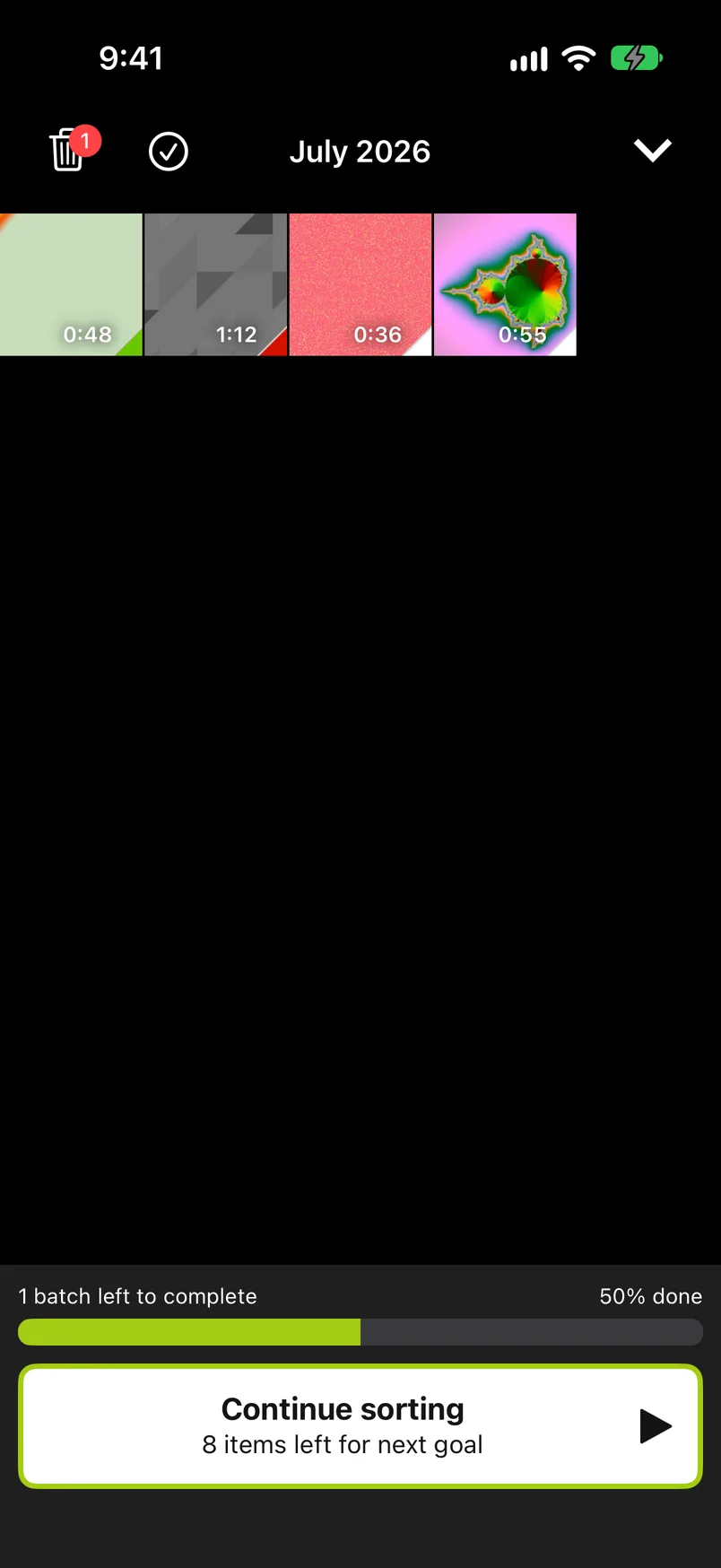
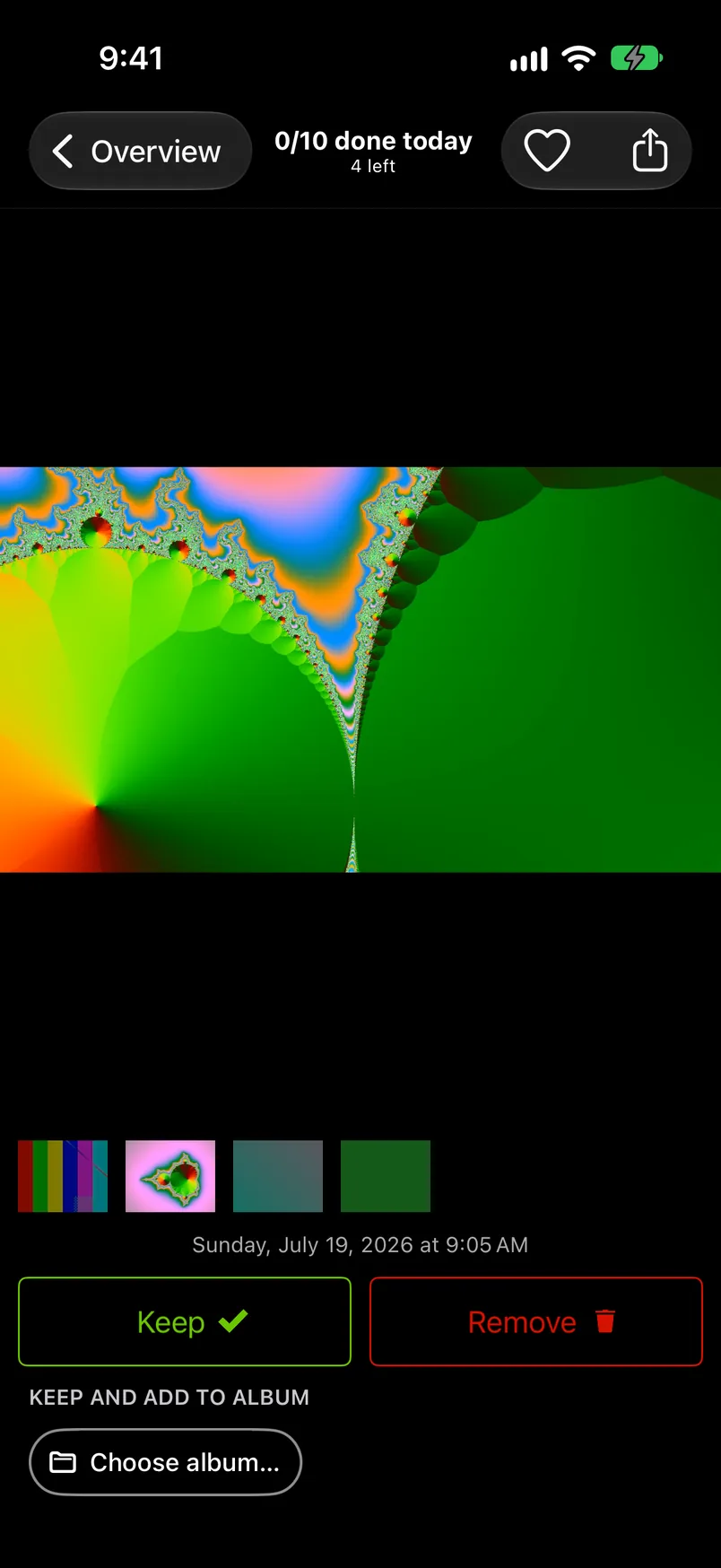
Tap a month and its items open full screen in the month grid, titled with the month ("August 2026"). From there everything works as in any month: Start sorting, Quick Select, the sorter and Complete month. Under the sorter's title it says how many are left ("4 left").
When the month is finished, the big button offers the next unfinished month of the same list ("Next: July 2026", with "4 videos" under it), see On to the next month. When nothing is left to sort in the list, the button reads Completed.
What you mark Remove here waits in the same Trash as everything else. Complete month in a list month deletes only that month's items of that kind: in August's videos, the videos of August that you marked Remove.
A month you started in one of these lists is not among the started months on the Clean up tab; continue it from its list. Its decisions still count in the calendar month: they move that month's bar on the Overview and, if you have started the month there too, its card on the Clean up tab.
In the free trial (six months of photos, not six months of time) a month of a list is the same free month as that calendar month. The first decision in October's videos starts October as one of your 6 free months, and a month you have started is open in every list. Without a subscription the line "Free trial: 4 of 6 months started" stands above the list. Once all six are started, the months you have not started show a lock before their count, and trying to sort in one brings up the subscription screen. See The six free months and Locked months.
Of the one-time tips, the one for the first month does not show in these lists; the others do.
Videos#
The videos in your library, month by month. Videos are usually the biggest files in a library, so if you want to delete videos to free up space, this is where a few decisions clear the most storage. The list goes by month, not by size: a row says how many videos a month has and the grid shows each video's length, but GetSorted shows no file size for a single video. Roughly how much everything waiting in the Trash takes on this device is on the items to delete card of the Clean up tab ("About 1.4 GB · waiting in Trash").
In the sorter a video plays muted (tap it for sound and controls); swipe up to remove it, down to keep it. When every video of the month is decided, Complete month at the bottom deletes the ones you marked Remove; they go to Recently Deleted in Photos and stay there for 30 days, like a month's photos. The space comes back when they leave it, after the 30 days or when you empty Recently Deleted in Photos.
Screenshots#
This is where you clean up screenshots: the screenshots in your library, as iOS recognizes them, month by month, in a list that works exactly like the Videos list. They sort like any photo. Screenshots belong to their months too: cleaning them here sorts them in their months as well, and a month with many screenshots is a good first month to start. A month of screenshots counts as that calendar month in the free trial too.
Live Photos#
The photos that iOS marks as Live Photos, month by month, in a list that works exactly like the Videos list. In the sorter a Live Photo plays when you touch and hold it; a one-time tip says so ("Touch and hold to play the Live Photo."). To delete Live Photos, mark them Remove like any photo; what gets deleted is always the whole Live Photo. GetSorted does not edit photos, so it cannot keep the still picture and drop the moving part. A month of Live Photos counts as that calendar month in the free trial too.
Similar photos#
GetSorted can find similar photos for you: photos that resemble each other and were taken within minutes of one another, like the five shots of the same sunset or the three attempts at the group photo. It only puts them into groups. What stays is your decision, photo by photo: GetSorted never marks a photo by itself and suggests no best shot.
The analysis runs on your device, month by month. The Similar photos row on the Overview shows how many groups still have a photo to decide ("3 groups"); before the first scan it reads "Tap to find similar photos". Opening the list starts the scan, newest month first, and a line at the top says which month is being analyzed ("Analyzing August 2026…"). The scan stops when you leave and goes on when you come back; months that are already scanned keep their results. The month you are sorting is scanned as you sort it, which is what makes the badge appear.
Only photos are compared: videos and screenshots are left out, Live Photos count as photos. A group has at least two photos, each taken within 10 minutes of the one before, in the same month. GetSorted compares how photos look, not their files, so this is not a search for exact duplicates: an exact copy is grouped with its original only when both carry about the same date, and a copy saved weeks later is not found.
The photos are compared on your device and are not uploaded. A photo whose picture is stored only in iCloud is fetched for the comparison, so a scan can use the network. The usage statistics get numbers only (for each scanned month, how many photos were compared and how many groups were found), see Privacy.
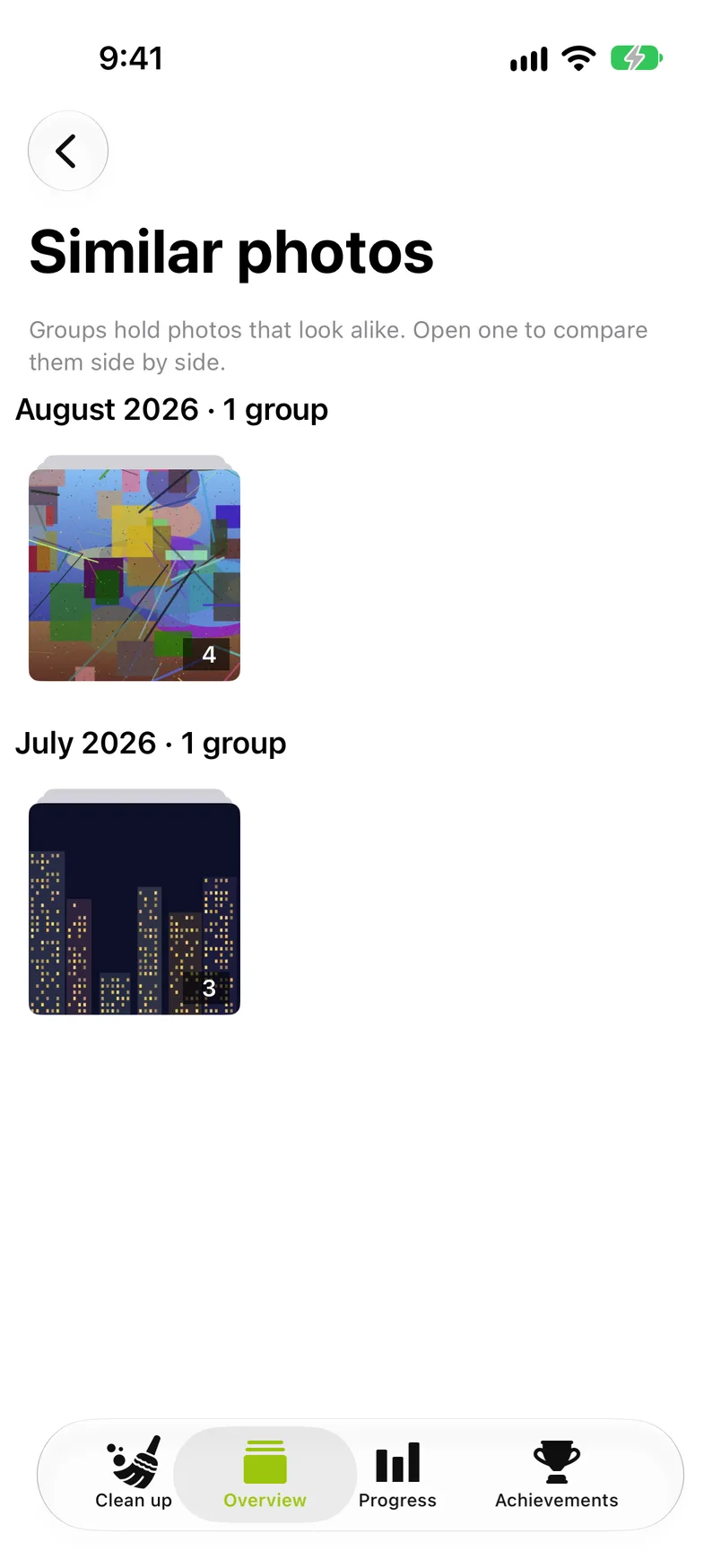
The list, titled Similar photos, shows the groups by month, newest first, each group as a stack with the number of photos in it. Groups whose photos are all decided already are hidden, so the list shrinks as you work. Tap a group to open compare mode on its first undecided photo.
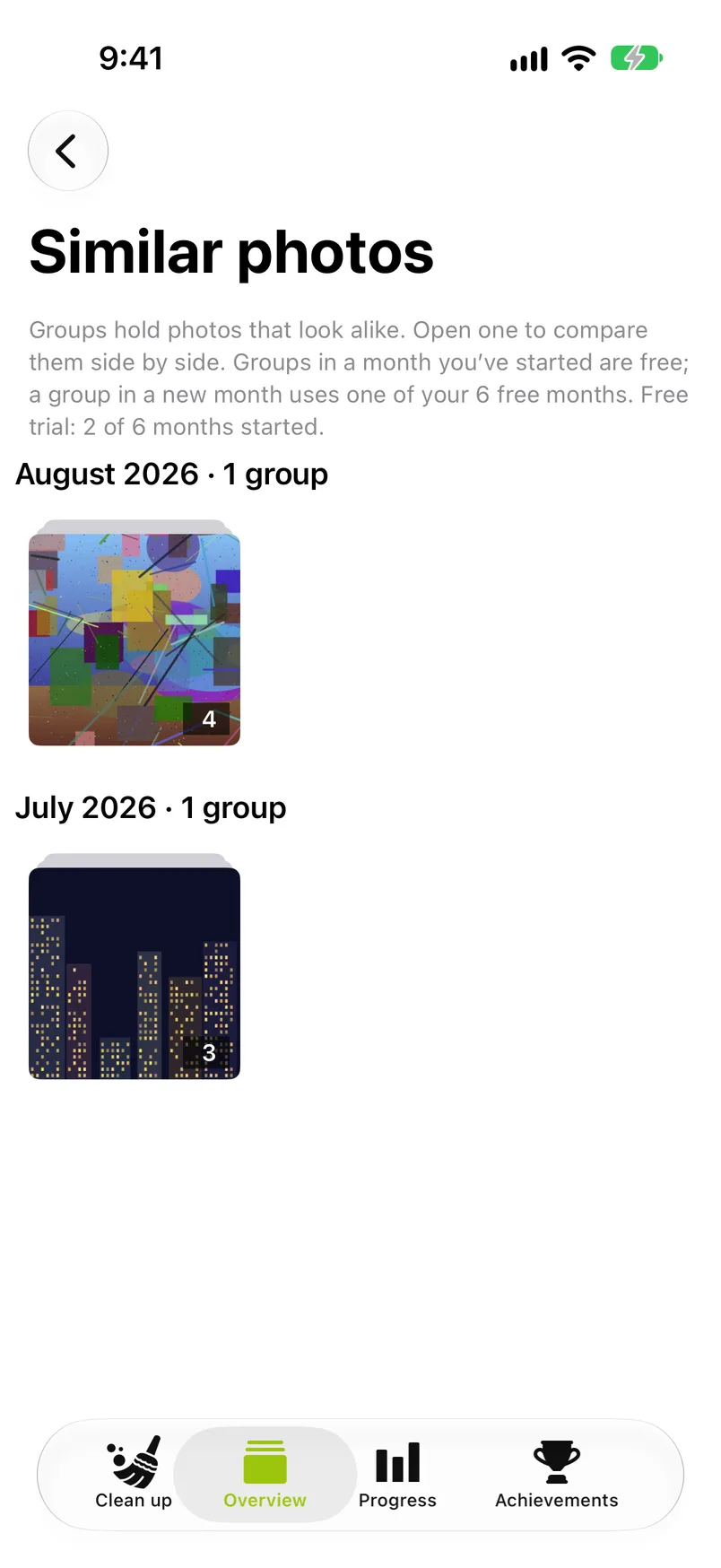
Every month is scanned for everyone. Without a subscription a group belongs to its month in the free trial: groups in a month you have started are free, a group in a new month uses one of your 6 free months, and once all six are started the headings of the months you have not started show a lock and their groups bring up the subscription screen instead of opening. The line under the title says so and where you stand. Opening the list itself never brings up the subscription screen.
Compare mode#
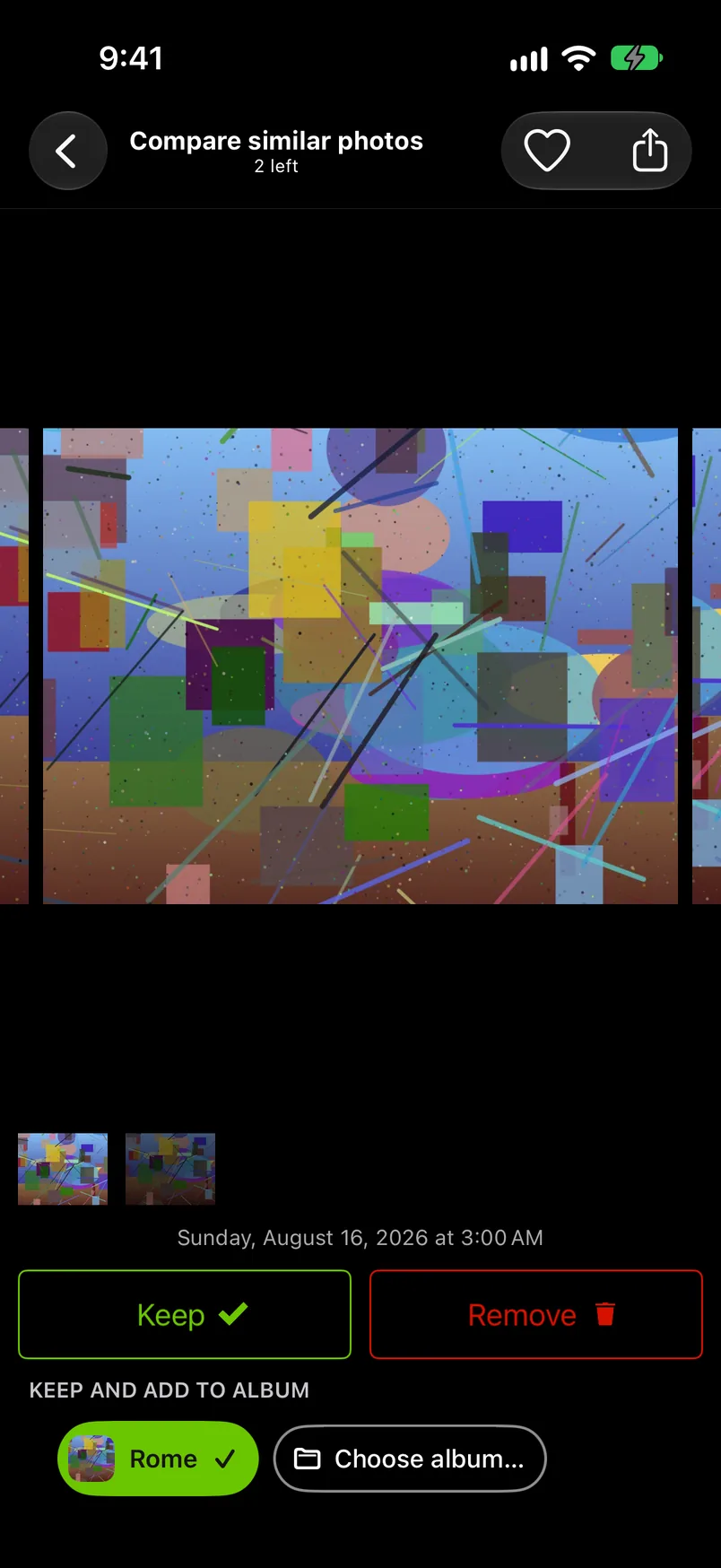
Compare mode is the sorter scoped to one group, so that you can compare similar photos one after the other. Under its title, Compare similar photos, it says how many photos of the group are left to decide ("2 left"). The neighbors peek in at both edges, so a swipe shows the two photos next to each other for a moment before the next one settles. Swipe left and right as often as you like; the group wraps around. Swipe up or down to decide each photo, or tap Keep and Remove; a tap decides at once, without the pause. The album chips and the heart work as in any month.
When the last photo of the group is decided, compare mode closes. If you came from the badge, you are back in the month you were sorting. If you came from the list of groups, you land on the group's own grid. If you marked anything in the group Remove, Complete month is waiting there. It deletes what you marked Remove in the groups of that month that you have opened, not only in the group on screen; until then those photos wait in the Trash like everything else you marked Remove. The close arrow at the top right takes you back to the list. One exception: if your last decision was a tap on the heart, which makes the photo a favorite and keeps it, compare mode stays on that photo so that you can still add it to an album.
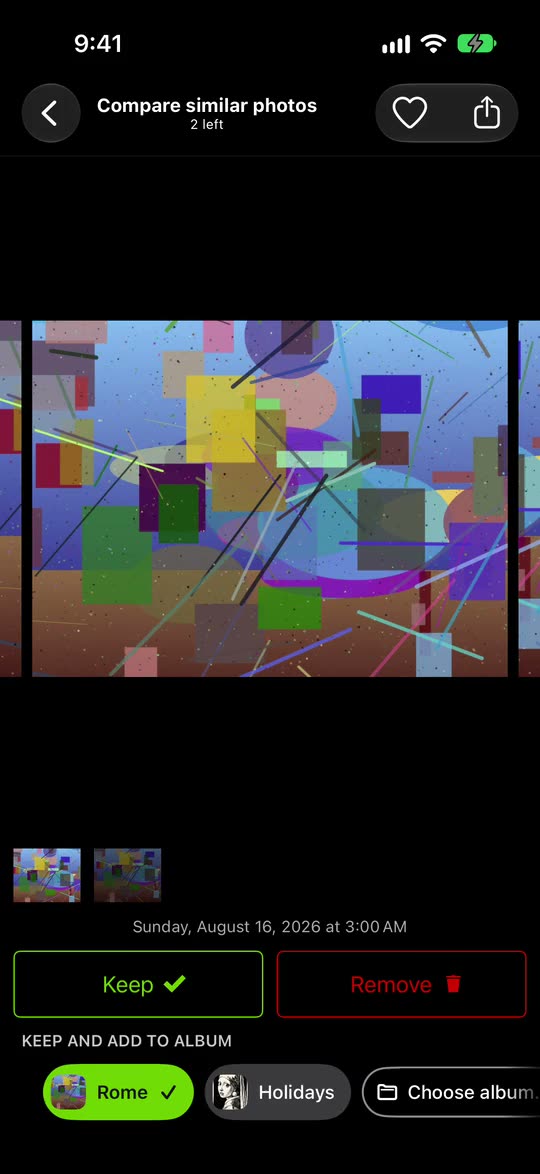
The badge on a photo in the month sorter ("3 similar photos") opens the same screen for that photo's group, see The similar-photos badge. The zoom lock works here too: pinch into a face and lift your fingers, and the zoom stays while you move through the group by tapping the left or right side of the photo or the filmstrip, so you can pick the sharpest one.