Daily goal#
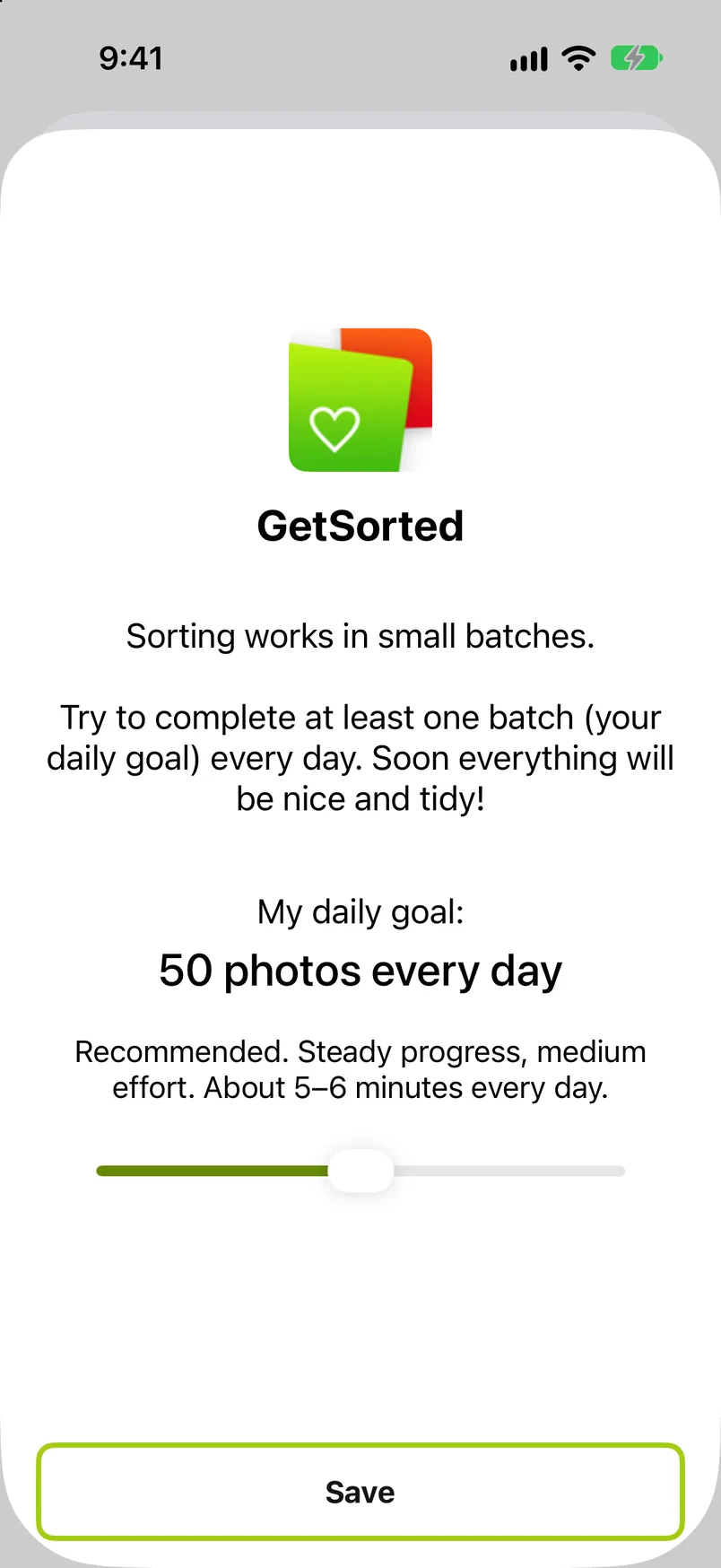
To change the daily goal, tap Change daily goal. It opens the same screen as during setup: a slider with five settings (10, 25, 50, 75 or 100 photos a day), each with a note on roughly how long it takes. The slider always opens at 50, whatever your goal is now, so set it before you tap Save. From then on the Clean up tab's ring and the Progress tab use the new number. Past days are re-evaluated against the new goal too, so a streak can grow or shrink when you change it.
Reminders#
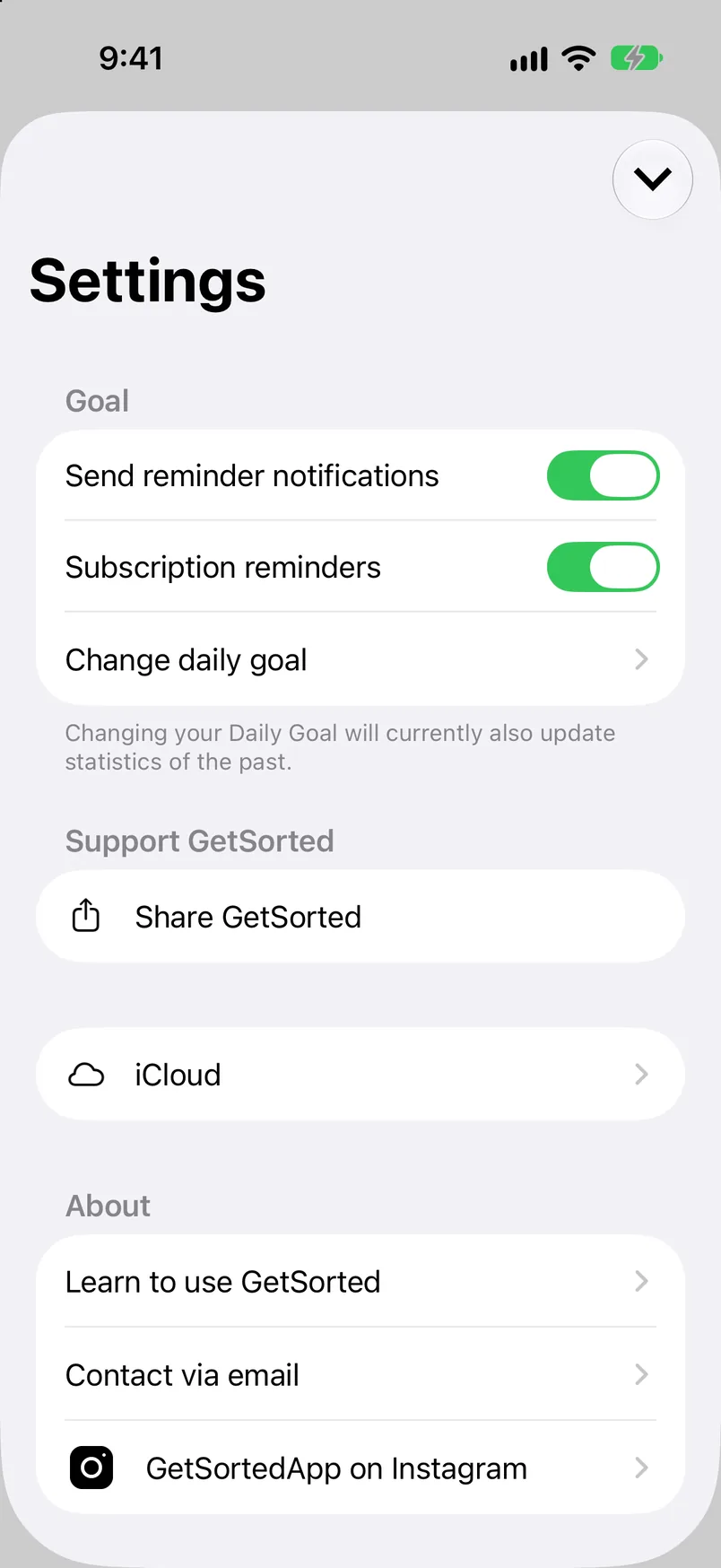
- Send reminder notifications: each time you leave the app, GetSorted sets up to three one-off notifications. A goal reminder at 19:50, the same evening while today's goal is still open and otherwise the next evening, worded after your streak when you have one. A last call at 21:30 the same evening, when a streak of 7 days or more is at stake and the goal is still open (not after two such evenings in a row on which the goal stayed open). And a progress recap at 19:50 three days later. They are cleared the next time you open the app and none repeats by itself, so after the recap nothing more comes until you open GetSorted again. When your whole library is sorted, the goal reminder and the last call stop. Switching the reminders on asks iOS for notification permission the first time.
- Subscription reminders: for subscribers and former subscribers only; if you never subscribed, you get none of them. A yearly plan gets two notes, 30 and 7 days before it renews or ends. After you switch off auto-renewal, every plan gets a note on the evening before access ends. After a subscription has ended, reminders follow 45, 120 and 300 days later (after a monthly plan also 7 days later). Apart from the note on the evening before access ends, there is never more than one within 7 days and never more than two within 30 days. If you were never asked about notifications, GetSorted asks iOS for provisional permission for these notes, and iOS then delivers them quietly to Notification Center, without a prompt.
Share GetSorted#
Opens the share sheet with a link to GetSorted (get.sorted.app).
iCloud#
Shows whether your progress is syncing through your private iCloud: a Status line (Up to date, In progress, Pending, or the reason it is not syncing), the phases of a sync under Sync details and what sync needs under Requirements. Under a phase you may find the app's own note: "The first sync can take a while. Using GetSorted frequently makes this process complete faster." Sync needs iCloud and iCloud Photos switched on in the iOS Settings. See Privacy for what is synced, and the FAQ if your progress does not show on another device.
Learn to use GetSorted#
Runs the practice again: the five steps on the bundled cartoons, closing when you are done. Nothing in your library changes.
Contact and links#
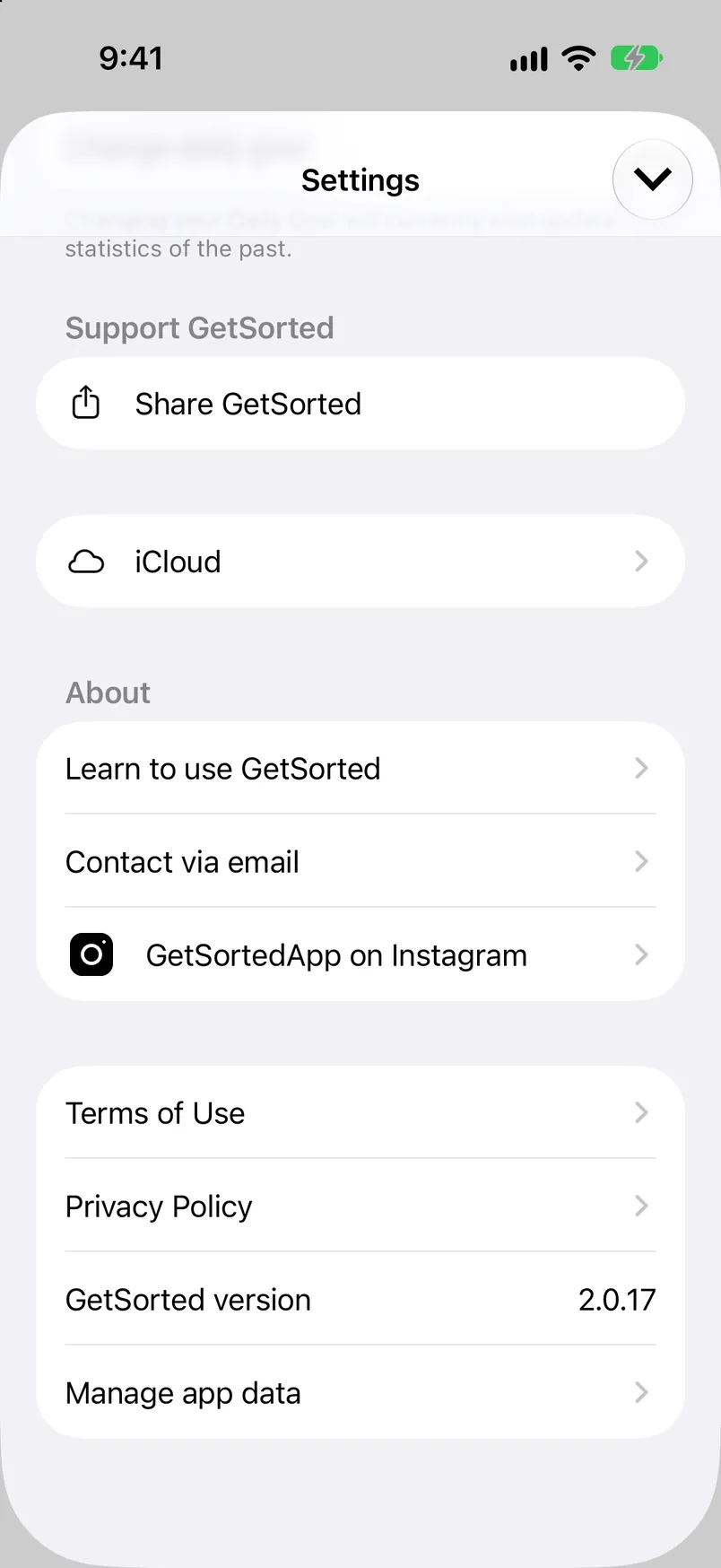
To contact GetSorted support, tap Contact via email: it opens an email to support@sorted.app. The draft already ends with the app installation ID and a note that sending it is optional; delete those lines if you would rather not send it (see Privacy). Below it: Instagram, the Terms of Use, the Privacy Policy and the app version.
Restore purchase#
Restore purchase is where the plans are: on the Clean up tab's free trial row and on every paywall. Settings has no copy of it. Sign in with the Apple Account you bought GetSorted with, then tap it. See Free trial and subscription.
Manage app data#
The last row opens the troubleshooting page. Everything here is about GetSorted's own records; none of it deletes photos. Every action except the two for the installation ID asks for confirmation first, and afterwards GetSorted reloads itself.
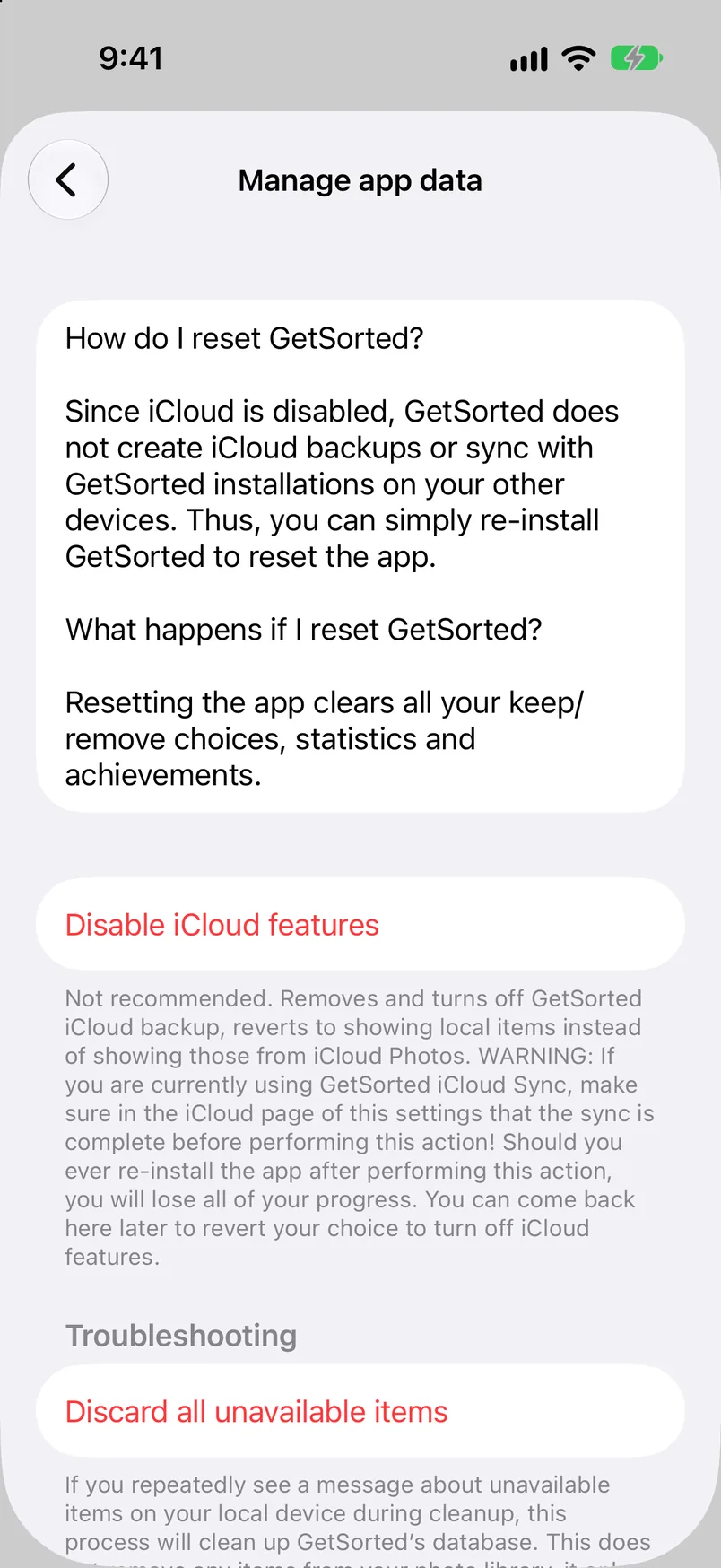
| Action | What it does |
|---|---|
| Delete GetSorted iCloud backup | Removes your decisions, statistics and achievements from your iCloud. To reset GetSorted completely, delete the app on every device afterwards and reinstall. The button is there only when the device is signed in to iCloud. |
| Disable iCloud features | Keeps everything on this device only. It also deletes the GetSorted backup in your iCloud, and GetSorted then shows the photos stored on this device instead of those in iCloud Photos. Not recommended: a reinstall then loses your progress. Can be switched back on here. |
| Discard all unavailable items | Under the heading Troubleshooting. Drops GetSorted's records of photos it can no longer find in your library (see the FAQ). |
| Re-create local database | Empties GetSorted's index of your library on this device. Only when something is clearly wrong; GetSorted then rebuilds the index straight away. |
| Copy / Regenerate app installation ID | Copy puts the ID on the clipboard, for a message to support. Regenerate does not change that ID: it resets the anonymous identity under which usage statistics are sent, so later usage is not linked to earlier usage. |