The album chips#
Under Keep and add to album the sorter shows a row of chips: the albums you pinned, each with its cover and name, and Choose album… at the end. Tap a chip and the photo is added to that album and marked Keep, then the sorter moves on. A folder badge with the album's name flashes to confirm.
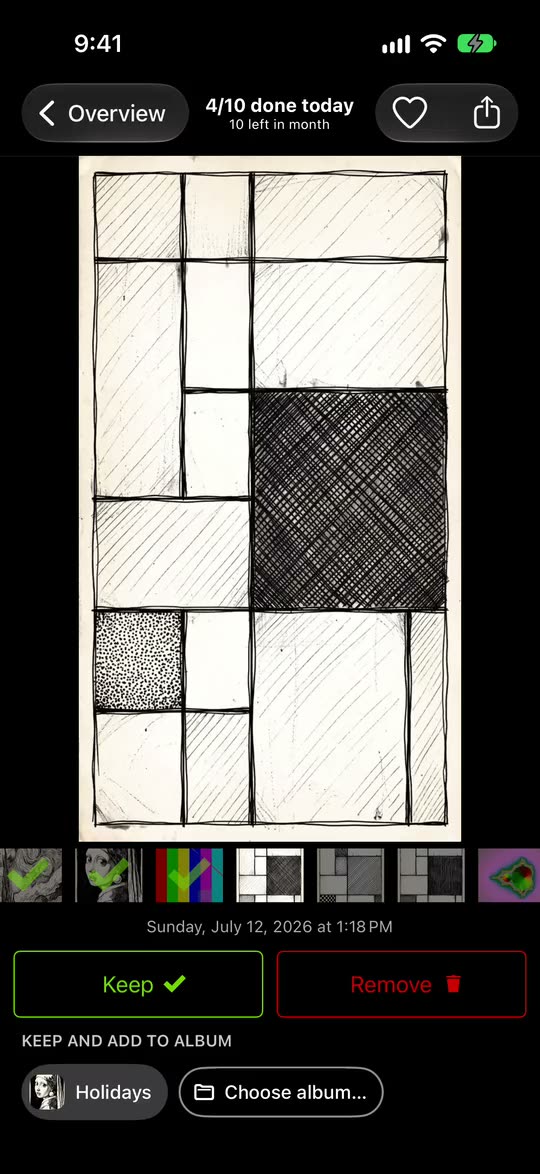
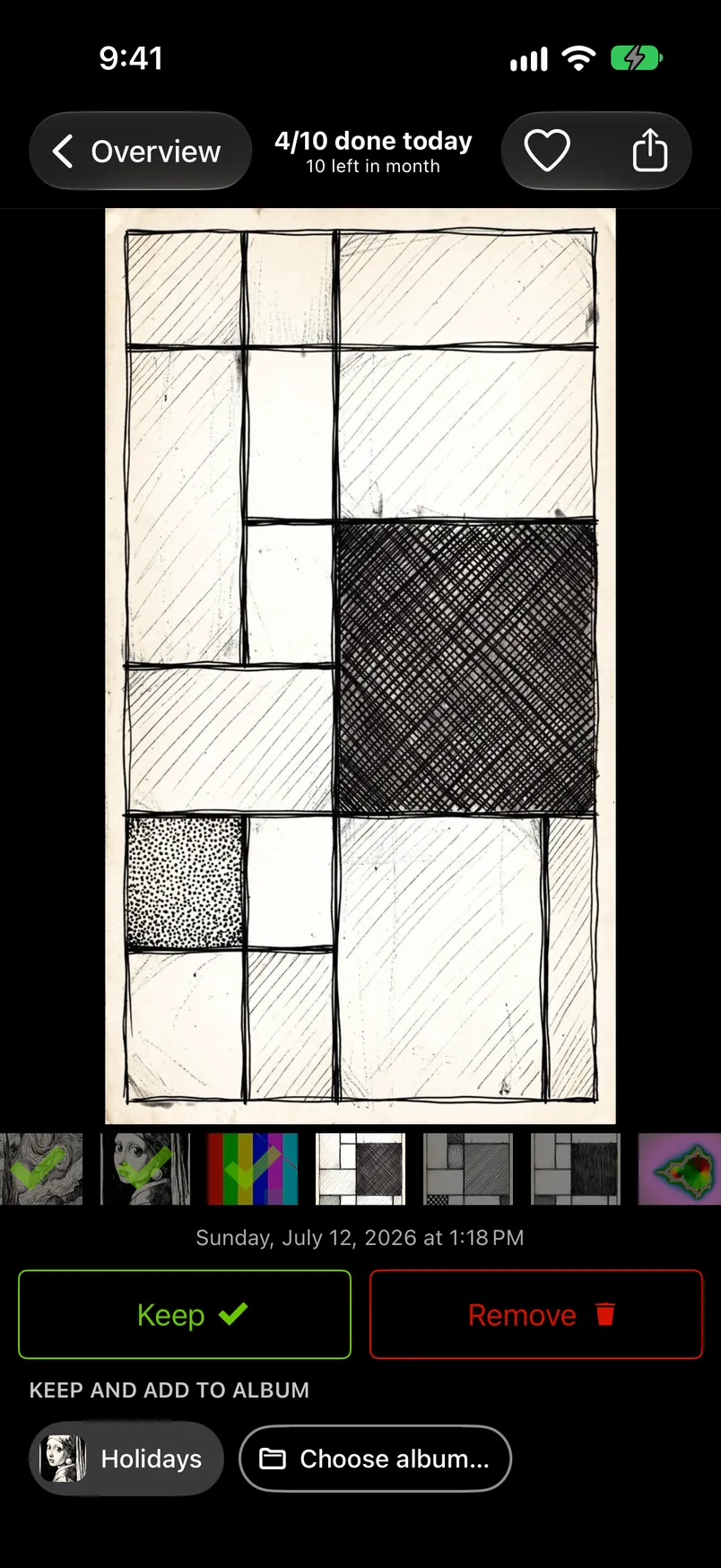
Filing always keeps: an album is somewhere you want the photo to be. And an album is a list, not a copy: the photo is in your library once, the album only points to it, and a photo deleted from the library is gone from its albums too. If the photo was marked Remove, a tap on a chip asks Keep and add to album? first. (Filing through the Choose album… sheet or with Quick Select keeps without asking, and so does the heart.)
A chip whose album already holds the current photo is lit: green, with a check. Albums the photo is already in but that you have not pinned appear as extra chips at the start of the row, only while that photo is on screen. Tapping a lit chip takes the photo out of that album: a red X with the album's name flashes, the sorter stays on the photo, and nothing else changes. A second tap files the photo again, which keeps it and moves on like any filing. Two one-time tips sit above the chips the first time they apply: "Tap a lit album chip again to take the photo out of that album." and "Touch and hold an album chip to unpin or rename it." To favorite a photo and file it, tap the heart first: it keeps the photo and stays on it, see Favorites and sharing.
Choose album#
Choose album… opens the sheet Add to album with your own albums from the Photos app, in the order you arranged them there. Shared albums and the collections Photos keeps by itself, such as Favorites or Screenshots, are not in it. Tap one or several, then Add to “Holidays” (or "Add to 2 albums") at the bottom; the photo is filed and kept. Done at the top right does the same as the button at the bottom. Afterwards the sorter moves on to the next photo. Recent at the top lists the last five albums you used; the search field finds an album by name. The pin next to each row pins it to the chip row (up to 8 pinned albums). The first time the sheet shows a pin, a one-time tip under it says what pinning does.
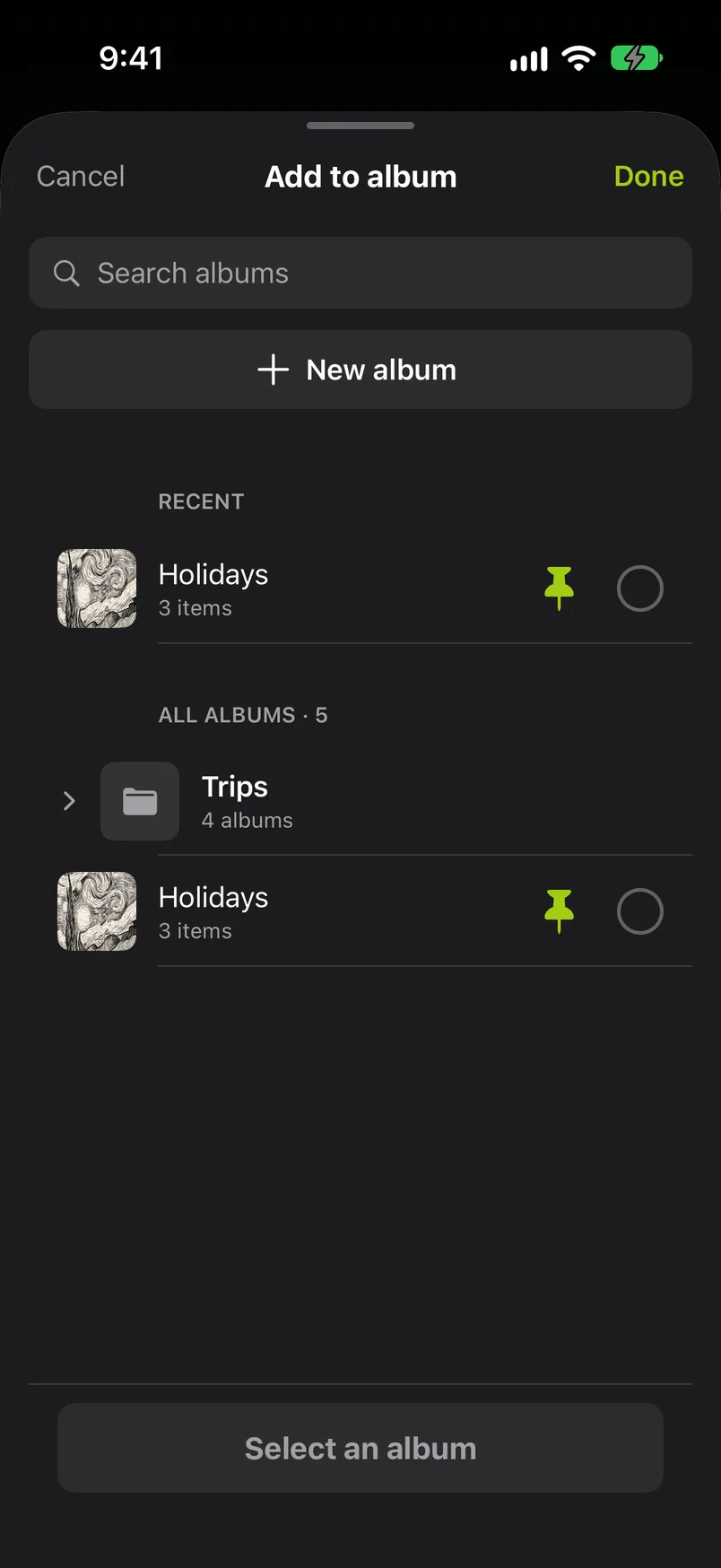
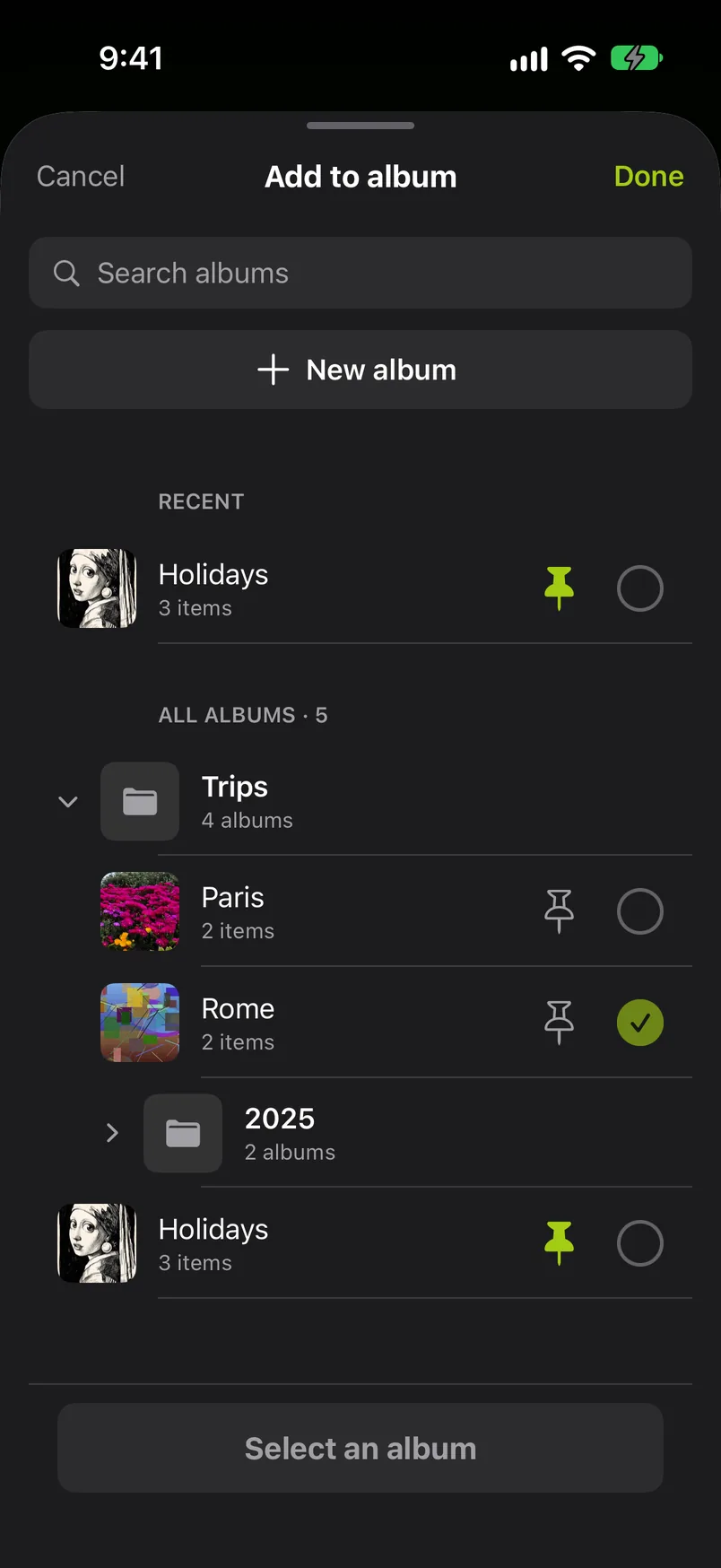
Folders you made in Photos show as collapsible rows; tap one to see the albums inside. Nothing is written to your library until you tap the button at the bottom; Cancel files nothing and creates no album. Pins you changed in the sheet stay.
New albums#
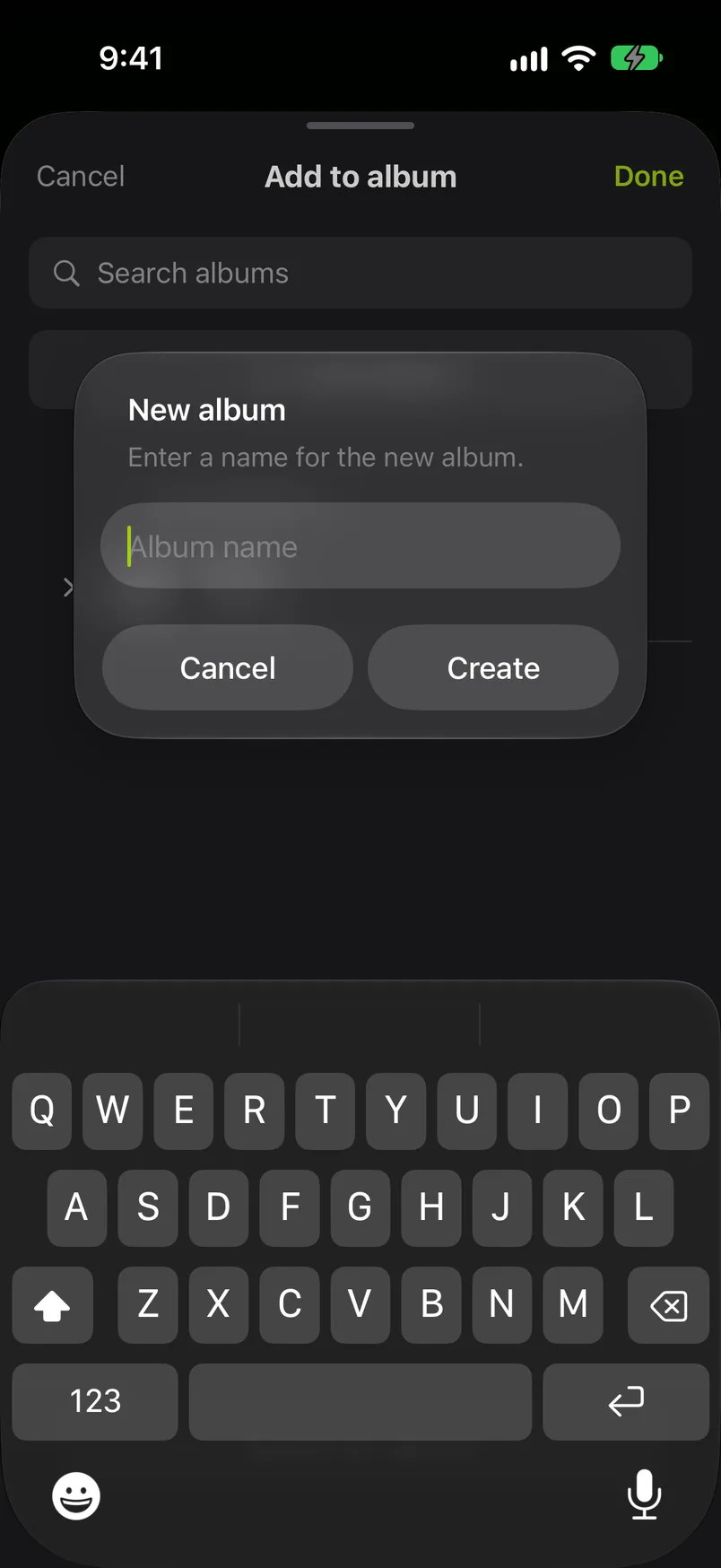
New album at the top of the sheet asks for a name and lists the new album, already selected, at the top. Confirm with the button at the bottom: the album is created in Photos with this photo in it and pinned to the chip row if there is room (up to 8 pins), so it is one tap away for the next photos. A name that already exists selects that album instead of creating a second one.
Albums from the month grid#
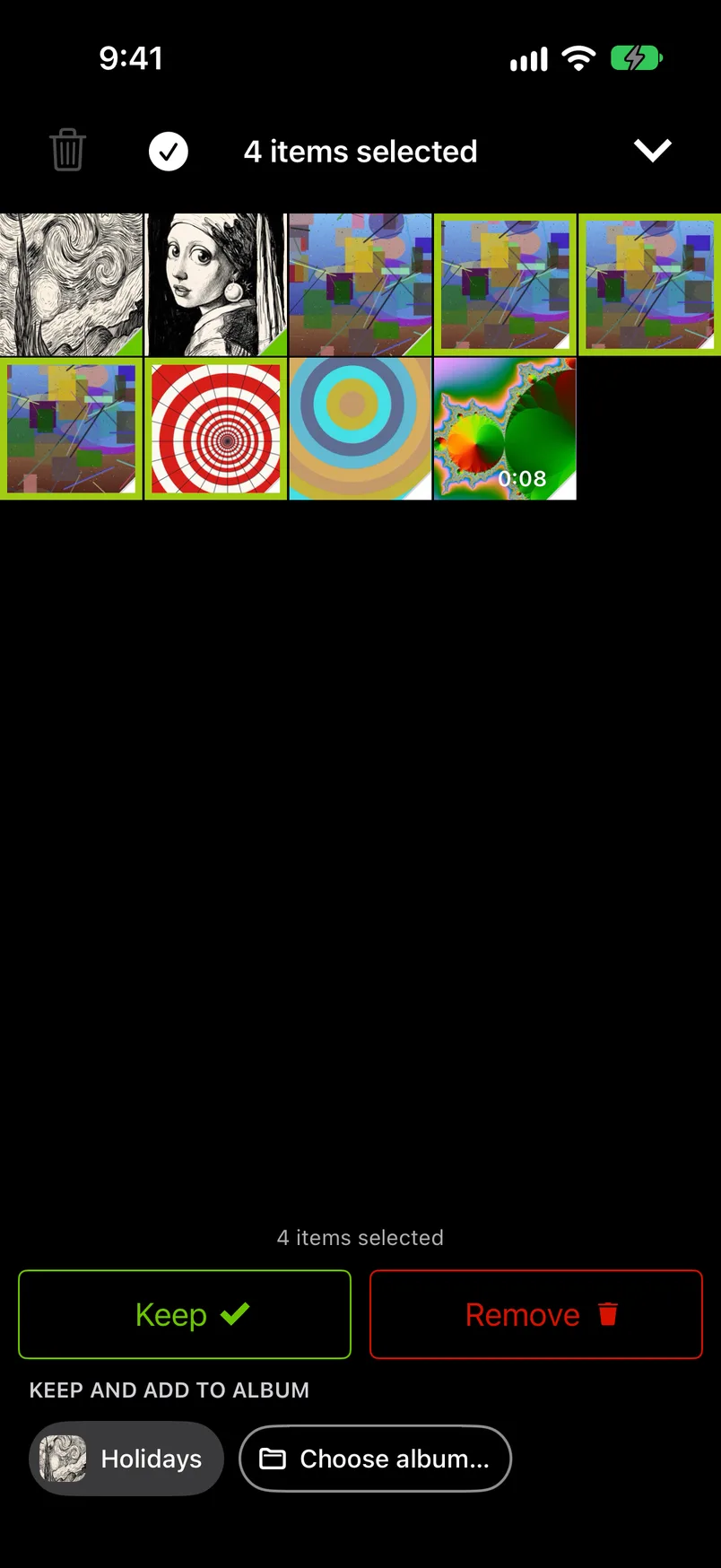
In Quick Select the sorter's chip row sits under Keep and Remove, below the grid: your pinned albums, then Choose album…. Tap a chip to file every selected photo into that album, or Choose album… to pick one or several albums in the sheet. Either way every selected photo is marked Keep, also those you had marked Remove, and without a question. No chip is lit here, as a selection has no album of its own, and a long press on a chip offers only Unpin and Rename…. Photos that are not on this device, or that come from a shared album, are kept but not filed. If none of the selected photos can be filed, GetSorted says so and marks nothing. With limited photo access the chip row explains, as in the sorter, that albums need access to the whole library. With your iPhone on its side, Quick Select shows no chip row.
Limits#
- Albums are the ones in the Photos app; GetSorted creates and fills them through iOS, so what you see in Photos is what you see here.
- GetSorted is not a full photo album organizer: it adds photos to albums, takes them out again, and creates and renames albums. It does not delete albums, reorder them or create folders.
- A photo that comes from a shared album cannot be added to your own albums: GetSorted does not file it and tells you so ("Items from a shared library or a shared album cannot be added to your personal albums.").
- With limited photo access the chip row explains that albums need access to the whole library.
- On the smallest iPhones (less than 667 points high) the chip row folds into one Sort to album… button that opens the sheet.