Clean up photos
How to Delete Screenshots on iPhone (and Keep the Ones You Need)
How to delete screenshots on iPhone: open Photos, tap Collections, scroll down to Media Types and tap Screenshots. Tap Select, then Select All (or slide your finger across them), tap the Trash button and confirm. The screenshots stay in Recently Deleted for 30 days. To delete all of them, the Photos app alone is enough.
This guide is written by the makers of GetSorted. The iPhone steps were checked on 15 November 2026 against Apple's iPhone User Guide for iOS 26 and iOS 27 and Apple's support articles.
How to delete all screenshots on iPhone at once#
The Photos app collects your screenshots in one place. To delete all of them you need no other app:
- Open Photos and tap Collections.
- Scroll down to Media Types and tap Screenshots.
- Tap Select, then Select All. To delete multiple screenshots but not all, tap them or slide your finger across them instead.
- Tap the Trash button and confirm.
Apple's guide names Select All for albums on iOS 26 and iOS 27 and, on iOS 27 only, for collections such as this one. If Select All does not show in the Screenshots collection on your iPhone, slide your finger across the thumbnails, as Apple's support article on deleting photos describes.
A screenshot deleted here is gone from the library and from every album. Screen recordings have their own entry in the same list, Screen Recordings.
Can't delete a screenshot because the Trash button is gray? Apple names one cause: pictures synced to the iPhone from a computer, which Photos cannot delete until you stop syncing them.
How do you keep the screenshots you still need?#
Select All has one flaw: the boarding pass, the receipt and the recipe go with the rest. In the Photos app you can mark only the ones to delete, but you judge by thumbnails; to read a screenshot you have to open it.
Looking at each screenshot before it goes is what GetSorted, our app, is made for:
- On the Overview tab, under Across all years, tap Screenshots. The list shows your screenshots, as iOS recognizes them, by month: every month that has some, newest first, with a count and a progress bar.
- Tap a month, then Start sorting. One screenshot fills the screen: swipe up to mark it Remove, down to mark it Keep.
- A ticket, a receipt, a recipe? Tap an album chip, or Choose album… to pick or create an album: the screenshot is kept and filed in one go.
- A whole row can go? Tap the checkmark on the month's grid (Quick Select), drag two fingers across the rows and tap Remove.
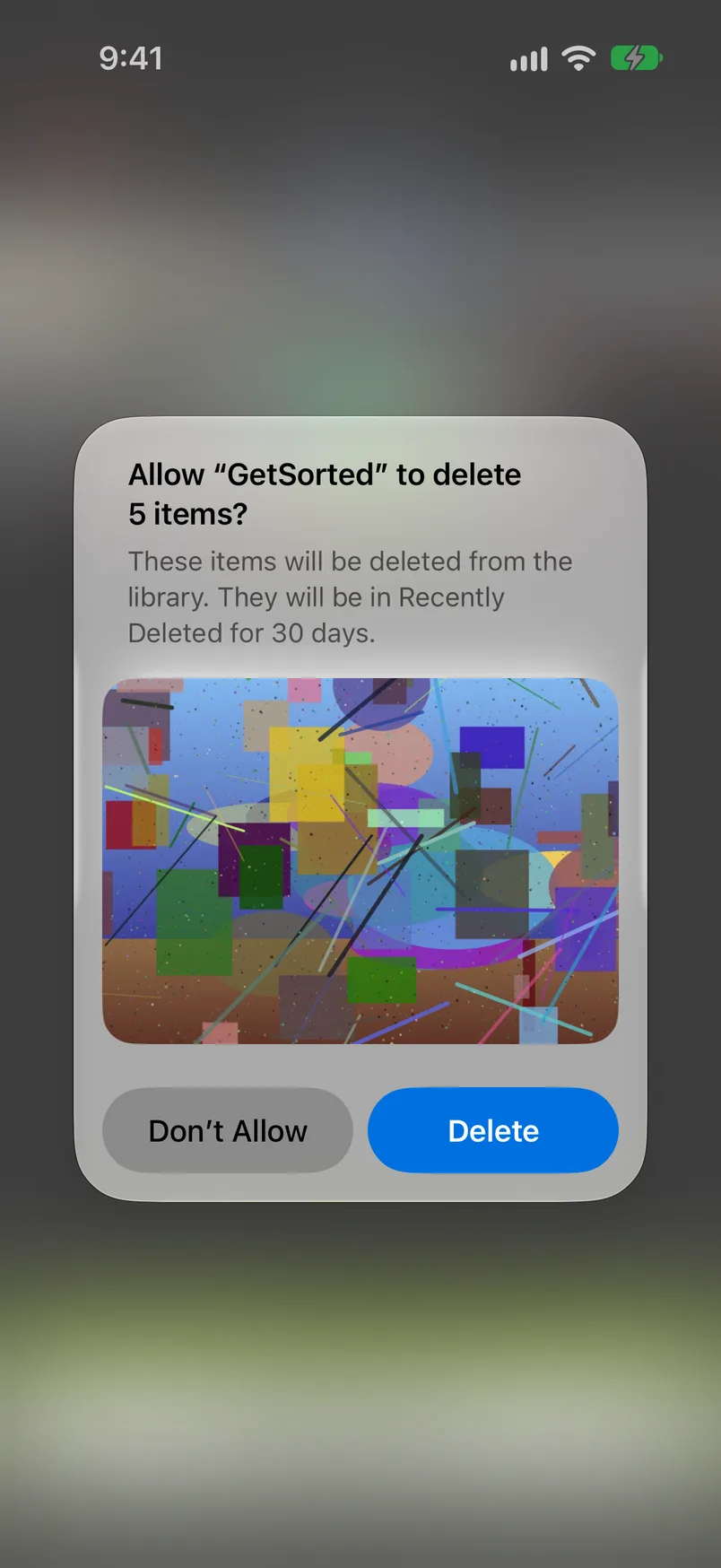
- Nothing is deleted while you sort. When every screenshot of the month has a decision, tap Complete month, or empty GetSorted's Trash at any time, and confirm the iOS dialog. Only then are the ones marked Remove deleted.
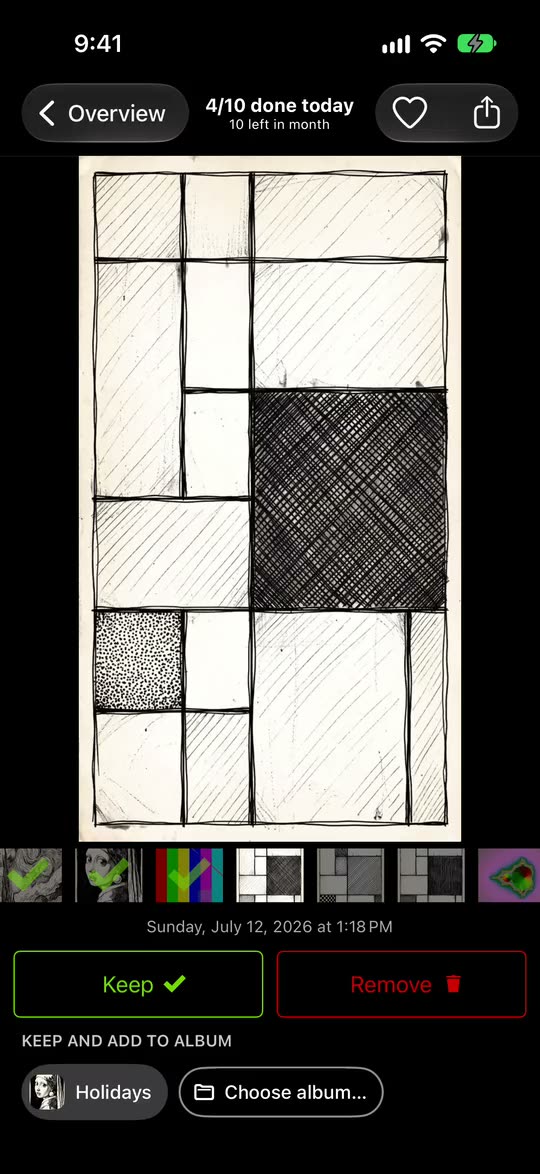
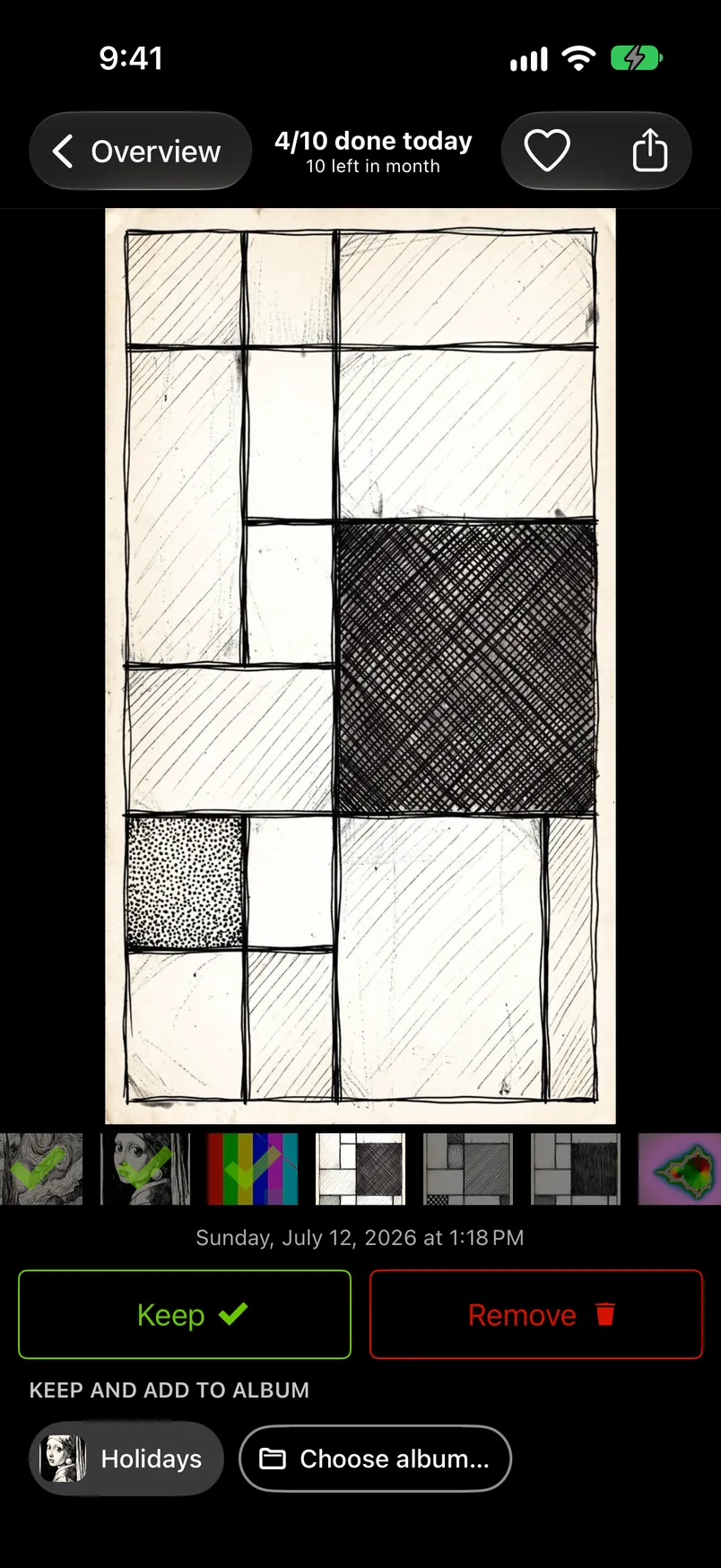
A decision made in this list is the same decision in the month: a screenshot sorted here is sorted in its calendar month too (the month lists).
What GetSorted does not do: it never chooses for you, and it has no button that deletes every screenshot at once; that is the Photos app's job. It goes by the same mark from iOS, so a screenshot iOS does not recognize is in its month, not in this list. And its Similar photos list leaves screenshots out.
What is free: the download, with no ads, and six calendar months of your library, of your choice, with no time limit (the app says free trial, but it is six months of photos, not six months of time). A month counts from the first decision in it, and a month opened from the Screenshots list is the same free month as in the Overview: it uses one of the six. So start with the months that hold the most screenshots; the list shows the count. Once six are started, the other months are locked in this list too and need GetSorted Plus, a subscription with a monthly and a yearly plan (the six free months).
GetSorted does not upload your photos or videos; they are shown and compared on your device. Usage statistics, crash reports and purchase status go to three services (Privacy).
Why is the space not free yet? Empty Recently Deleted#
However you delete them, screenshots move to Recently Deleted and stay there for 30 days. Until then you can get them back, and they still take up space on the iPhone. If you need the space now, open that album in Photos (Collections, Utilities, Recently Deleted, View Album) and tap Select: to remove only the screenshots, select them, then tap the More button and Delete; Delete All empties the whole album. Every step is in why storage is still full after deleting photos.
This is final, and Delete All takes everything in Recently Deleted, not only the screenshots. One exception comes from Apple: if your iCloud storage is over its limit, deleted pictures are removed at once and never reach Recently Deleted.
Can you delete the Screenshots album itself?#
No. Screenshots is not an album you made; it is one of the Media Types, collections that Photos fills by itself. Apple's guide describes deleting only for your own albums (touch and hold one, then Delete Album; its pictures stay in the library) and, for the Media Types list, only reordering (Edit, then drag).
What you can do is empty it, or keep screenshots out of sight: in the Library, tap the Sort and Filter button, then View Options, then Screenshots. That hides them from the Library and deletes nothing.
Why are some screenshots not in the Screenshots collection?#
The collection holds what iOS itself has marked as a screenshot. Apple's developer documentation defines that type as an image captured with the device's screenshot feature. A screenshot that someone sent you, or a picture you saved from a website, may arrive without the mark; then it sits in your library as an ordinary picture.
The opposite happens too: the Years and Months views of the Library leave screenshots out. Tap All to see them.
Can you auto delete screenshots on iPhone?#
Not with a setting: Apple's guide lists none that deletes screenshots after a while. What iOS removes by itself is what has spent 30 days in Recently Deleted. Apple's Shortcuts guide describes a Find Photos action with filters and automations that run at a time of day; a step that deletes what was found is described by guides on the web, not by Apple, and we have not checked it on iOS 26 or iOS 27. GetSorted deletes nothing automatically either.
How do you stop screenshots from piling up?#
Decide when you take one. On iOS 26 and iOS 27 a new screenshot opens as a full-screen preview by default; the switch is Full-Screen Previews under Settings, General, Screen Capture. The preview has a Share button, a button for saving, and the Close button, which cancels or deletes the screenshot. So a screenshot you only took to send can be shared and then closed without keeping it. With the switch off, screenshots are saved automatically (Apple's guide for iOS 27).
For the rest, a regular pass through the newest screenshots keeps the pile small. The other piles: how to clean up photos on iPhone.
Can I delete the Screenshots album on iPhone?
No. It is a Media Types collection that Photos fills by itself, not an album you created, and Apple's guide describes no way to remove it. You can delete the screenshots in it, or hide screenshots from the Library under View Options.
Why don't I see the Screenshots album in Photos?
It is not under Albums. Open Photos, tap Collections, scroll down to Media Types and tap Screenshots; if it is not among the entries shown, tap the Media Types heading for the whole list. It lists only what iOS has marked as a screenshot.
Will deleting screenshots from my iPhone also delete them from iCloud?
With iCloud Photos on, yes: the deletion applies in iCloud and on every device signed in to the same Apple Account. Without iCloud Photos it applies to this iPhone only. More: photos taking up space even with iCloud.
Can I auto delete screenshots on iPhone?
Apple's guide lists no setting for it; iOS only removes what has spent 30 days in Recently Deleted. A shortcut can find photos by filter, but Apple's Shortcuts guide describes no step that deletes them.
Can I recover deleted screenshots?
For 30 days, yes: in Photos, tap Collections, scroll down to Utilities, open Recently Deleted, tap Select, choose the screenshots, then tap the More button and Recover. After that, or once Recently Deleted has been emptied, they are gone. GetSorted cannot recover them either.