
Clean up photos
How to Delete Photos by Month on iPhone (or by Date or Year)
To delete photos by month on iPhone, open Photos, go to the month in the Library, tap Select, slide your finger across the month's photos and tap the Trash button. Apple's instructions name no button that selects a whole month. To look at each photo first, GetSorted lists your library by year and month and deletes only after you confirm.
This guide shows how to delete photos by month on iPhone (or by year, or before a certain date) with the built-in Photos app, where that gets tedious, and how to review a month photo by photo first. It is written by the makers of GetSorted; what it says about other apps comes from their App Store pages, read on 14 November 2026.
How to delete photos by month on iPhone in the Photos app#
Can you delete photos by month on iPhone? Yes, though not with one tap. Apple describes no button that selects a whole month: its iPhone User Guide for iOS 26 and iOS 27 and its support article on deleting photos (published 31 March 2026) only describe tapping photos or sliding a finger across them. Some websites say a month heading can be tapped; we could not confirm that for iOS 26 or iOS 27.
- Open Photos and select Library (on iOS 26, the tab at the bottom left).
- Tap the Sort and Filter button and sort by capture date: Captured on iOS 27, Sort by Date Captured on iOS 26. Sorted by the date added, one month's photos can end up scattered.
- Swipe down on the grid and tap Years or Months to go to the month. Then tap All: Years and Months are curated views that leave out similar photos and screenshots.
- Tap Select, tap the month's first photo and slide your finger across the rest.
- Tap the Trash button and confirm.
Two more ways to select photos by date on iPhone: tap the Search button and type a month or a year, such as March 2021 (for iOS 27, Apple's guide names a Select button in the results). For a recent day, tap Collections, then Recent Days, open the day and tap Show All.
Apple documents Select All for albums and, on iOS 27, for collections; if it shows in your search results, it marks the whole result. More on selecting many photos: the fastest way to delete photos on iPhone. The other built-in passes are in the full checklist.
How do you delete a whole year, or everything before a certain date?#
On the iPhone the method is the same, only longer: go to the year with Years, or to the date under All, and select from there. The filters Apple lists for Sort and Filter go by kind (favorites, videos, screenshots); a date range is not among them.
A Mac on the same iCloud Photos library makes it easier:
- In Photos on the Mac, click Library, then All Photos. Click the first photo of the range and Shift-click the last: everything in between is selected.
- Or choose File > New Smart Album, pick Date as the category, set the year or the cut-off date, open the album and press Command-A.
- Press the Delete key and click Delete.
With iCloud Photos, what you delete on the Mac is deleted on the iPhone too; without it, the iPhone keeps its photos.
What is the catch with deleting a whole month at once?#
- The good photos go with the bad. Sliding takes everything under your finger, and you judge by thumbnails.
- Nothing marks a month as done. The library has no checkmark per month and no progress, so after a break you guess where you stopped.
- It applies everywhere. With iCloud Photos, a photo deleted on the iPhone is deleted on every device signed in to the same Apple Account.
How do you go through old photos one month at a time?#
A month is a good unit for this job: a piece of memory you recognize, small enough to finish, and visibly done. 35 of the 170 reviewers who gave GetSorted four or five stars in a written App Store review (read on 14 November 2026) describe just that: a huge job cut into manageable pieces.
GetSorted, our app, lays the library out by year and month, and a month is what you review and complete:
- Open the Overview tab. Under By year it lists every year that has photos or videos, newest first, with its number of items and a progress bar. Tap a year to see its months.
- Tap a month to open its grid, then Start sorting. The sorter shows the month's photos one at a time, oldest first.
- Swipe up to mark a photo Remove, down to mark it Keep. A swipe deletes nothing: photos marked Remove wait in GetSorted's Trash, and any decision can be changed.
- When the month is fully decided and something is marked Remove, the grid's button reads Complete month. Tap it and confirm the iOS dialog: those photos move to Recently Deleted for 30 days.
- The button then reads Next: and leads to the next unfinished month.
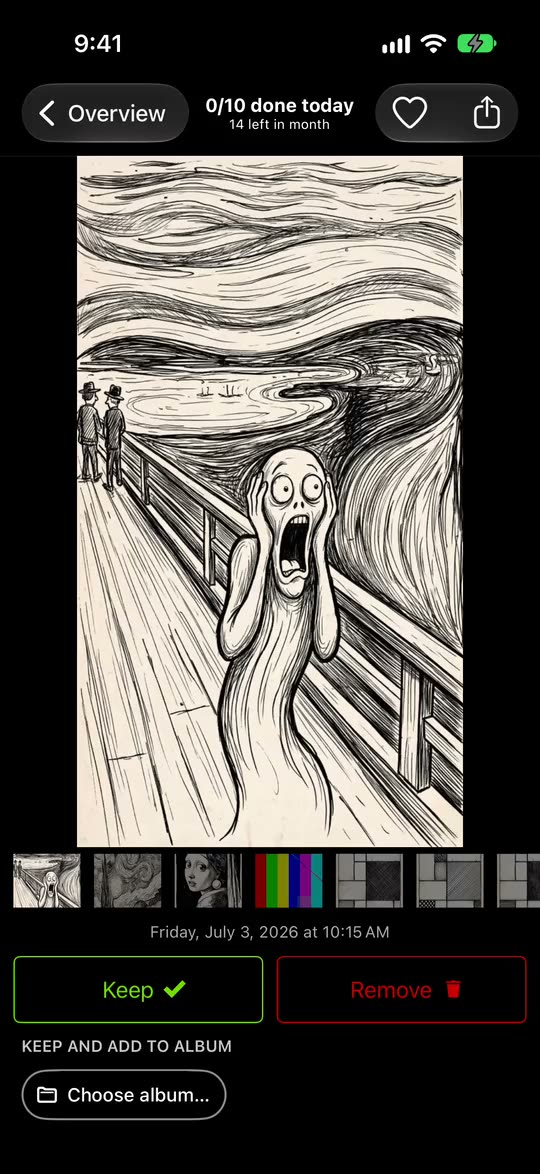
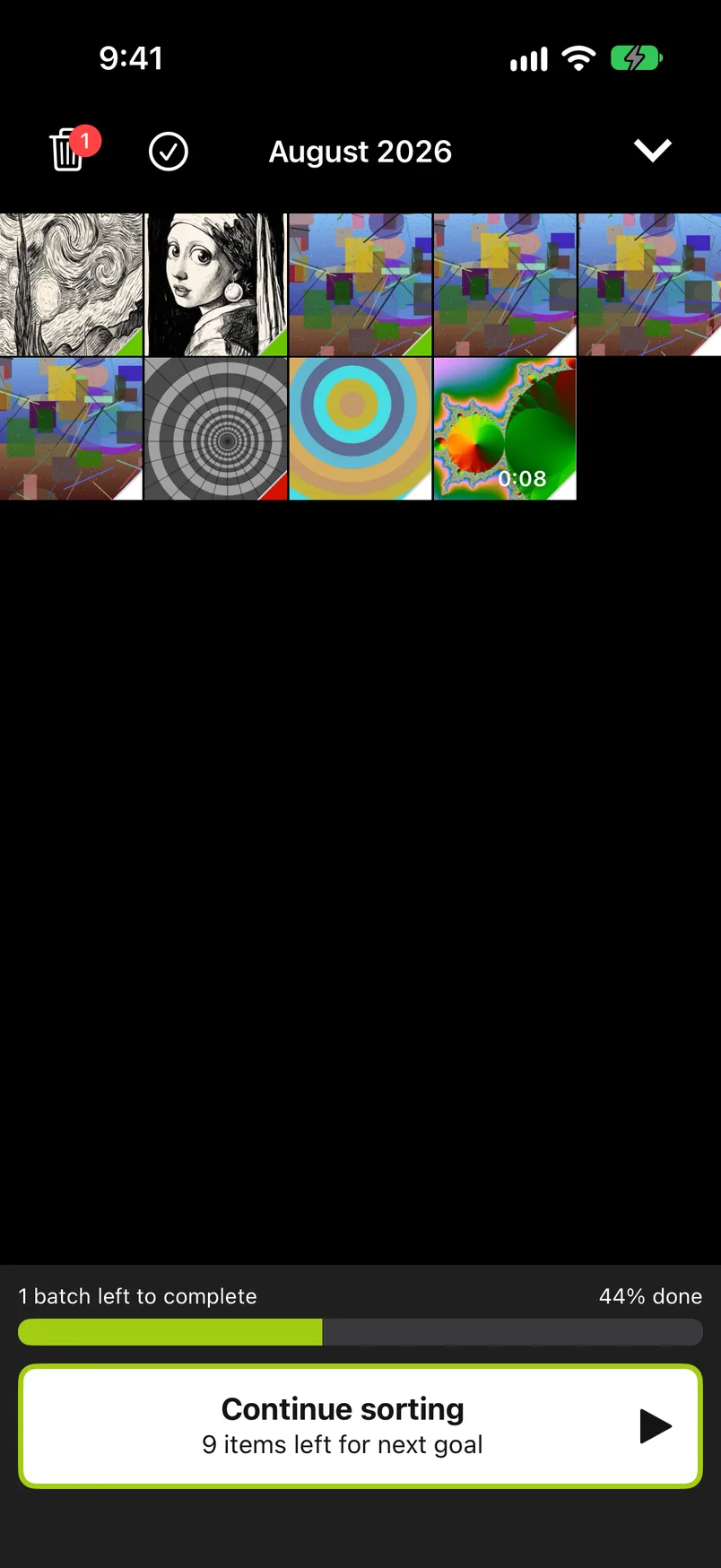

If a whole month can go, skip the swiping: tap the checkmark on the grid (Quick Select), drag two fingers down over the rows, tap Remove, then Complete month. There is no button that deletes a whole year or everything before a date, and GetSorted never chooses for you. Started months wait on the Clean up tab.
What is free. GetSorted is free to download and shows no ads. Free means six calendar months of your library, of your choice, each from start to finish, with no time limit: six months of photos, not six months of time. A month counts from the first decision in it. Ten years of photos are about 120 months, so the free six are a start; the rest needs GetSorted Plus, a subscription with a monthly and a yearly plan (details).
Is there an app to delete photos by month?#
Yes, several. GetSorted is ours. Swipewipe's App Store page also describes going through the library month by month (swipe right to keep, left to delete), and the app holds 4.7 stars from 102,101 ratings (US App Store, 14 November 2026). Our comparison of photo cleaner apps covers more.
Where should you start: the oldest year or the fullest month?#
- The oldest year, to deal with old photos for good: GetSorted's Overview lists the years newest first, so the oldest are at the bottom.
- The fullest month, if you are using the six free months: each month row shows its number of items, and a month counts as one however many photos it holds.
- Videos first, if storage is the reason: the Overview also lists your videos by month, and videos are usually the biggest files.
A daily goal of 10, 25, 50, 75 or 100 photos keeps it moving; the app's own estimate is 5 to 6 minutes a day for 50 photos, about 10 for 75.
What happens to the photos you delete?#
However you delete them, the photos go to Recently Deleted in the Photos app for 30 days. To get one back, open Photos, tap Collections, scroll down to Utilities and open Recently Deleted.
- The storage is not free yet. Deleted photos keep taking space until the 30 days are over or you empty Recently Deleted: see why storage is still full after deleting photos.
- One exception comes from Apple. If your iCloud storage is over its limit, deleted photos are removed at once and cannot be recovered.
How do I delete photos by month on iPhone?
Open Photos, select Library, swipe down and tap Months to go to the month, then tap All. Tap Select, slide your finger across the month's photos and tap the Trash button. They stay in Recently Deleted for 30 days.
Can I delete all photos from one year on iPhone?
Yes. Go to the year with Years, or search for it, tap Select and slide across its photos. A Mac on the same iCloud Photos library makes it easier: a Smart Album with a date condition collects the year, and Command-A selects it.
How do I delete all photos before a certain date?
Apple lists no date-range filter for Photos on iPhone: go to the date in the Library, tap Select and slide back through the older photos. On a Mac with the same iCloud Photos library, click the first photo of the range, Shift-click the last and press Delete.
Is there an app to delete photos by month?
Yes. GetSorted works through your library one month at a time (six months of photos are free, then it takes a subscription), and Swipewipe's App Store page describes a month-by-month flow too (US App Store, 14 November 2026).
What is the best way to go through old photos?
One month at a time, with a daily number you can keep up: a month is small enough to finish. Our plan for thousands of photos works out how long a whole library takes.