
Clean up photos
The Fastest Way to Delete Photos on iPhone: 5 Methods Compared
The fastest way to delete photos on iPhone depends on whether you still need to look at them. For a known batch, tap Select in the Photos app and slide your finger across the photos, or tap Select All in an album. To decide photo by photo, swipe through one month at a time in an app such as GetSorted.
Tapping is not the slow part of deleting photos. Deciding is. So the quick way depends on the job. This page compares five methods by the steps each takes; we have not timed them, so it promises no pace. The built-in steps were checked against Apple's instructions for iOS 26 and iOS 27 on 15 November 2026. Method five is GetSorted, the app we make.
What is the fastest way to delete photos on iPhone?#
In the Photos app every deletion ends the same way: one tap on the Trash button and one confirmation, for five photos or five hundred. What differs is the work before that tap.
In short
- You know which photos must go (a burst, a trip, a run of screenshots): tap Select in the Photos app and slide your finger across them. No extra app is needed.
- A whole album must go (on iOS 27, also a collection such as Screenshots): open it, tap Select, then Select All.
- Everything must go: with iCloud Photos on, a Mac or iCloud.com selects all photos at once. Before you sell the phone, do not delete by hand; erase it instead.
- You have to decide photo by photo: here a review app helps. Deleting a photo you are looking at takes two taps in the Photos app, Trash and then Delete Photo. In GetSorted one swipe decides, and one confirmation deletes a month's removals.
For one known batch, and for deleting everything, the Photos app alone is the fastest way: one confirmation covers the whole selection.
Five methods compared: which one fits which job?#
| Method | What it takes | Fits when | You see each photo |
|---|---|---|---|
| Slide to select in Photos | Select, slide, Trash, one confirmation | You recognize the batch from its thumbnails | Thumbnails |
| Select All in an album (iOS 27: or a collection) | Select, Select All, Trash, one confirmation | Everything in it goes, all screenshots for example | No |
| Photos on a Mac | Command-A, the Delete key, one confirmation | The batch is very large and iCloud Photos is on | Thumbnails |
| iCloud.com | Select All, Delete, one confirmation | iCloud Photos is on and no Mac is at hand | Thumbnails |
| Swipe review in GetSorted | One swipe per photo, one confirmation per month | You have to decide photo by photo | Yes, full screen |
How do you delete many photos at once in the Photos app?#
Slide to select is Apple's documented way to delete multiple photos:
- Open Photos and stay in the Library, or open an album or another collection.
- Tap Select.
- Tap photos, or slide your finger across several to select them in one movement.
- Tap the Trash button and confirm.
Apple's article stops there. A reply in Apple's support forum described in 2025, for iOS 18, what makes it quick: run your finger up the page without lifting it, and when it reaches the top the Library scrolls on by itself and keeps selecting.
Select All is named in Apple's iPhone guide for albums (iOS 26 and iOS 27) and, on iOS 27, for any collection:
- Tap Collections and open an album, or scroll down to Media Types and open a collection such as Screenshots.
- Tap Select, then Select All.
- Tap the Trash button and confirm.
For the Library itself Apple's steps name no Select All, and Apple describes no single switch that deletes all photos. To narrow a batch first, search for a month, a year, a place or a media type. See also how to delete photos by month and how to delete screenshots.
Duplicates need no selecting: under Collections, Utilities, Duplicates, Merge keeps one photo of each set and moves the others to Recently Deleted. For those steps, and for photos that merely look alike, see similar and duplicate photos.
How do you delete thousands of photos?#
Apple's articles say nothing about very large selections. In Apple's support forum, a user reported in 2025 that deleting thousands was slow and that no more than 1,000 photos went at a time; a reply met the same limit on iCloud.com. Advice from another thread that year: delete in groups of under a thousand and empty Recently Deleted after each.
Two routes can select everything at once. Both need iCloud Photos, which carries the deletion to the iPhone:
- A Mac. In Photos on the Mac, Command-A selects all photos in view, and the Delete key deletes them after one confirmation. Do it in the Library, not in an album.
- iCloud.com. Sign in at icloud.com/photos, tap Select and then Select All (Command-A on a Mac, Control-A on Windows), and choose Delete.
Before selling the phone, do not delete photos by hand: Apple warns that while you are signed in to iCloud, this removes them from iCloud and all your devices. Back up, sign out, then erase: Settings, General, Transfer or Reset iPhone, Erase All Content and Settings. Erasing leaves your iCloud content alone.
If the thousands need decisions, see how to go through thousands of photos.
Is there an app to delete photos faster?#
Yes, for one job: deciding. For a batch you already know you need no app, and GetSorted cannot select thousands of photos across your library and delete them unseen. What it shortens is the review: it cuts the library into months and each decision down to one gesture.
- Open a month on the Overview tab and tap Start sorting. One photo fills the screen.
- Swipe up to mark it Remove, swipe down to mark it Keep. The next photo comes by itself.
- For a row of near-identical shots, use Quick Select on the month's grid: tap the checkmark, drag two fingers across the row, tap Remove.
- When every photo of the month has a decision, tap Complete month. iOS asks once, then the photos you marked Remove move to Recently Deleted.

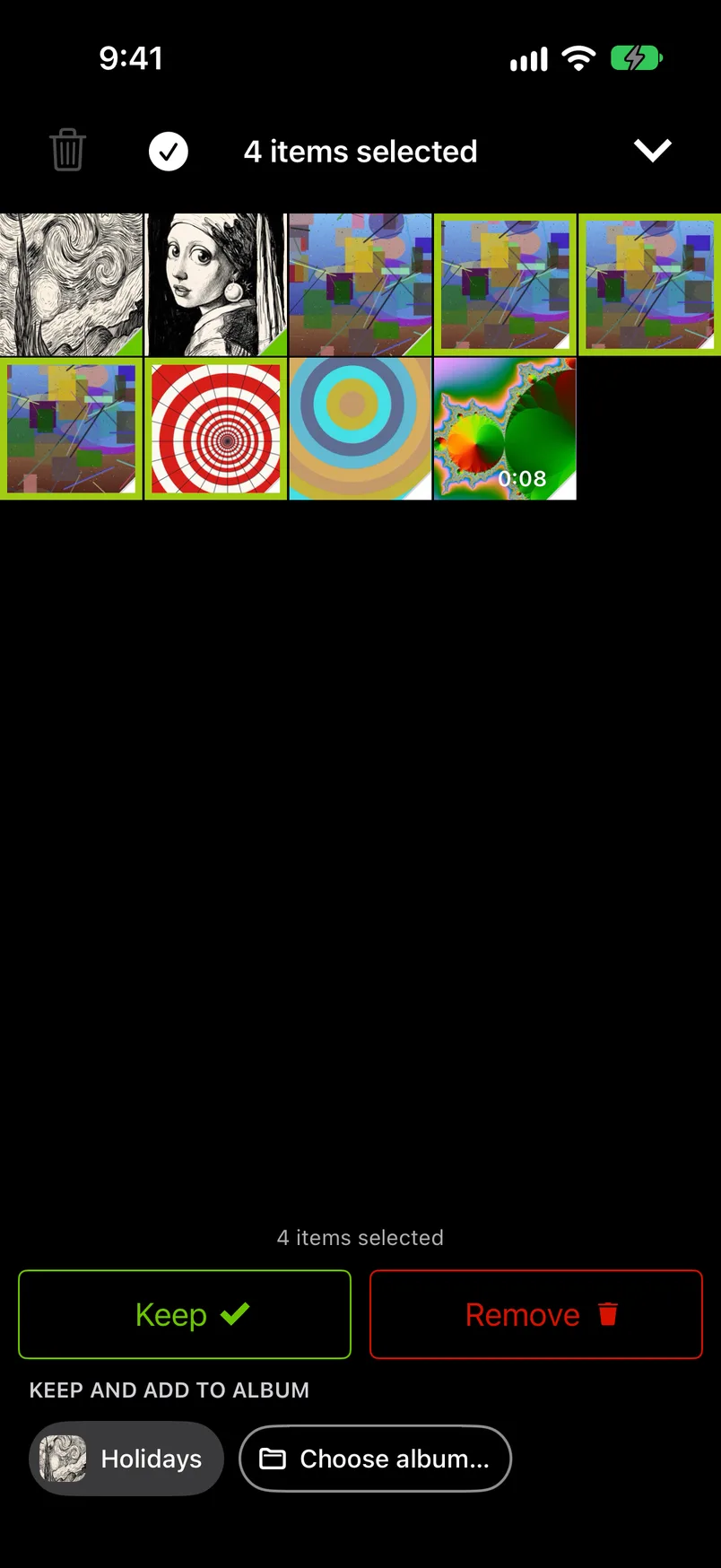
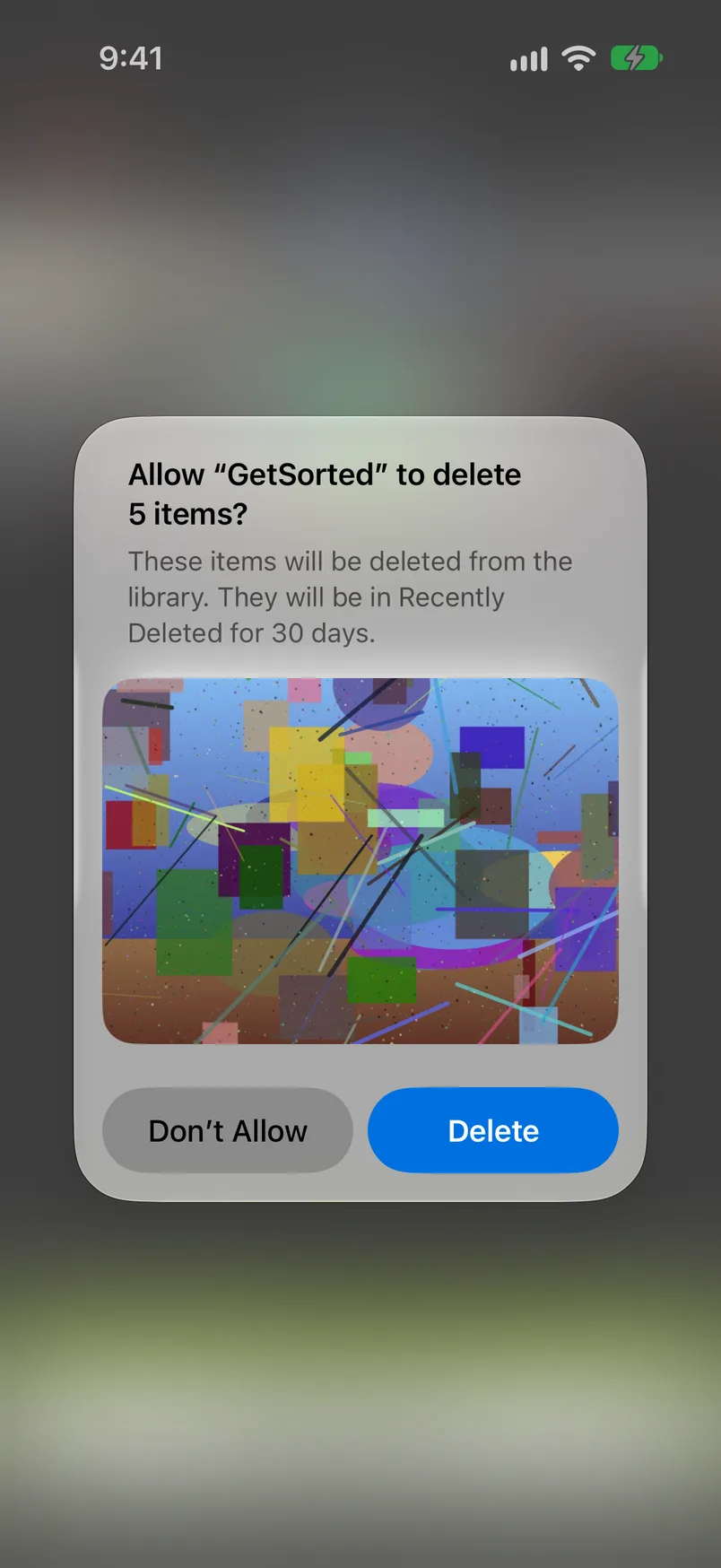
A swipe never deletes; it only marks. A wrong swipe costs nothing: swipe the other way, or tap the photo in the Trash, where everything marked Remove waits. The Trash can also delete all removals at once, after one confirmation.
What is free: six calendar months of your library, of your choice, with no time limit (six months of photos, not six months of time). A month counts from the first decision in it. After that a subscription, GetSorted Plus, unlocks every month; see what is free. The app shows no ads. It does not upload your photos or videos; it does send usage statistics, crash reports and purchase status to three services, as the privacy page explains.
To compare such apps, see swipe to delete photos apps; for a daily routine, how to clean up your camera roll; for every built-in pass, the cleanup checklist.
What happens after you delete, and when is the space free?#
Deleted photos go to the Recently Deleted album for 30 days and keep taking their space until they leave it. To clear photo storage quickly, empty that album: in Photos, tap Collections, scroll down to Utilities, open Recently Deleted and, once it is unlocked, tap Select, the More button and Delete All. The steps one by one, and what to check if storage stays full: why iPhone storage is still full after deleting photos.
What you delete there is gone for good. One exception to the 30 days comes from Apple: if your iCloud storage is over its limit, deleted photos are removed at once and cannot be recovered.
How do I delete multiple photos on iPhone without selecting them one by one?
The easiest way is to tap Select and slide your finger across the photos instead of tapping each one. Inside an album (on iOS 27 also in a collection such as Screenshots), Select All marks everything at once.
Can I delete all photos on my iPhone at once?
On the iPhone, Apple's steps name no button that selects the whole Library. With iCloud Photos on, a Mac (Command-A in Photos) or iCloud.com (Select All) does it; expect several batches with thousands of photos. Before selling the phone, erase it instead.
How do I go through photos quickly on iPhone?
Look at each photo full screen and decide with one gesture. In GetSorted you swipe up to remove and down to keep, one month at a time, and nothing is deleted until you confirm. Six calendar months of your library are free, then it needs a subscription.
Can I get a photo back if I delete it by mistake?
Yes, for 30 days: open Recently Deleted in the Photos app, select the photo and choose Recover. That fails once Recently Deleted is emptied, or if your iCloud storage was over its limit.